CRM for Service Businesses
A CRM for service businesses keeps every customer, quote, visit, crew member and payment in one place, from the first call to the paid invoice. BrickByClick's CRM adds a pipeline, a calendar, a phone app for the crew, estimates and invoices that customers pay online, and a business report every month, all under one login. It starts at $99 a month on Starter; the AI receptionist and texting come with Front Office ($399) and up.
At a glance
- What you get: contacts, a pipeline, a calendar, a Job tracker, a crew phone app, estimates, invoices, card and bank payments, and reports.
- Who it is for: local service businesses in 30+ industries, from a one-person shop to a team of up to 25 logins.
- What it costs: Starter is $99 a month and you set it up yourself. Front Office is $399, Growth $599 and Total Growth $999, set up by our team. Month to month.
- How fast: Starter at crm.brickbyclick.ai/start. On the full-service plans we do the setup with you, in about two weeks.
- What it needs: nothing to install. It runs in any browser and sits on your phone's home screen. Texting turns on once your business number is registered with the phone carriers.
- Where to look first: the live demo, a real CRM with sample data and no login.
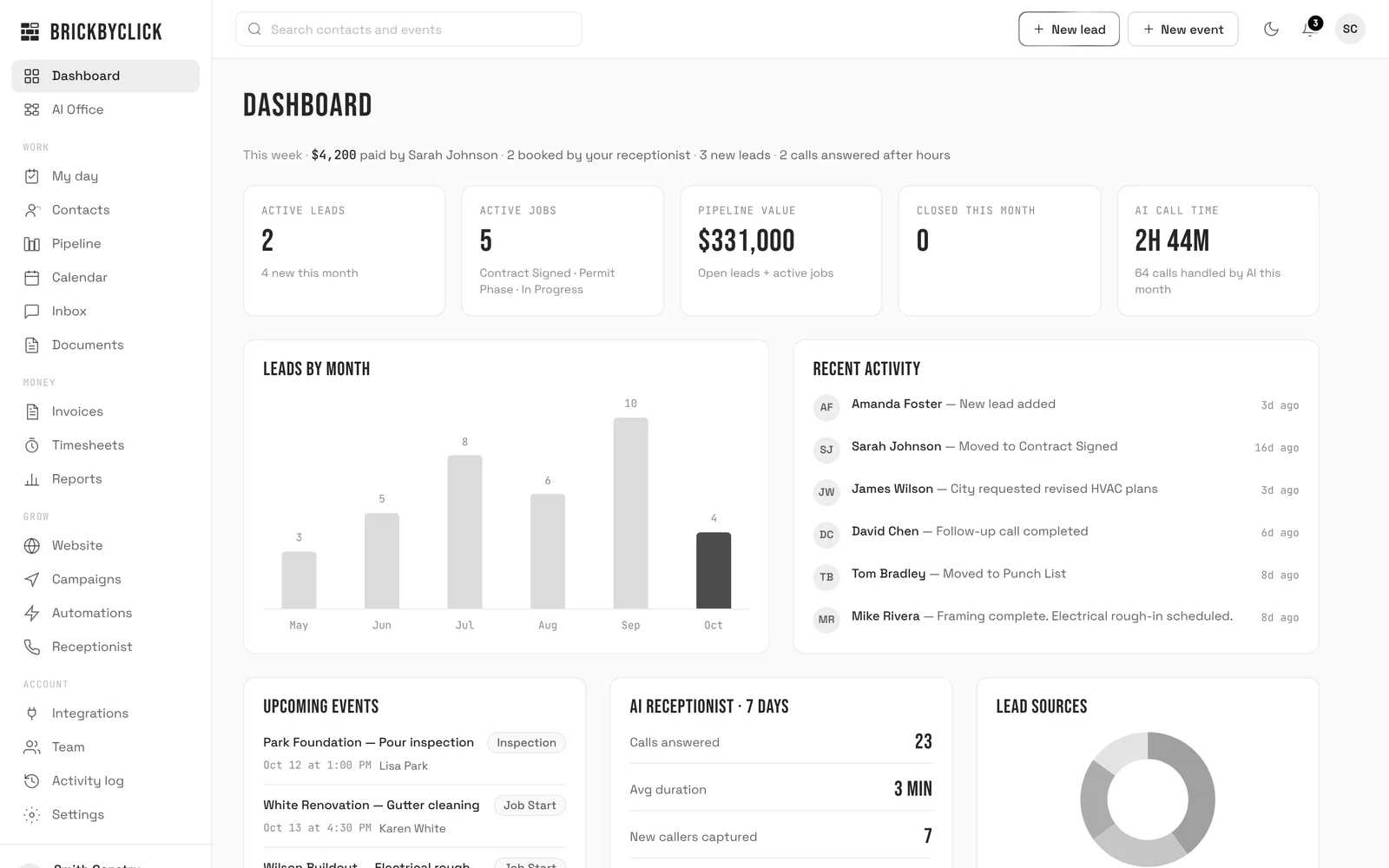
The real CRM with a sample business loaded. No login, nothing to install.
Click through the pipeline, the calendar, My day and the invoices. Prefer more room? Open the full demo (opens in a new tab) in its own tab.
What is a CRM for service businesses?
The short version
CRM stands for customer relationship management. For a service business it means one system that remembers every customer, what you quoted them, when you are going out, what it cost, and whether they paid.
A general CRM stops at the sales conversation. A CRM built for service work follows the job: the call, the quote, the visit, the crew on site, the invoice and the follow-up.
What it replaces
Most owners start with phone contacts, a calendar, a notebook, a spreadsheet and an invoice app. A service CRM puts them in one login so nothing is typed twice.
- The customer list and every note, call summary, file and invoice on each customer.
- The board of leads and jobs, by stage.
- The calendar, with the crew's visits on it.
- The crew's day on their phones: work order, time clock and payment.
- Estimates, invoices and the money coming in.
- The numbers: what each job made, and how the month went.
What counts as a service business
Plumbing, HVAC, electrical, roofing, landscaping, cleaning, general contracting and other work done at the customer's place or by appointment. BrickByClick is set up for 30+ industries, so the pipeline stages, services and labels start from your trade and the owner can rename them.
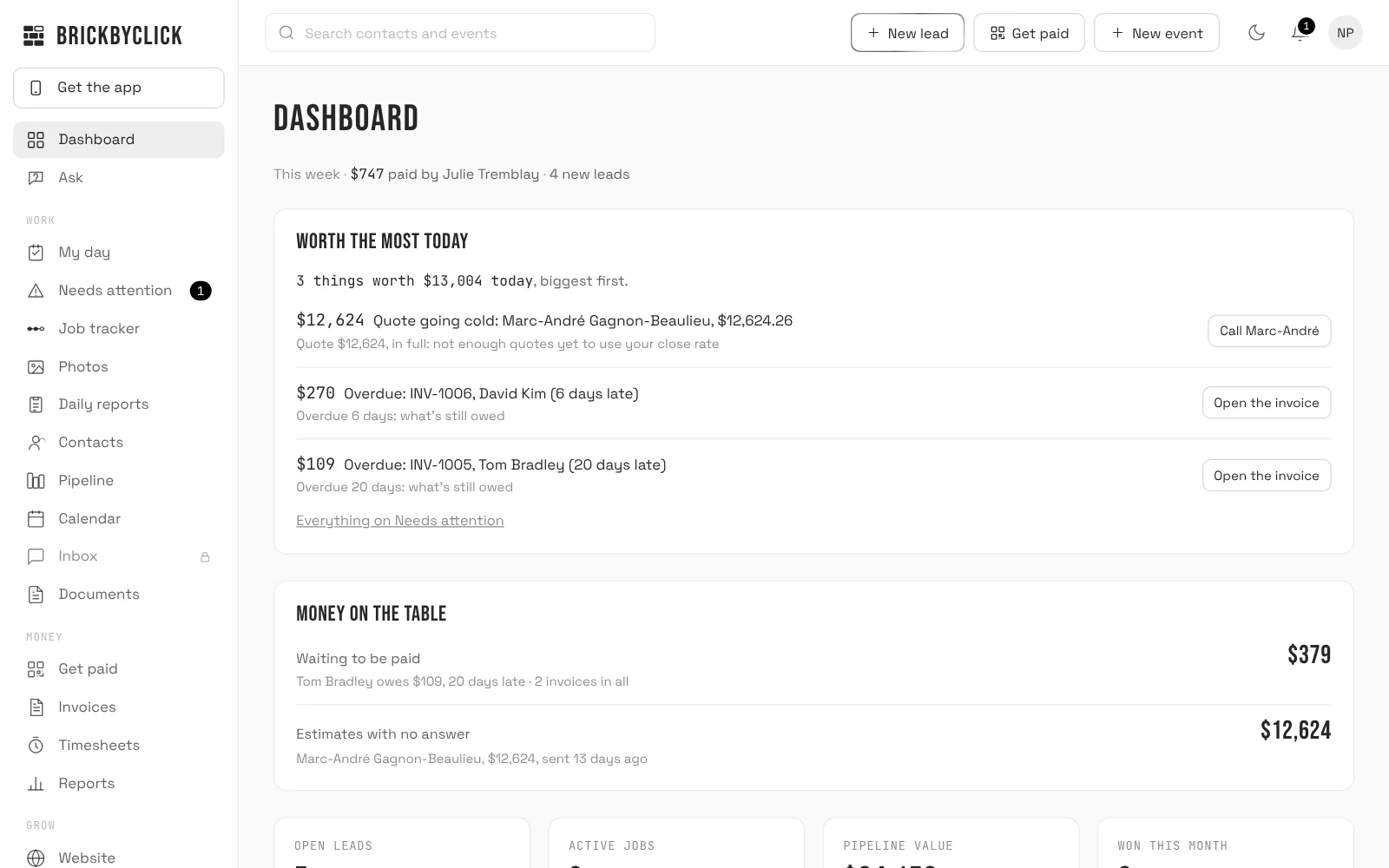
Why do service businesses need a CRM?
Leads go cold in the gaps
A missed call, a quote nobody followed up and a customer who never got a reply cost real jobs. They happen when the follow-up lives in someone's head.
A CRM turns the follow-up into a list. Quotes that have gone quiet are flagged, and promises made on calls are tracked until they are done.
The work happens away from the desk
Your crew is in a basement or on a roof, not in front of a computer. If the work order, the photos and the payment live only at the office, the office retypes everything at night.
A phone app for the crew puts the day, the checklist and the invoice in their hands, and what they do lands back in the office automatically. More on this in the crew app guide.
The money question comes last, and it matters most
Most owners can tell you what they billed. Fewer can tell you what a job made after materials, hours and card fees.
When receipts, clocked hours and payments land on each job as they happen, you see the profit before the job is finished. See job costing.
How does a CRM for a service business work day to day?
Here is one job's path through BrickByClick. Each step hands off to the next, so there is nothing to retype.
1. A lead arrives
Leads come in from your website form, your online booking page, a connected app, a contact you add by hand, or an imported list. On Front Office and up, calls to your AI receptionist are saved too, with a summary, a recording and a transcript.
A new caller becomes a contact in the first pipeline stage, and the owner gets an alert.
2. You quote the job
Write an estimate from the contact and send it. Sending moves a new lead into your quote stage by itself. The customer opens it online and accepts, with a deposit if you ask for one. See estimates and invoices.
Quote follow-up emails go out 2, 5 and 10 days later if you switch them on, and stop when the customer replies, calls, or the job moves.
3. You book the visit
Put the visit on the calendar, assign the crew and, if it repeats, set how often. Customers can also pick an open time themselves on your booking page. The calendar warns you when someone is already booked then.
4. The crew does the work
On My day, the tech sees the address, notes and checklist, clocks in, ticks items, adds parts and photos, and gets the customer's signature. The tracker moves forward as visits are marked done.
5. The customer pays
The invoice fills in from the parts used. The customer scans a QR code and pays by card or bank on their own phone. A paid final invoice moves the job to won.
6. You follow up and learn
Review request emails and a yearly reminder email go out if you switch them on. On the 1st of the month, you get a business report with the numbers.
What does the CRM include?
Here is each part at a glance, with a link to the deeper page where there is one.
Contacts and the customer file
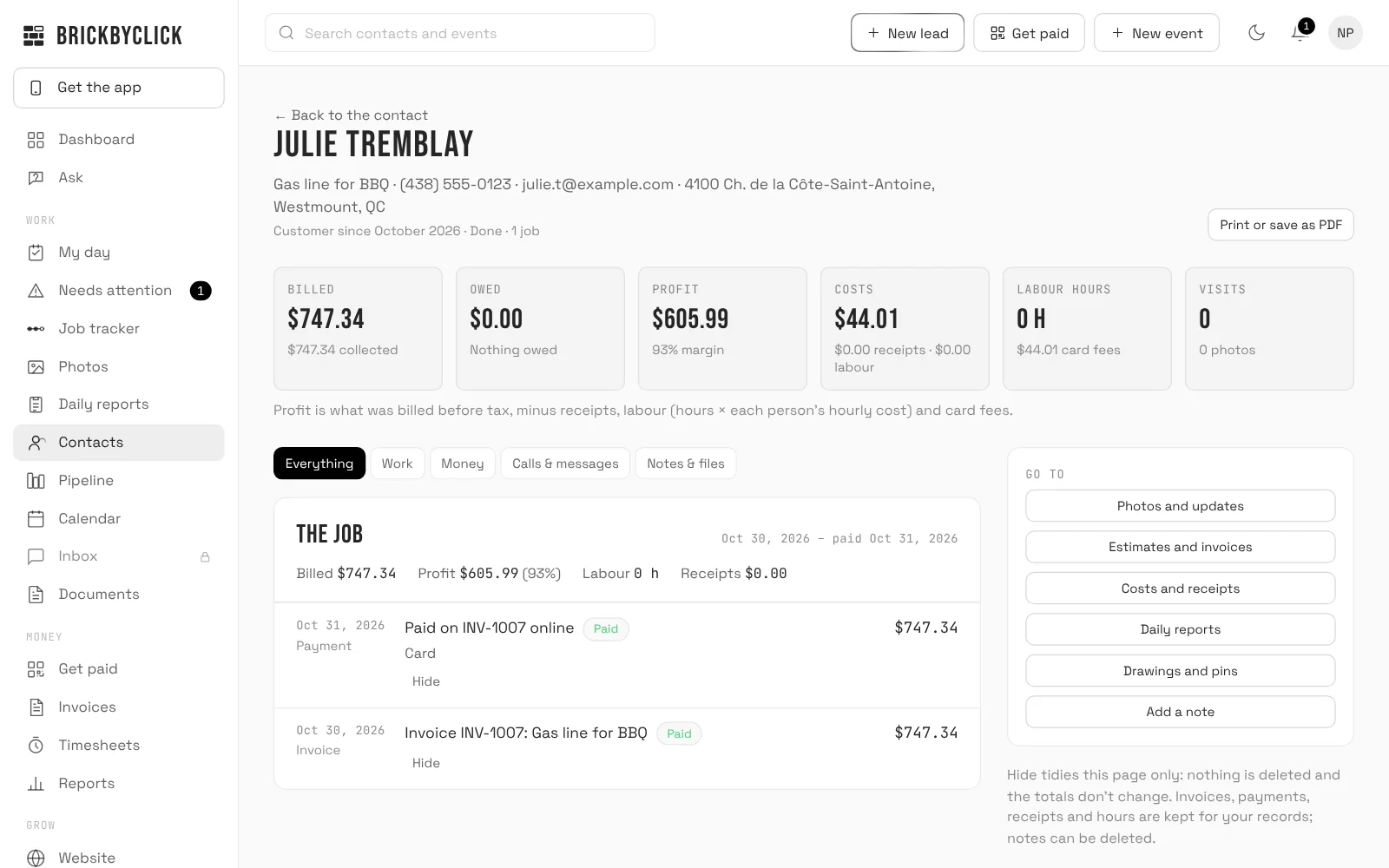
Contacts is every customer and lead in one list. You can search by name, phone or service, filter by stage and sort the columns. Click a name and a panel opens with details, notes, documents, photos, estimates and invoices, job costs and drawings.
The customer file shows everything done for one customer, split into jobs. Each job shows what it billed, what it cost and what it made. Only the owner and office can open it.
Pipeline
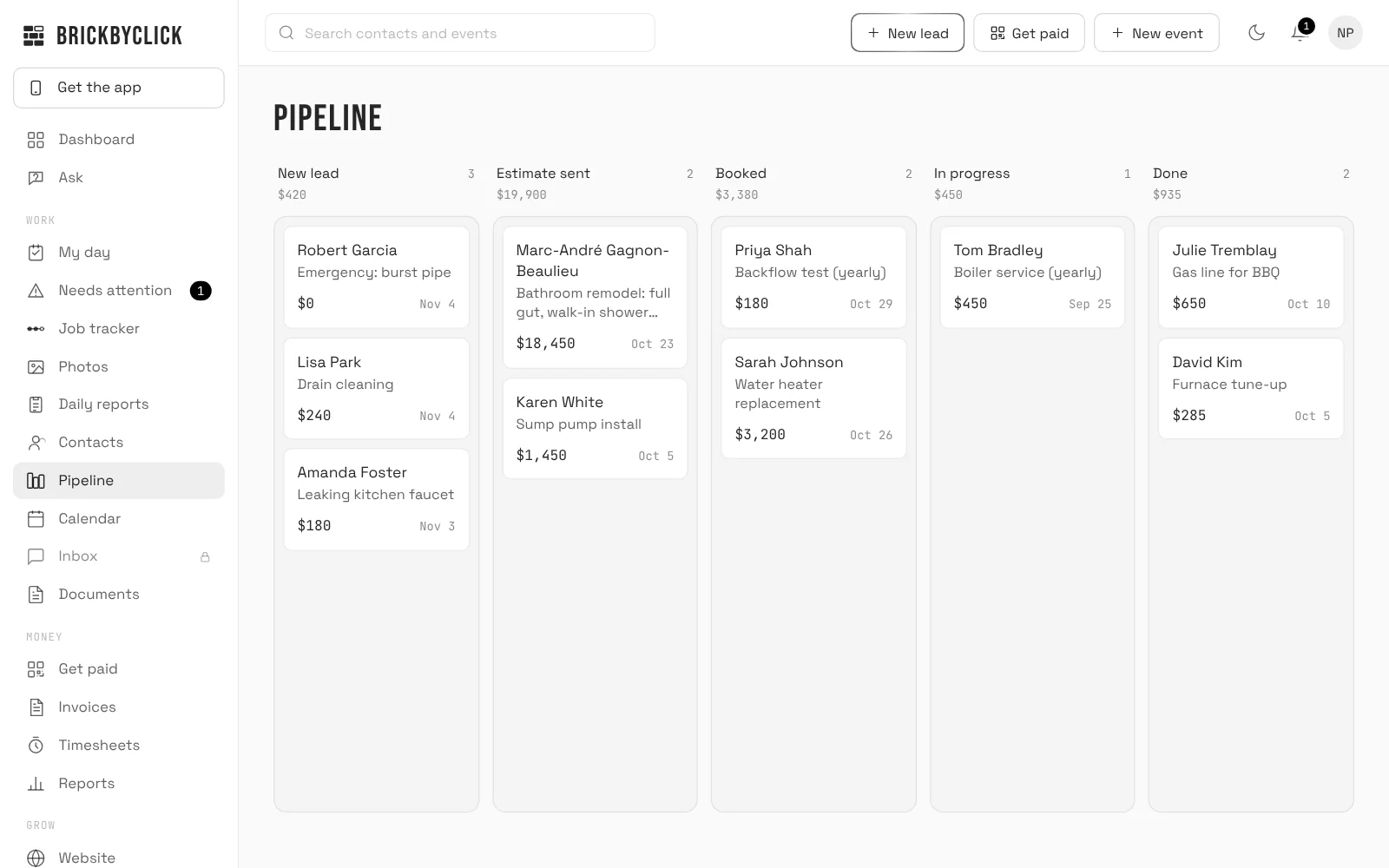
The pipeline is a board with one column per stage, and each lead or job is a card. Drag a card to the next column as the work moves. Each column shows its card count and the total job value.
The owner can set between 2 and 15 stages in Settings. Renaming a stage carries its contacts with it.
Calendar
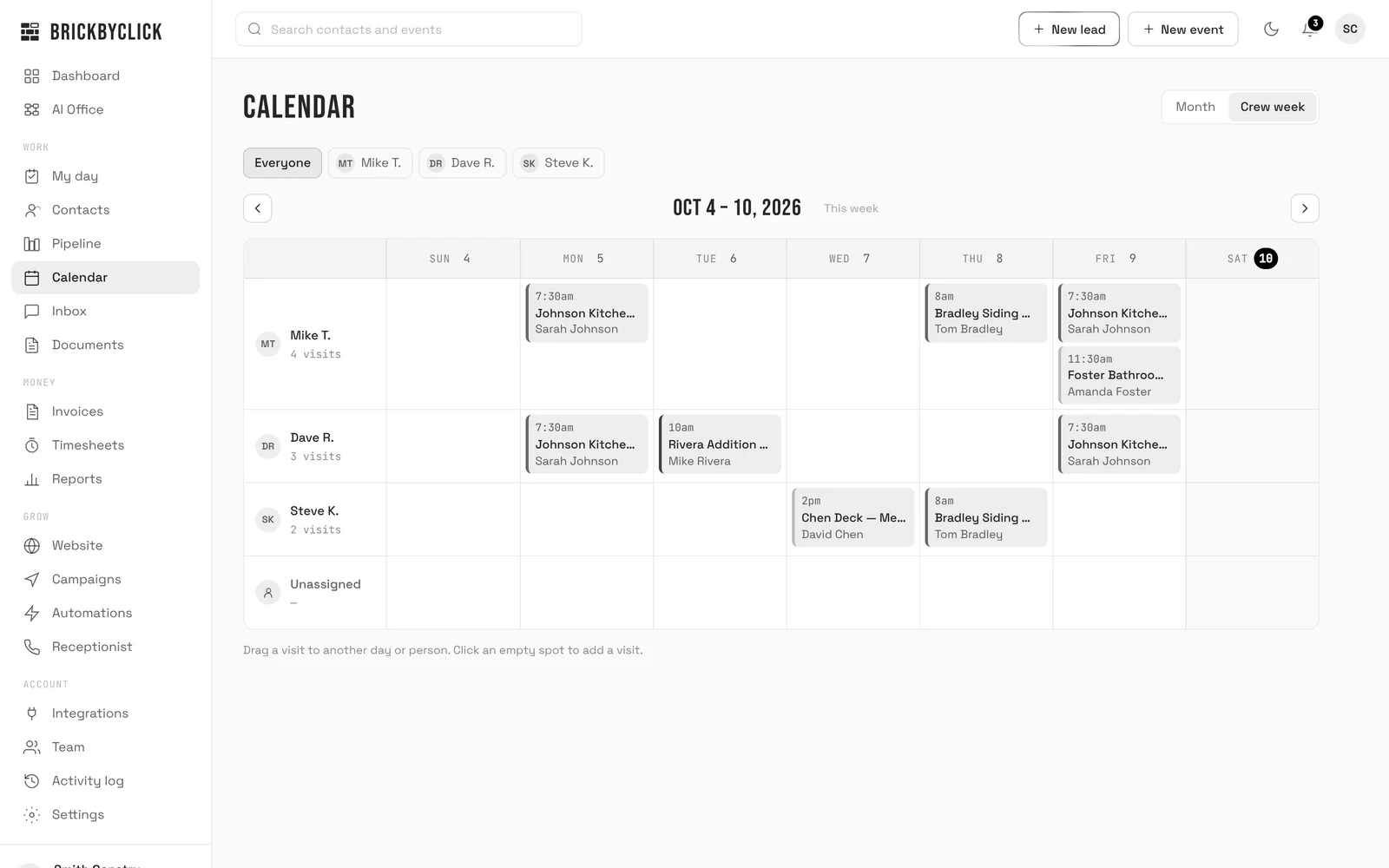
The calendar has a Month view and a Crew week view, with one row per person plus a row for unassigned visits. The office drags a visit to another day or another person.
- Repeating jobs: every week, 2 weeks, 4 weeks or month. The calendar keeps the next 90 days filled.
- "Who should go?" suggests up to four people for a visit, using who is free, who has the skill and who is already nearby. It only suggests.
- Google Calendar: your visits are copied there, and its busy times can block bookings. Outlook and Apple work through calendar links.
- Online booking page: customers pick from your real open times, inside your hours and around existing visits.
Inbox
On Front Office and up, the Inbox holds every call the AI receptionist handled, with a summary, transcript and recording, plus your two-way texts with customers. Texting turns on once your business number is registered with the phone carriers, which we handle during setup.
Starter does not have the Inbox, the receptionist or texting.
My day and the Job tracker
My day is the crew's screen: today's visits with directions, a call button, a time clock, the work order and Get paid. It keeps working with no signal and sends the changes when the phone is back online.
The Job tracker shows each job on one line (Asked, Quoted, Booked, Done, Invoiced, Paid) and marks the ones stuck on your side, with how many days. It only reads; its buttons open the quote, calendar or invoice.
Needs attention
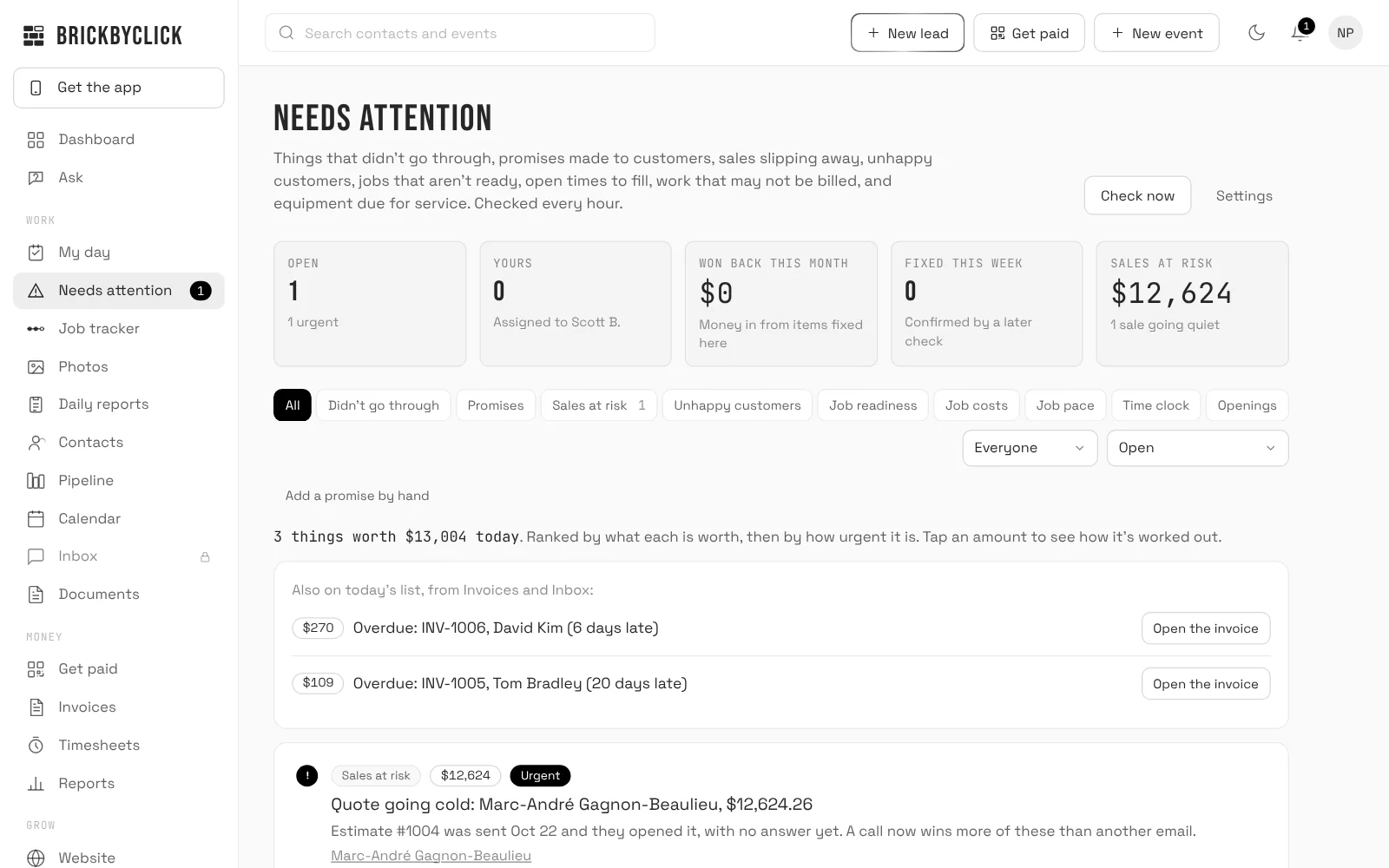
Needs attention checks your business every hour for what slips through the cracks. It ranks the findings by what each is worth and offers the next step.
- Promises made on calls or in notes that have not been kept yet (AI reads new calls and notes when AI is on).
- Quotes going cold, stalled leads and unhappy customers.
- Jobs that are not ready: no crew, no deposit, materials missing.
- Work that may not have been billed.
- Equipment due for service, and openings you can fill from a cancellation.
Estimates, invoices and payments
Customers view and accept estimates online, and invoices take card and US bank payments through your own Stripe account. You can also record cash, check, Zelle and other payments by hand. The full detail is on the estimates and invoices page.
Reports and numbers
Reports shows money in and out, what each job made, where customers came from, the close rate by source, a forecast and the next 90 days. On the 1st of the month the owner is emailed last month's business report as a PDF. See business reports and the evening daily job reports.
"Download for your accountant" gives one spreadsheet of payments, receipts and labour that works with any accounting software.
Automations
Automations is a page of switches for the emails and texts the CRM sends on its own: quote follow-ups, a "How did we do?" check, Google review requests, yearly service reminders, payment reminders and the owner's morning, Friday and monthly emails. Most customer emails start off, so you choose what runs.
Team and roles
Everyone gets a login. Owners see everything. Office staff see everything except team management, integrations and a few setup pages. Techs see only the jobs assigned to them, their calendar and notes. Up to 25 logins are included on every plan.
Who is a CRM for service businesses a good fit for?
A good fit if
- You do work at the customer's place or by appointment, and you quote and invoice it.
- You have a crew or a few techs who need their day on their phones.
- You lose track of quotes, callbacks or who owes you money.
- You want one login for the office, the crew and the money, not five apps.
- You are happy to set up a little and let the CRM remind you the rest of the time.
Not the right fit if
- You sell once, online, with no visits and no quotes.
- You need payroll, route maps or drive-time scheduling in the same tool. This CRM does not do those.
- You need custom permissions beyond owner, office and tech.
- You need invoices and payments to flow into QuickBooks. Only job receipts go there today.
- You have fewer than a handful of customers and a notebook works fine for you.
How different trades use it
- Plumbers and HVAC: the work order checklist, parts used and equipment on file. The CRM lists equipment due for service and offers yearly reminder emails.
- Electricians: the pipeline from inquiry to estimate to booked visit, with deposits requested before the job is ready.
- Roofers and contractors: job budgets, receipts photographed on site, drawings with pins and daily job reports.
- Landscapers and cleaners: repeating visits on the calendar for regular customers, and a booked appointment can count as the job itself.
Do I need a CRM yet?
Yes, if you have lost a job because a call or quote slipped, or if you cannot say who owes you money. It also pays off when you add the first tech, because the day stops living in your head.
When is a CRM not worth it?
If you work alone, have a short list of repeat customers and never quote, a calendar and a notebook may be enough. Once you quote jobs or send crew out, the follow-up is what a CRM is for.
How does it compare with the alternatives?
These are the options owners usually weigh. The table compares types of tools, not named products, because what is true varies by product.
| Option | What it does well | Where it falls short for service work | Best when |
|---|---|---|---|
| Spreadsheet and paper | Free and familiar. | Nothing reminds you. It is not tied to the calendar or to payments. | One person with a few repeat customers. |
| Phone contacts, calendar and a separate invoice app | Each piece is simple. | You retype between them. The call, the visit and the invoice never connect, and the crew sees little. | Very early, low volume. |
| General-purpose sales CRM | Strong deal tracking and email history. | Usually built for sales teams, not visits, crews, work orders or on-site payments, so you add those with other tools. | Long outbound sales cycles. |
| Field service management software | Scheduling, dispatch and invoicing. | Depending on the product, the phone, the website and the follow-up may sit in other tools. | You mainly need dispatch. |
| BrickByClick CRM | Calls, quotes, visits, the crew phone app, payments and reports under one login. Set up for your industry. | No payroll, no route maps, three roles, and invoices do not go to QuickBooks. | A local service business that wants the office, crew and money in one place. |
What makes this one different
- The same system answers the phone (on Front Office and up), books the visit, runs the work order, takes the payment and reports the profit.
- Job profit is counted from the receipts, hours and card fees on each job, not typed in.
- The owner can export contacts and, from Settings, download visits, invoices, payments and calls as spreadsheets.
What does a CRM for a service business cost?
The plans
- Starter, $99 a month: the CRM, Job tracker, estimates, invoices, card payments, online booking page, crew app, team logins, email follow-ups and review requests, and a free website on a brickbyclick address. You sign up and set it up yourself at crm.brickbyclick.ai/start.
- Front Office, $399 a month: adds the AI receptionist with its own local phone number, texting, and a website on your own domain, set up by our team.
- Growth, $599 and Total Growth, $999: add more marketing and search work on top. Email campaigns to past customers start at Growth.
Plans are month to month with no setup fees. Compare every line on plans comparison.
Payment fees
Card payments cost Stripe's standard processing fee plus 0.5% per payment, at most $25. There is no BrickByClick fee on bank payments.
What Starter leaves out
Starter has no AI receptionist, Inbox or texting, no website on your own domain, no SEO and no email campaigns. It also has no website changes by our team; you edit the site yourself.
What does the CRM not do?
The limits, stated plainly, so you can judge the fit.
- No payroll. Clock-ins add up in Timesheets, and labour cost only prices the hours on each job's profit.
- No invoice or payment sync with QuickBooks. You can connect QuickBooks Online and send checked job receipts to it as expenses, with the photo attached. That is all it does there.
- No route maps. "Who should go?" matches by ZIP or town. It does not use drive times.
- Customers are not told when you move or cancel a visit. The crew is notified; the customer is not.
- No text campaigns, text quote follow-ups or text review requests. Those go by email. Texts are one at a time, plus missed-call text-back, visit reminders and "On my way".
- No texting on day one. It turns on once your business number is registered with the phone carriers, and never on Starter.
- Three roles only. Owner, office and tech, with no custom permissions.
- No custom wording or timing on the automatic emails. You switch them on or off.
- Profit is a summary, not your books. It is cash basis, card fees are estimates, and projections need three full months of records.
- The AI suggests, you decide. It never moves a card, sends a quote or charges a customer by itself.
- AI apps you connect make drafts only. Through the CRM connector, Claude or ChatGPT can read your records and draft leads, notes, estimates and calendar holds, but never send, charge or delete.
How do you get started and move your customers over?
Starting on Starter
- Sign up at crm.brickbyclick.ai/start and choose your password.
- Work through the Get Set Up checklist: your business, hours, services and prices, how you get paid and your team.
- Optional: your free website, your booking page and bringing your customers over.
Starting on a full-service plan
We do the setup with you: the stages, services and labels for your industry, your hours and prices for the receptionist, your team's logins, and your website. Book a 15-minute demo to begin.
Bringing your customers across
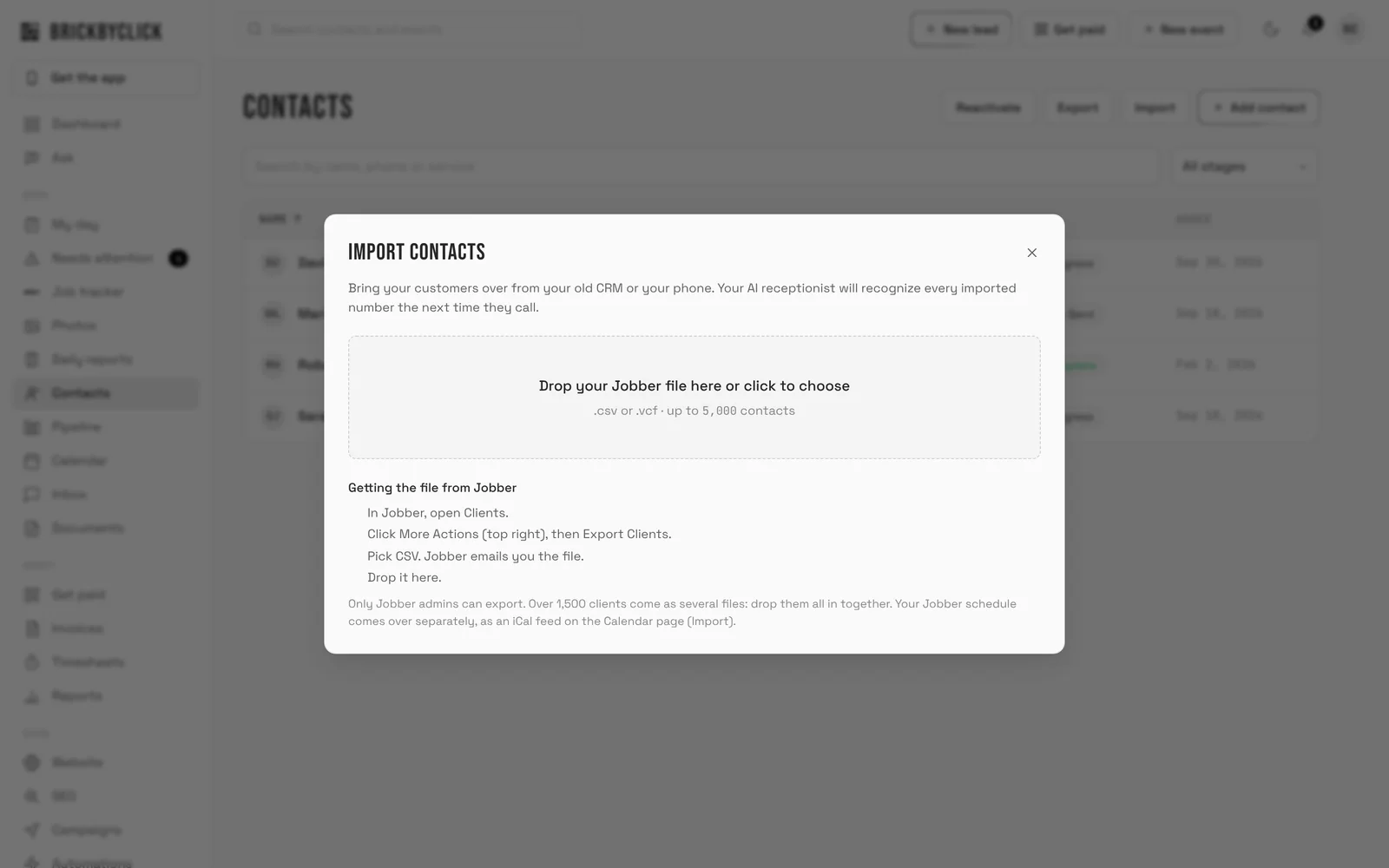
Import contacts from a CSV or vCard file. That covers exports from Jobber, Housecall Pro, HubSpot, a spreadsheet, or your phone. See switching for more.
- One import takes up to 5,000 contacts. Split exports can be dropped in together.
- Contacts are matched by phone or email, so a second import does not duplicate them and never overwrites what you have.
- Old dates such as last service come along when the file has them. Importing sends nothing to your customers.
- On plans with the receptionist, it recognises every imported number the next time they call.
Putting it on your phone
Open crm.brickbyclick.ai/get-app on your phone and follow the steps for iPhone or Android. It installs from the browser like an app, free, with nothing from an app store.
Questions people ask
What is a CRM for service businesses?
How is a service business CRM different from a general CRM?
How much does a CRM for a small service business cost?
Is a CRM worth it for a one-truck plumbing or HVAC business?
What is the difference between a CRM and field service software?
Can I move my customers from Jobber, Housecall Pro or a spreadsheet?
Can my crew use it on their phones, and does it work without signal?
Does the CRM text my customers?
Does it work with QuickBooks?
Who on my team can see what?
How do customers pay, and what are the fees?
Does the CRM answer my phone?
Is it only for contractors?
Can I use the CRM with ChatGPT or Claude?
Can I export my data if I leave?
See the CRM with your own business
Take fifteen minutes with us. We will walk through the office, the crew's phone and the money side with a business like yours, and answer every question. Or open the live demo and click around on sample data.