CRM MCP Server for Claude and ChatGPT
BrickByClick's CRM has its own MCP server, an AI connector that lets Claude, ChatGPT and other AI apps that support remote MCP servers read your CRM and make drafts in it. You add one address, sign in to your CRM and press Allow. Then you can ask "which invoices are overdue?" or "draft an estimate for Maria from my price list" in plain words. The AI can only make drafts: it never sends, charges, deletes or messages a customer. It is included for the account owner on every paid plan, from Starter at $99 a month.
Connector address: https://crm.brickbyclick.ai/mcp
At a glance
- What it is: a remote MCP server at https://crm.brickbyclick.ai/mcp, with OAuth sign-in through your normal CRM login.
- Tested with: Claude (web, desktop, mobile and Claude Code) and ChatGPT. Other AI apps may work if they support remote MCP servers with OAuth sign-in; we have not tested them yet. [Status by app](#apps).
- What the AI can read: customers, jobs, schedule, estimates, invoices, payments, quotes gone quiet, AI receptionist call summaries, your price list and a week or month summary.
- What the AI can write: drafts only. A new lead, a note, a draft estimate or a tentative calendar hold. You review and send from the CRM.
- Who can connect: the account owner. Each connection sees only that one business.
- Plans: every paid plan, from Starter ($99 a month). Not on Free invoicing.
What is a CRM MCP server?
MCP (Model Context Protocol) is an open standard that lets an AI app use tools in another app. An MCP server is the other app's side of that: it lists what the AI may do, checks who is asking and answers.
A CRM MCP server does this for your CRM. Instead of copying numbers out of your CRM and pasting them into a chat, the AI app looks them up itself, from your real records, when you ask.
What BrickByClick's connector is, in plain words
- One address: https://crm.brickbyclick.ai/mcp. You paste it into the AI app once.
- Your normal login: the AI app sends you to the CRM sign-in page (with your two-step code if you use one). It never sees your password.
- A consent screen: it names the AI app, says what it can do and lets you untick Create drafts to make it read-only. Nothing happens until you press Allow.
- Answers from your CRM: in your currency and time zone, with a link to open each record in the CRM.
What it is not
- Not a chatbot inside the CRM. You use the AI app you already pay for (Claude, ChatGPT or another MCP app). The CRM has its own AI features too; see AI agents.
- Not an autopilot. The AI makes drafts. Sending an estimate, an invoice or a message stays with you in the CRM.
- Not for your team (yet). Only the account owner can connect an AI app today.
What can you ask an AI app connected to your CRM?
Anything your CRM can answer. These are the kinds of questions owners of local service businesses ask, in the words they would type. The AI picks the right tool and answers from your records.
Money
- "Which invoices are overdue by more than 30 days, and who owes the most?"
- "How much did we collect last month, and how much tax did we collect?"
- "How did this week compare with last week?" (If there are too few records to judge an area, the summary says so instead of showing a zero.)
Quotes and follow-ups
- "Which quotes have gone quiet for more than ten days? Did the customers open them?"
- "Draft an estimate for Maria for a deep clean of a three-bedroom house, from my price list."
- "Draft an estimate for the Hendersons: a spring lawn cleanup and two rounds of aeration." Your own prices, taxes (one or two, such as GST and QST) and minimum charge are applied by the CRM.
The schedule and the work
- "What does Jake have on the calendar this week?"
- "Which jobs are waiting on us, and which are booked but not done?"
- "Hold Thursday at 2 PM for 90 minutes for a furnace check at the Lees', and add a note that they have a dog."
Calls and customers
- "Summarize the calls the AI receptionist took yesterday." (The AI receptionist is on Front Office and up.)
- "Find everything we have on the customer at 14 Birch Street."
- "Add a lead: Sam Patel, 514 555 0142, wants a quote for gutter cleaning."
The same questions work for a plumbing or HVAC company, a cleaning service, a landscaper, a painter or any of the 30+ industries BrickByClick serves. The connector works from what is in your CRM, so it is only as good as your records.
Drafts only: what the AI can and cannot do
The connector has two kinds of tools. Reading is always on once you allow the app. Writing is limited to drafts, and you can switch it off on the consent screen.
| What the AI app can do | What it cannot do | |
|---|---|---|
| Customers | Search and read contacts. Add a new lead (if the phone or email is already in the CRM, it returns that contact instead of adding a duplicate). Add a note. | Edit or delete a contact. Text, email or call anyone. |
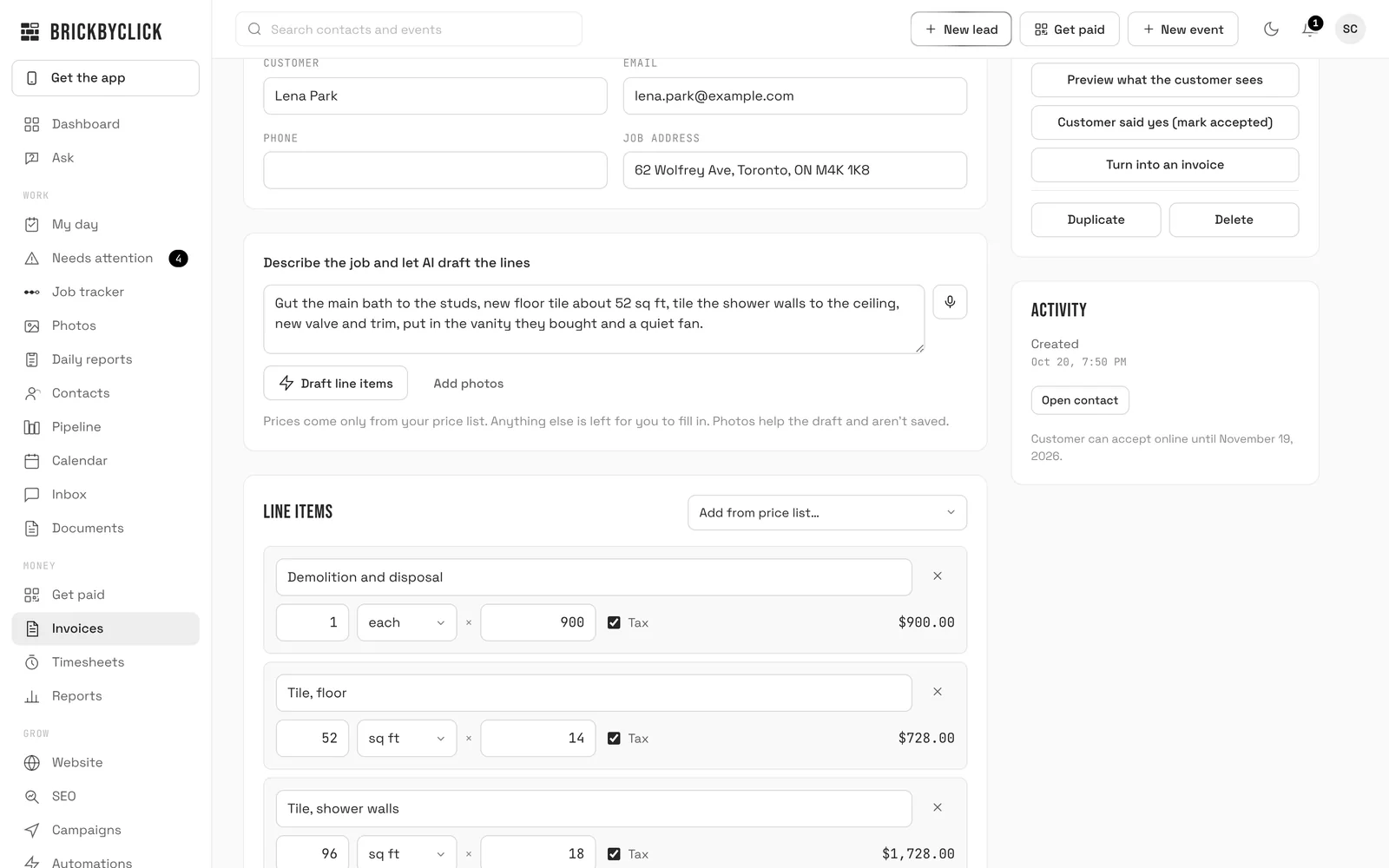
| Estimates | Read estimates. Create a draft estimate from your price list, with your taxes and terms. | Send an estimate or mark it accepted. |
| Invoices and payments | Read invoices (including unpaid and overdue) and payments received. | Create or send an invoice, send a payment link or charge a card. |
| Calendar | Read the schedule. Put a tentative hold on the calendar, marked "Hold:". | Book a real visit. A hold is internal: the customer is not told, gets no reminder, and the crew app shows no "On my way" for it. |
| Calls | Read recent calls with the AI receptionist's summary. | Play recordings or read full transcripts. |
You review and send from the CRM
Each draft comes back with a link. Open it in the CRM, check it, and send it yourself, the same way as an estimate you started by hand. A hold becomes a real visit only when you change it in the Calendar.
Safe to ask twice
If the AI app repeats the same request (a retry, or a double click), the CRM returns the first result instead of making a second lead or a second draft.
How it works with your other apps
AI apps let you turn on several connectors in the same chat. That is where a CRM connector earns its place: the AI can read one app and draft in another.
- Email: "Find the quote requests in my email from this week and add the new ones as leads." The CRM skips anyone already in it.
- Calendar: "Compare my personal calendar with the CRM schedule for next week and hold a slot on Tuesday for the Garcia estimate."
- Files and spreadsheets: "Read this supplier price sheet and draft an estimate for Maria using my CRM prices where they exist."
What the AI app can reach in your email, calendar or files depends on the connectors you turn on there and that app's own settings. The BrickByClick connector only reads and drafts in your CRM.
Claude, ChatGPT, Gemini and Grok: CRM connector status
Checked against each provider's own documentation on November 3, 2026. AI apps change their menus often; if a step looks different, the provider's help page is the source to follow.
| AI app | Status | Where you add it |
|---|---|---|
| Claude | Tested. Works on the web, desktop and mobile apps, and in Claude Code. | Customize, Connectors, Add custom connector |
| ChatGPT | Tested. Works where your ChatGPT plan or workspace allows custom MCP servers. | Add custom MCP server (developer mode) |
| Google Gemini app | Not tested yet. Google says the Gemini app can add custom MCP apps for some accounts; it may work if it supports remote MCP servers with OAuth sign-in. | Settings, Connected Apps, Add a custom app |
| Gemini CLI | Not tested yet. Google's docs describe remote HTTP servers with OAuth sign-in. | gemini mcp add |
| Grok | Not tested yet. xAI's docs list custom MCP connectors on grok.com but do not say which sign-in methods they support. | grok.com/connectors |
| Other MCP apps | Not tested yet. May work if the app supports remote MCP servers with OAuth sign-in. | The app's MCP or connector settings |
Claude CRM connector
Tested. Anthropic's custom connector guide says custom connectors work on every Claude plan, with one custom connector on the Free plan.
- In Claude, open Customize, then Connectors.
- Click + Add, then Add custom connector.
- Name it "BrickByClick CRM" and paste https://crm.brickbyclick.ai/mcp. Click Continue.
- Keep the sign-in Claude detects and its own OAuth client. You do not need a client ID, a secret or any header.
- Add it and click Connect. Sign in to your CRM, check the consent screen and press Allow.
- In a chat, open +, then Connectors, and switch BrickByClick CRM on.
On a Claude Team or Enterprise plan, an Owner adds it under Organization settings, Connectors, Add, Custom, Web. Each person then connects it under Customize, Connectors, and only the BrickByClick account owner can press Allow.
Claude Code: add it from a terminal, then type /mcp in Claude Code and pick it to sign in.
claude mcp add --transport http brickbyclick https://crm.brickbyclick.ai/mcpChatGPT CRM connector
Tested. OpenAI's guide to connecting an MCP server gives these steps. Which ChatGPT plans and workspaces can add custom MCP servers is set by OpenAI and by your workspace admin, and may need developer mode switched on.
- In ChatGPT, open the plugins page, click + and choose Add custom MCP server.
- Give it a name and a short description.
- Under Connection, choose Public endpoint and paste https://crm.brickbyclick.ai/mcp.
- For authentication, choose OAuth. ChatGPT finds the rest by itself; no client ID is needed.
- Accept the warning, create it, then sign in to your CRM and press Allow.
- Start a new chat, type @ and pick it. ChatGPT asks you to confirm before each draft it makes.
Gemini CRM connector
Not tested by us yet. What Google's own documentation says today:
- Gemini app (gemini.google.com): Google's help page on custom apps for Gemini says you can add one by its MCP server address under Settings, Connected Apps, Add a custom app, then use it by typing @. For now it lists limits: a personal Google Account (not work or school), 18 or over, in the US, in English, with Keep Activity on. It handles servers that support dynamic client registration, which the BrickByClick CRM does, and Google says it asks you to confirm write actions. It may work; we will update this page once we have tested it.
Gemini CLI: Google's Gemini CLI MCP docs describe remote HTTP servers that sign in with OAuth, found automatically, and the /mcp auth command. It needs a browser on the same computer for the sign-in. The command below follows those docs; we have not tested it.
gemini mcp add --transport http brickbyclick https://crm.brickbyclick.ai/mcp- Gemini Enterprise: its custom MCP server setup is a preview feature added by a team admin with an OAuth client ID and secret registered in advance. The CRM does not hand out client IDs today, so we do not expect this to work yet.
- Gemini API: Google's Managed Agents post (July 2026) adds remote MCP servers for developers building their own agents. It does not describe an OAuth sign-in, so it is not a way for an owner to connect the CRM.
Grok CRM connector
Not tested by us yet. What xAI's own documentation says today:
- Grok on the web: xAI's Connectors page (updated October 10, 2026) says connectors are available to all Grok users, and that a custom one is added at grok.com/connectors with New Connector, Custom, the server address, then any sign-in it needs. It does not say which sign-in methods custom connectors support. If it supports OAuth sign-in, paste https://crm.brickbyclick.ai/mcp; on Grok Business or Enterprise, xAI says a team admin sets the connector up first.
- xAI API: the remote MCP tools docs take a server address and a fixed token. The CRM only gives out access through its sign-in and consent screen, so this is not a way to connect it today.
Other MCP apps
Developer tools and agent builders that support remote MCP servers with OAuth sign-in, such as Microsoft Copilot Studio, Cursor and VS Code, may also work. Microsoft documents dynamic discovery for Copilot Studio, and Cursor documents OAuth sign-in for remote servers. We have not tested them, so we do not promise they work.
Which plans include the CRM connector?
Every paid plan, for the account owner. There is no separate charge for the connector. The AI app itself (Claude, ChatGPT or another) is a separate account with its own plans.
| Plan | Price | CRM connector |
|---|---|---|
| Free invoicing | $0 | No |
| Starter | $99 a month | Yes |
| Front Office | $399 a month | Yes, plus AI receptionist call summaries |
| Growth | $599 a month | Yes, plus AI receptionist call summaries |
| Total Growth | $999 a month | Yes, plus AI receptionist call summaries |
Call summaries need the AI receptionist, which comes with Front Office and up. If a plan ends or the account is paused, an app already connected can still read, but it cannot make drafts, and no new app can connect. Compare every plan.
Privacy and control
Who can connect, and to what
- The account owner only. Office and tech logins see "Only the account owner can connect apps" on the consent screen.
- One business per connection. The CRM works out the business from the connection itself, so an AI app connected to your CRM can only ever see your business, never another BrickByClick customer's.
- Checked on every request. If the owner's login is removed or no longer the owner, or the account moves to Free, the connection stops working.
Seeing and ending connections
- You get an email each time an app is connected, saying which app and how to disconnect it.
- See and disconnect apps in the CRM under Settings, Connected apps. Its access stops at once.
- Changing your password, or "Sign out everywhere", also disconnects every app that login connected.
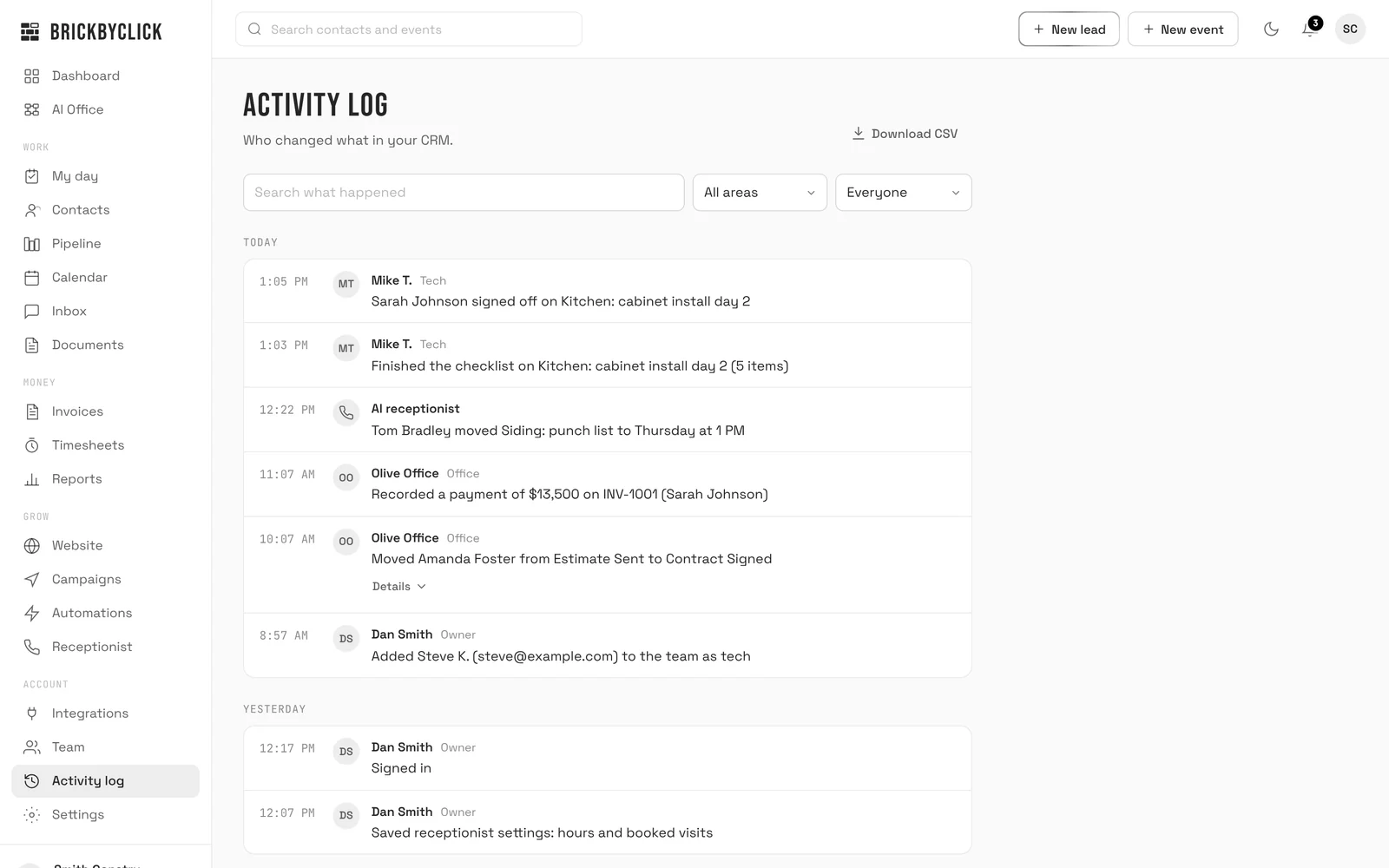
- Connecting, disconnecting and every draft an app makes are listed in your Activity log ("... through Claude").
What the AI app sees
- Only what the tools return to the chat: names and contact details, notes, call summaries, amounts, dates and links back to the CRM.
- Never call recordings, full transcripts, card numbers, payment details or other businesses' records.
- Your records stay stored in your CRM. What the tools return to a chat is also seen by the AI provider (Anthropic, OpenAI, Google, xAI or another) and handled under that provider's own privacy policy and your settings there.
What we keep
For each tool call we log which tool, which app, whether it worked and how long it took, never what was asked or answered. These logs are kept for 90 days. The saved result of a draft, used to answer a repeated request, is kept for 30 days. More in our privacy policy.
Questions people ask
What is MCP?
Does BrickByClick work with Claude?
Does BrickByClick work with ChatGPT?
Does it work with Google Gemini?
Does it work with Grok?
Can Claude or ChatGPT see other businesses' data?
Does the AI send anything to my customers?
Which plan do I need?
Is the CRM connector free?
Can my team use it?
Can I make it read-only?
How do I disconnect an AI app?
Connect your CRM to the AI app you already use
Start on Starter and connect it today, or pick a full-service plan and we set the CRM up with you. Either way, the connector is included.