Review requests
Job done. Review requested.
The day after a job is marked complete, your CRM emails the customer in your business's name and asks for a Google review, with one button to your own review link. Switch it on once. It's included in every plan.
- Included in every plan
- By email, from your business
- One email per job
- From
- Ace Plumbing via BrickByClick
- Subject
- How did we do? Ace Plumbing
Hi Gina,
Thank you for choosing Ace Plumbing! If you were happy with the work, would you take a moment to leave us a Google review? It really helps a local business like ours.
Leave a reviewIf anything wasn't right, just reply to this email and we'll make it right.
Thank you,
Ace Plumbing
Ace Plumbing · 400 Main St, Springfield, IL 62701
You're receiving this because you're a customer of Ace Plumbing. Unsubscribe
How it works
From the finished job to the review page, without anyone having to remember to ask.
-
The job is marked complete.
Move the job to complete in your pipeline. Or let it happen on its own: when the customer pays the final invoice in full, the job moves to won by itself.
-
The next day, one email goes out.
Between 9 AM and 7 PM in your time zone, the customer gets the email above, sent as “your business via BrickByClick” and greeted by their first name.
-
One tap to your Google review page.
The Leave a review button opens the review link from your Google Business Profile, so the review lands where people searching for you will see it.
-
If something wasn't right, they reply to you.
Replies go to the email address you choose, not to us. You hear about the problem and can fix it yourself.
-
You see what went out.
The Automations page shows how many requests went out in the last 30 days, and the latest emails by customer and date.
Set it up once
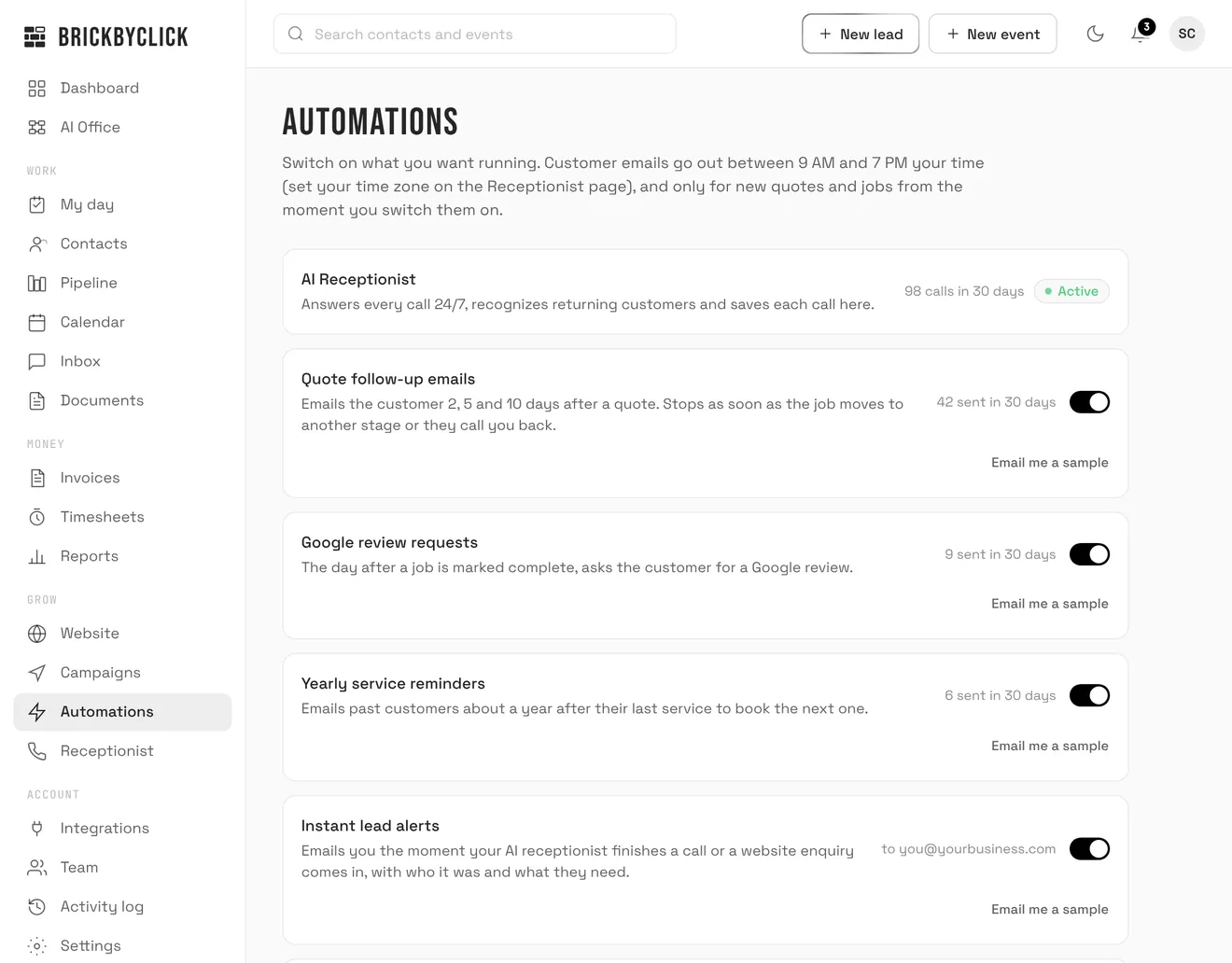
It all lives on the Automations page in your CRM. We switch on the emails you want during setup, and you can change them any time. Real screens, with sample data.
Automations
One switch
Google review requests sits with your other automatic emails. Turn it on and it starts with the next job you complete. Jobs finished before that are left alone, so past customers don't get a surprise email.
- A count of requests sent in the last 30 days
- Email me a sample sends you a copy, so you read exactly what customers get
- Turn it off any time and no new requests go out
Email settings
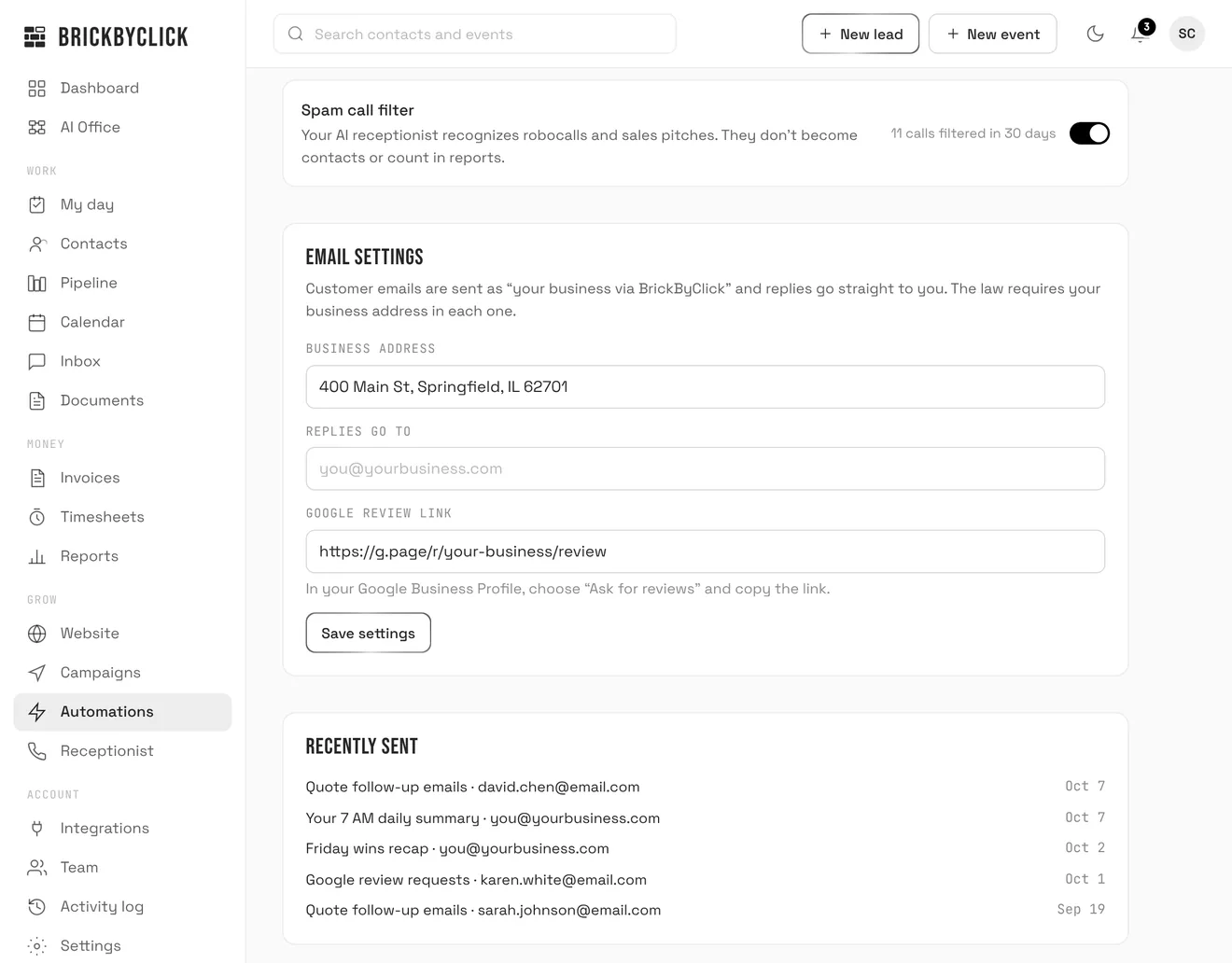
Your review link, your replies
Paste your Google review link once: in your Google Business Profile, choose “Ask for reviews” and copy the link. Add your business address, which the law requires in every customer email, and the address replies should go to.
- Recently sent lists the latest emails, by customer and date
- Every email has an unsubscribe link. Customers who use it aren't sent your automatic emails or campaigns again
The rules it follows
Polite, once, and in your name.
One email per job
No reminder chain. If the job's wrap-up email with photos already had a review button, the separate request is skipped.
Everyone gets the same email
Nothing screens out unhappy customers or sends them somewhere else. Google's rules don't allow asking only happy customers.
Only new jobs
Only jobs completed after you switch it on. Turning it on never emails your whole customer list.
Daytime only
Requests go out between 9 AM and 7 PM in your time zone, the day after the job is complete.
Replies come to you
Sent as your business via BrickByClick, with replies going straight to your inbox.
Unsubscribe means stop
One click to unsubscribe, and that customer isn't sent your automatic emails or campaigns again.
Text messaging, waiting on carrier approval. Until then, review requests go out by email, so a customer needs an email address on file to be asked.
Included in every plan
Review requests come with the CRM, so every plan has them. Month to month, no setup fees.
Questions
Which plans include review requests?
Where do the reviews go?
Does it only ask happy customers?
Will a customer get asked more than once?
Can I change what the email says?
Does it send text messages?
Can I turn it off?
See it on your own business
Fifteen minutes. We'll show you the review request, the follow-ups and the CRM they run from, set up for a business like yours.