Best AI Tools for Contractors in 2027
The best AI tools for a contractor are the ones that take a repeated job off your day: answering the phone, drafting the estimate, watching the jobs, chasing the money. We make software for this, so this guide does not rank brands. It goes job by job, shows what AI does in each area and how it works in BrickByClick, and tells you what to check in any tool you buy. AI drafts, finds and reminds. You still decide the price, the scope and the promise.
At a glance
- What you get: a guide to the jobs AI can help with, with real button names and limits from our product and a checklist for any tool.
- Who it is for: contractors, remodelers, roofers and construction companies planning their 2027 tools. The same tools fit other trades.
- Our interest: we sell BrickByClick, so read this as a buyer's guide from a maker, not a neutral ranking.
- What it costs: from Starter at $99 a month; the AI receptionist and social posts from Front Office at $399; SEO and email campaigns from Growth at $599.
- What it does not do: no dialer, no lead scoring, no plan measuring, and no invoice sync to QuickBooks.
What counts as an AI tool for a contractor?
It is software that does part of a job a person used to do by hand, then hands the result to you to check. Reading a call, writing a first draft, spotting a late invoice, writing a caption.
We are upfront about where we stand. BrickByClick makes a CRM with these AI tools inside it, for local service businesses in 30+ industries. This page uses ours as the worked example. We do not name or rank other products.
The jobs this guide covers
- Answering calls and booking the visit; estimating and quoting.
- Asking questions of your own records (Ask), and a watchlist of what is slipping (Needs attention).
- Seeing what each job made after labour and materials.
- Scheduling, job photos and field paperwork.
- Getting paid, follow-up and reviews, and being found.
Why choose by job, not by brand?
A brand list ages quickly. A job list does not. "Who answers when I am on a roof?" is the same question this year and next.
Where a contractor loses hours and money
- Calls missed on site, and quotes never followed up.
- A crew sent to a job that was not ready.
- Extra work done and never billed.
- A job that quietly runs over its hours.
AI is a draft, not a decision
In every area below the AI prepares and you approve. A tool that skips your approval on prices, promises or payments is a risk, not a feature.
How do you choose an AI tool for a contracting business?
Ask these seven questions of any tool, ours included.
- Does it work from your data? Your price list, your hours, your records. Not guesses.
- Does it show where an answer came from? A figure with no source cannot be checked.
- Does it wait for you? Look for an approval step before anything goes to a customer or moves money.
- Does it say when it does not know? A good tool flags a gap. A bad one fills it in.
- Does it share one record? A tool that does not know the customer, the job and the invoice makes you retype.
- Are the limits in writing? Hours, caps, plans, and what it cannot do.
- What is the total cost? The plan, per-payment fees and any minutes or monthly usage limits.
In BrickByClick the call, estimate, visit, photos, invoice and receipts all hang off one customer record. See how it works.
Every AI tool in the BrickByClick CRM
These are the parts of the CRM where AI is involved, each with a real screenshot from the CRM (sample data), what it does and where it is included. If a plan is not named for a tool, the site does not state it, so check plans compared.
- AI receptionist
- Call summaries and next-step suggestions
- AI estimate drafting
- Ask
- Needs attention
- Have the AI call
- AI follow-up call from a contact
- Receipt reading on job costs
- Photo captions and customer photo updates
- Daily report summary
- AI captions in Social posts
- AI search check and SEO drafts
- Email campaign wording
- AI Document Assistant
- Monthly report and AI business advisor
- AI Office
Some features that sound like AI are not. Who should go?, job pace warnings and the figures in your reports follow fixed rules on your own records, so they are not on this list.
AI receptionist
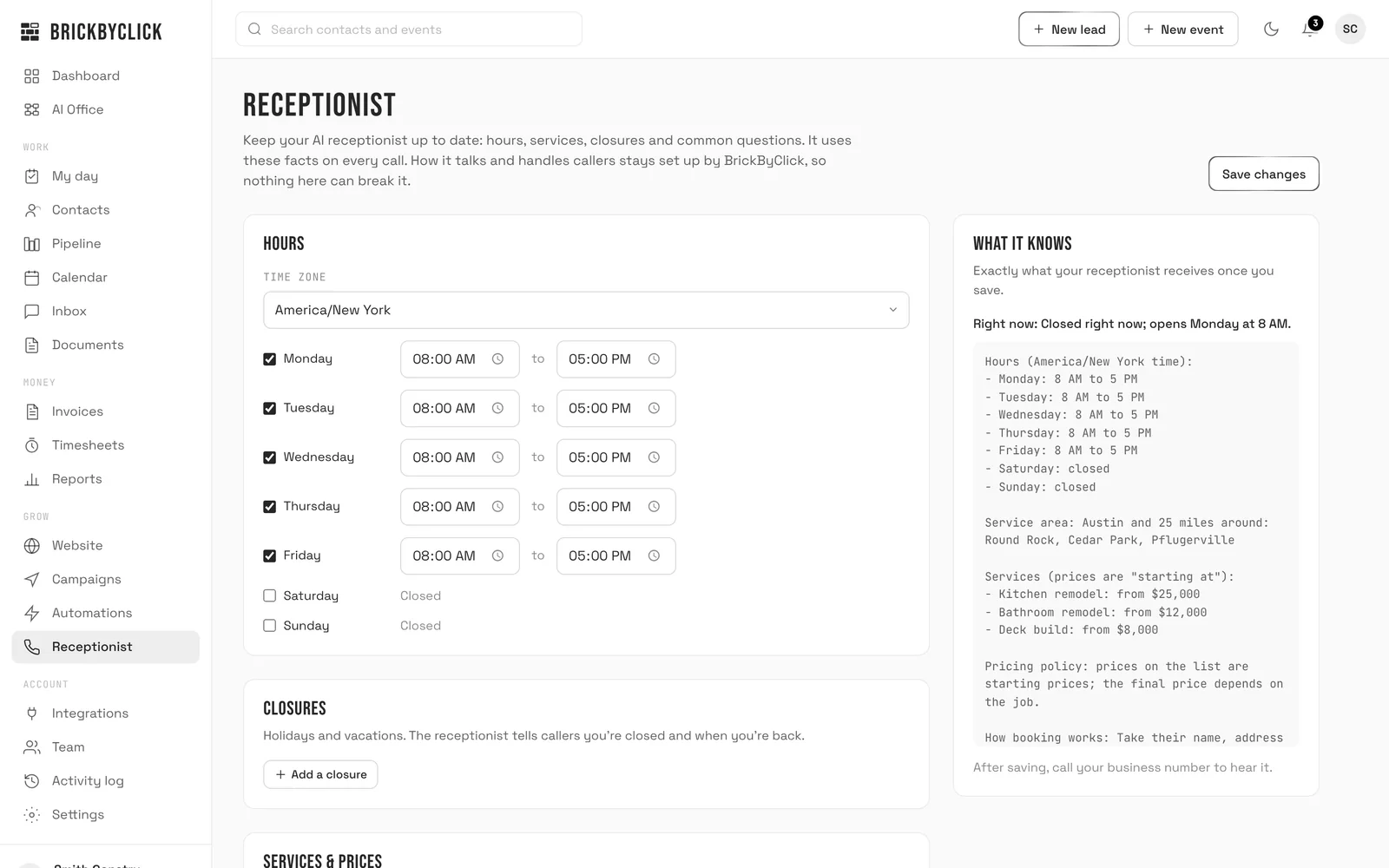
- Answers your business line in your business's name from the hours, area, services, closures and common questions you save. It books visits if you switch on Live Booking.
- It has its own local number. You forward your line to it or give it out. It does not quote a price unless you allow it, and a recording notice is said on every call.
- Texting, including missed-call text-back, turns on once your business number is registered with the phone carriers. It is not there on day one.
Included in: Front Office, Growth, Total Growth. Not on Starter. 500 AI talk minutes on Front Office and Growth, 1,000 on Total Growth.
Call summaries and next-step suggestions
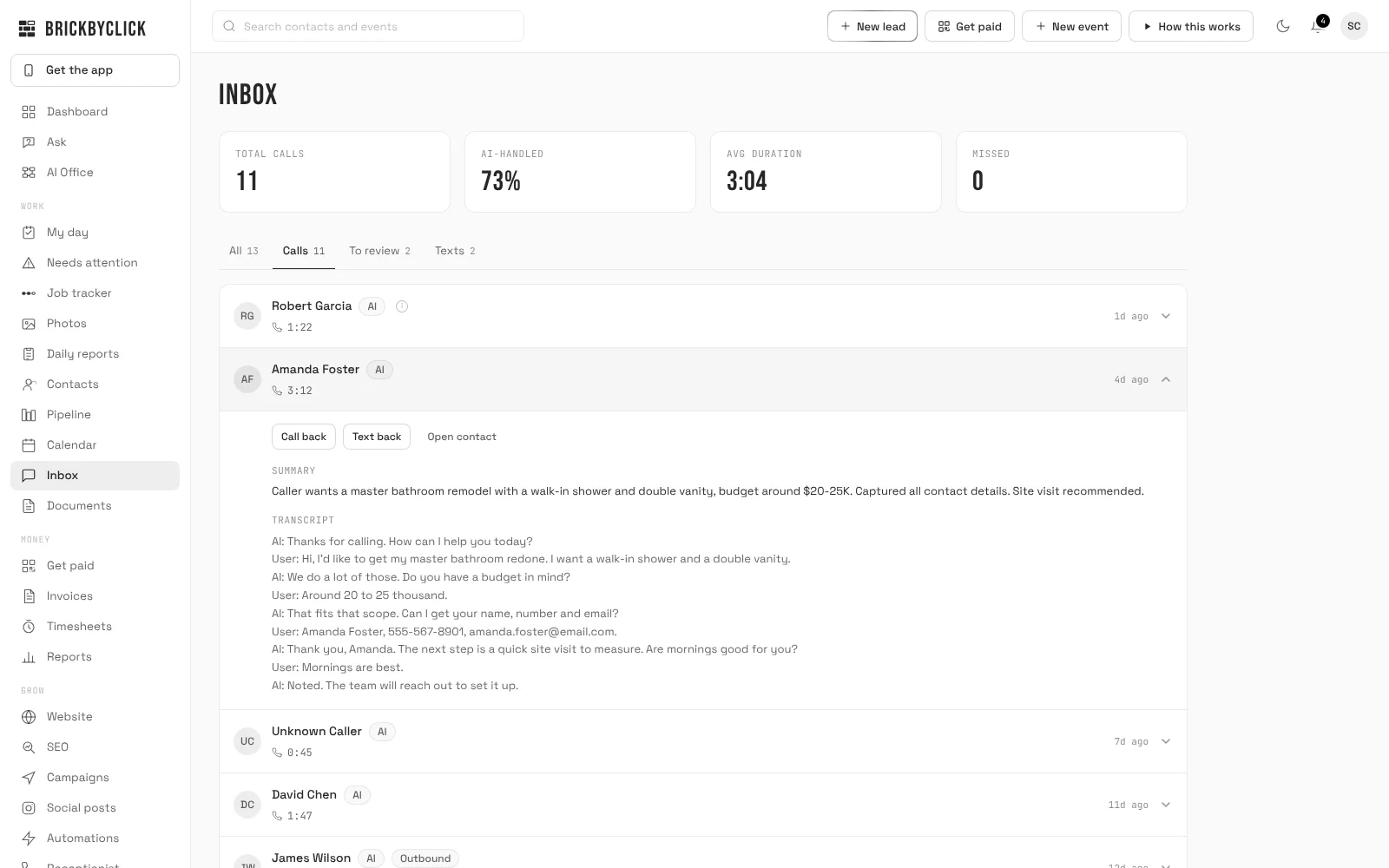
- Each call the receptionist finishes is saved with a summary, a transcript and often a recording, and is matched to a contact.
- After a call, the AI may suggest moving the customer to a later pipeline stage. You tap to accept. It never moves a card by itself.
- It also keeps up to 3 questions callers asked that it could not answer. They show at the top of the Receptionist page, and a question asked 3 times sends you a notice. Where texting is on, Suggest a reply drafts a text for you to edit. Nothing is sent.
Included in: Front Office, Growth, Total Growth. The Inbox is not on Starter.
AI estimate drafting
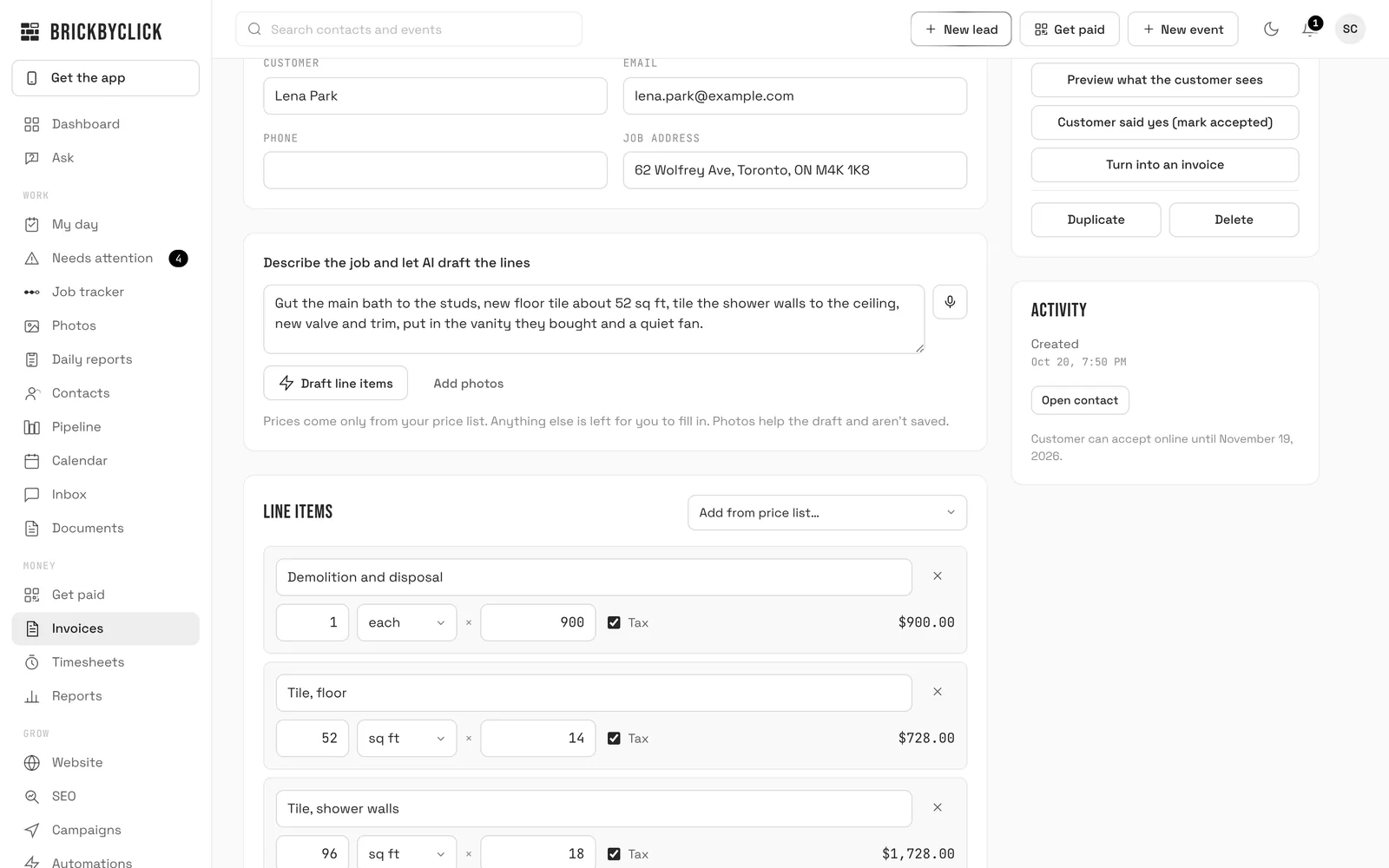
- Type or speak the job, add up to 4 photos and click Draft line items. Lines are priced only from your price list.
- Anything not on the list comes back at $0 with an Add price chip, a missing quantity gets Check quantity, and the AI does not read quantities from photos.
- A Check before sending box lists up to 4 questions. Nothing is sent until you click Send estimate.
Included in: Starter, Front Office, Growth, Total Growth.
Ask
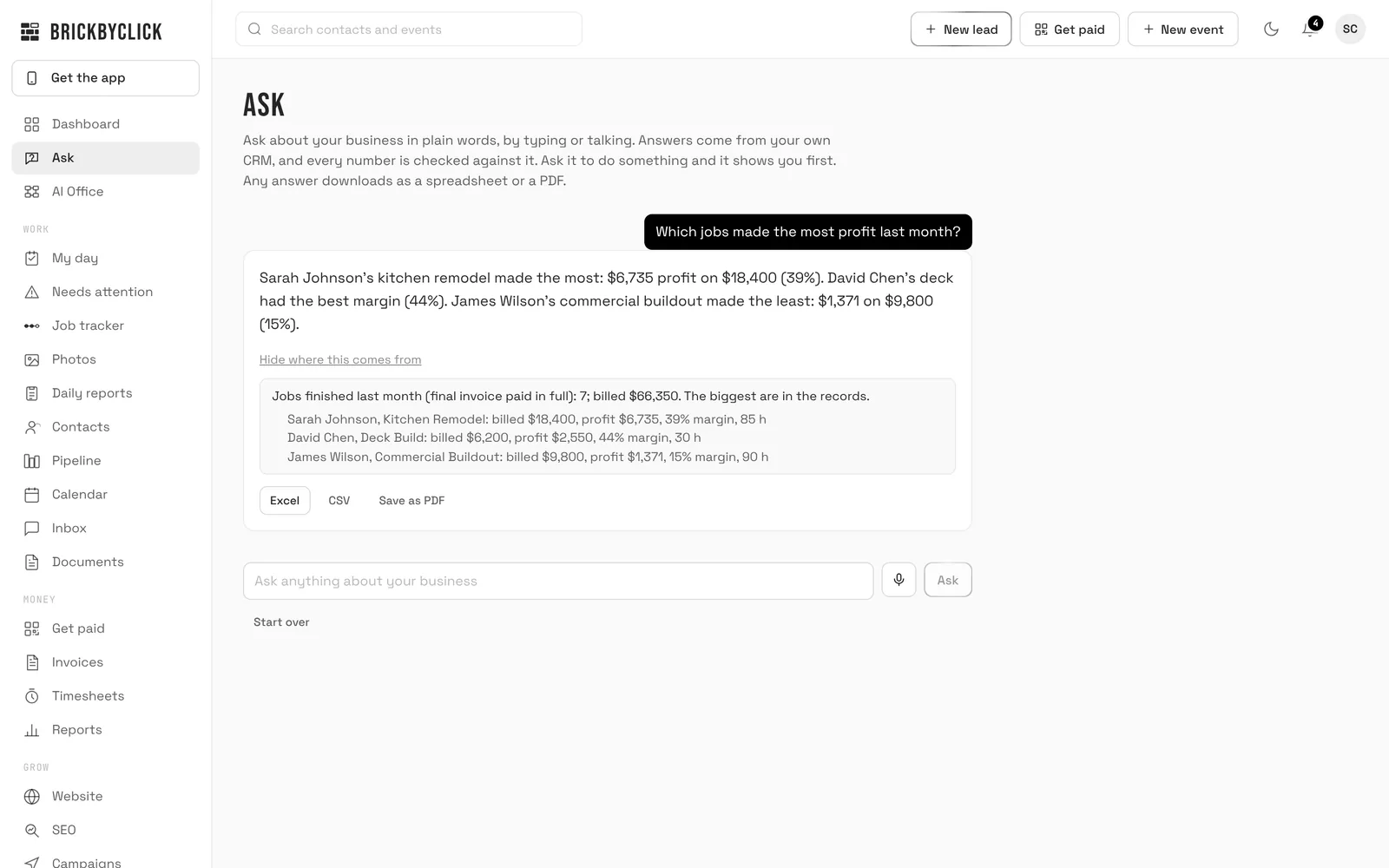
- Type, tap one of 10 starter questions or use the mic button. Ask runs lookups on your own records and writes the answer from those facts only.
- Every figure is checked against the facts. If the check fails twice you see the raw facts. Where this comes from shows the records; answers download as Excel, CSV or Save as PDF.
- It may suggest one action, such as resending an invoice or drafting an estimate. Nothing happens until you press Yes, do it.
Included in: Starter, Front Office, Growth, Total Growth.
Needs attention
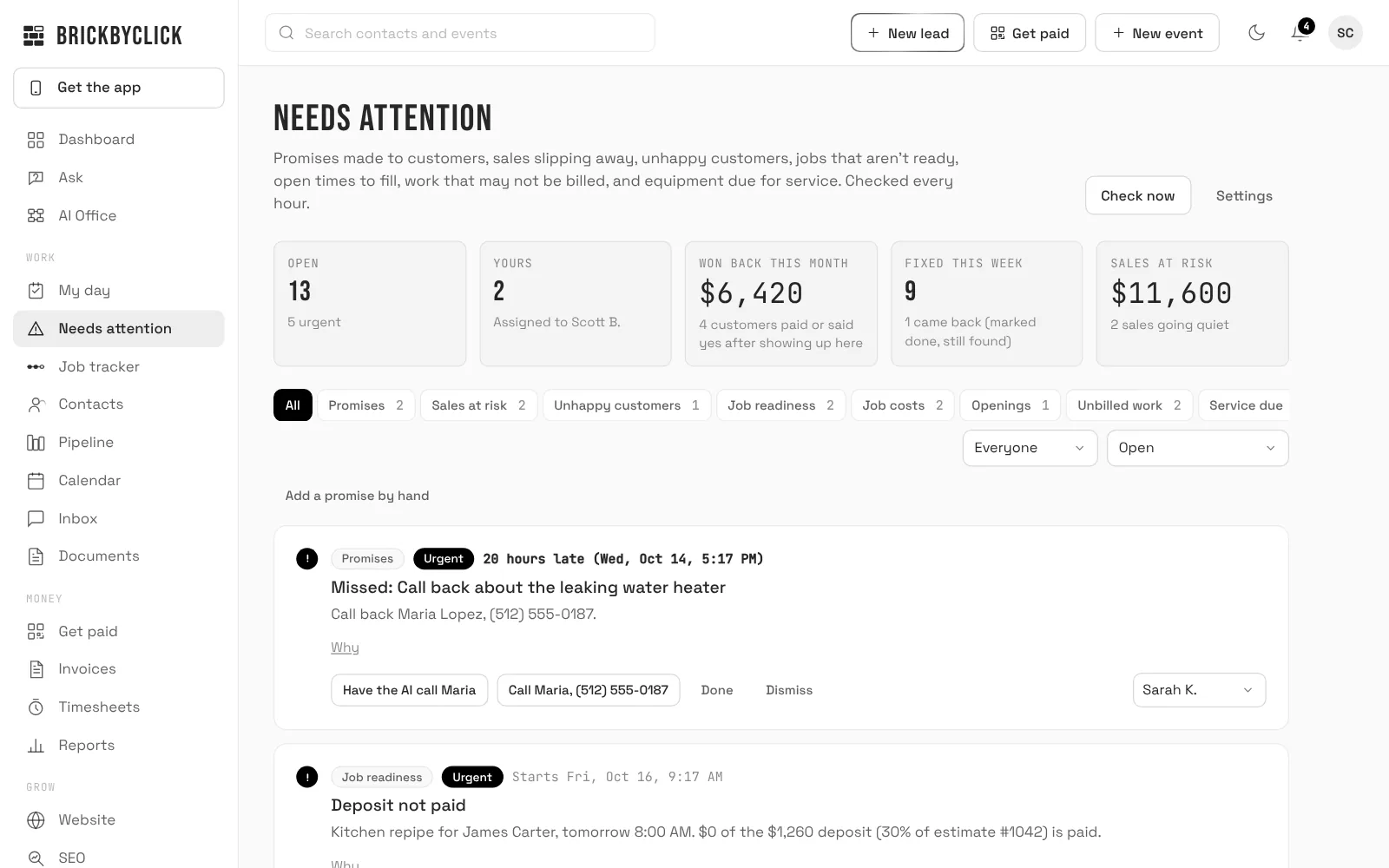
- Checks every hour and ranks what it finds by what each item is worth to you. AI reads new calls and your team's notes for promises you made, and notes for extra work that was never billed.
- Other kinds, such as sales at risk, job readiness, job costs and job pace, come from your records. Press Check now to run it immediately.
- Each item has a next step, Done and Dismiss. Nothing is fixed for you unless you turn on the two optional switches.
Included in: See plans compared (the site does not name a plan for this one).
Have the AI call
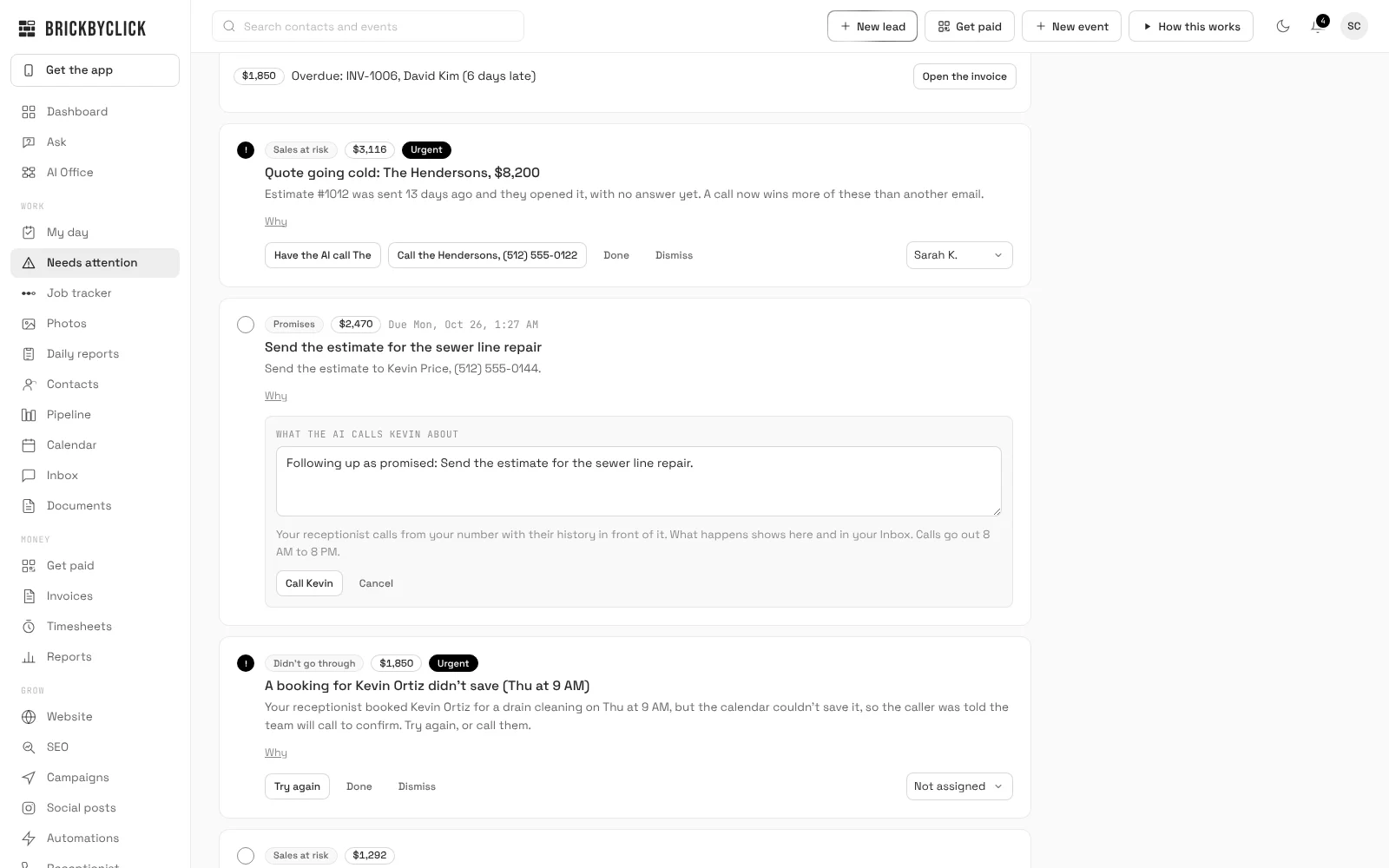
- On a promise, a sale at risk, a job readiness or a service item, Have the AI call opens a box with what the AI will say. You edit it and press Call.
- Your receptionist calls from your number with the customer's history. Calls go out 8 AM to 8 PM and the call shows in your Inbox.
- An unhappy customer gets a call from a person, not the AI.
Included in: Front Office, Growth, Total Growth. It needs the AI receptionist, so it is never on Starter.
AI follow-up call from a contact
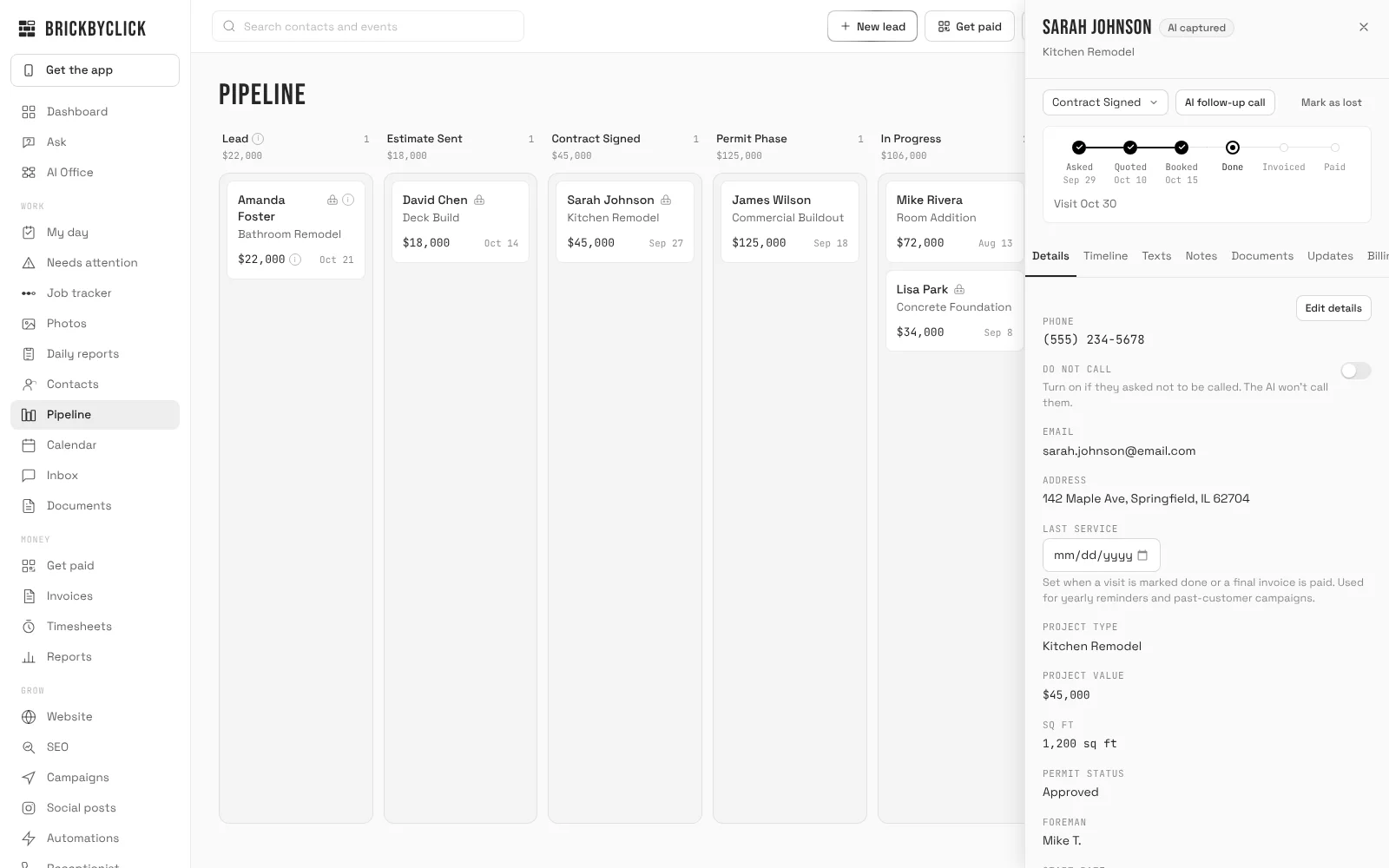
- Click AI follow-up call on a contact and the receptionist calls them from your number, with their history and your reason.
- 8 AM to 8 PM business time, at most 50 a day. Never to a contact with Do not call switched on or one who replied STOP to a text. Owner and office only.
Included in: Front Office, Growth, Total Growth. Never on Starter.
Receipt reading on job costs
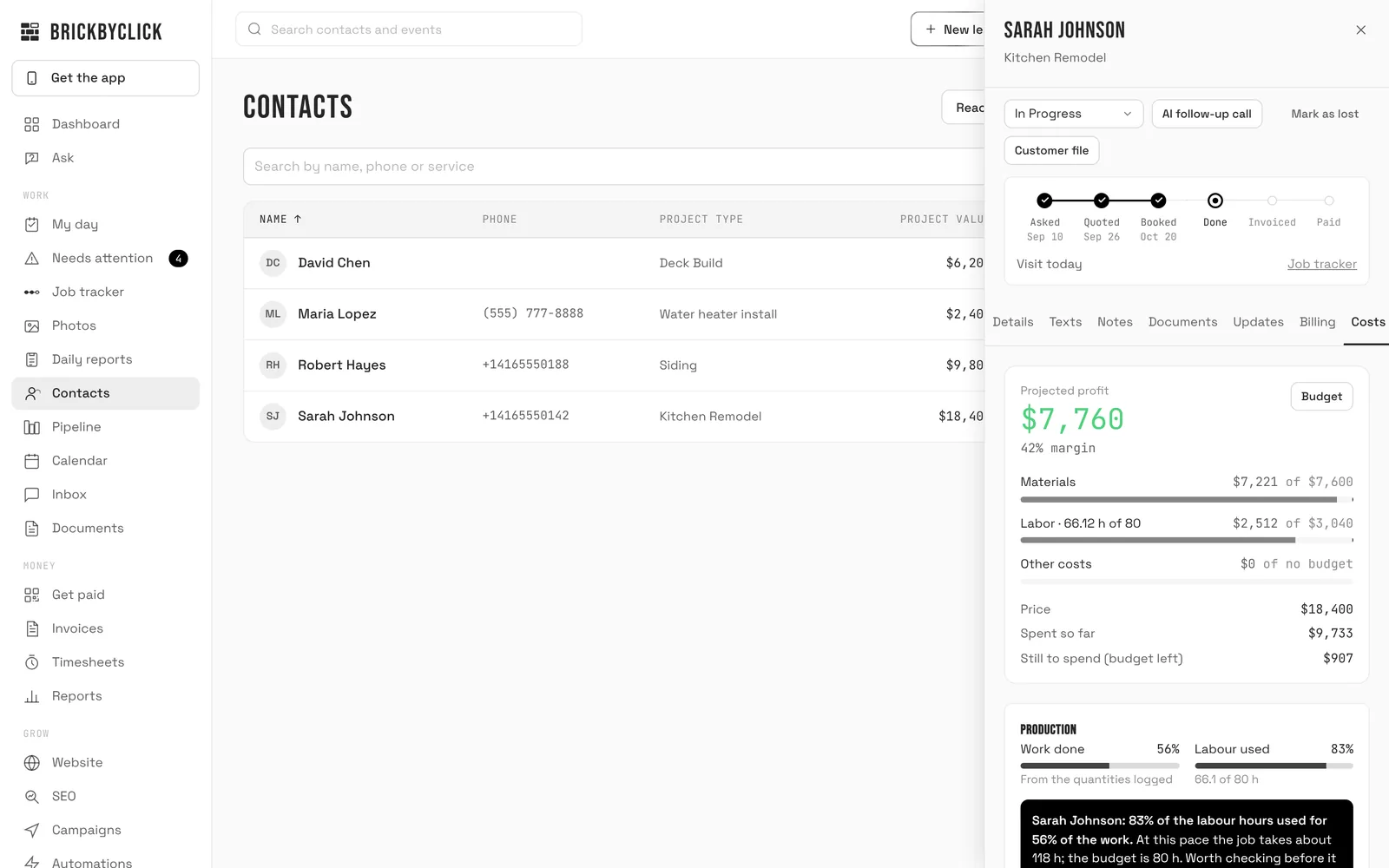
- Add receipt takes a photo or screenshot. AI reads the store, date, items, tax, total and category. Anything it is unsure of is flagged Needs a check and not counted until you press Looks right.
- The profit card and pace warning are arithmetic on your budget, hours and receipts, not AI.
Included in: Starter, Front Office, Growth, Total Growth.
Photo captions and customer photo updates
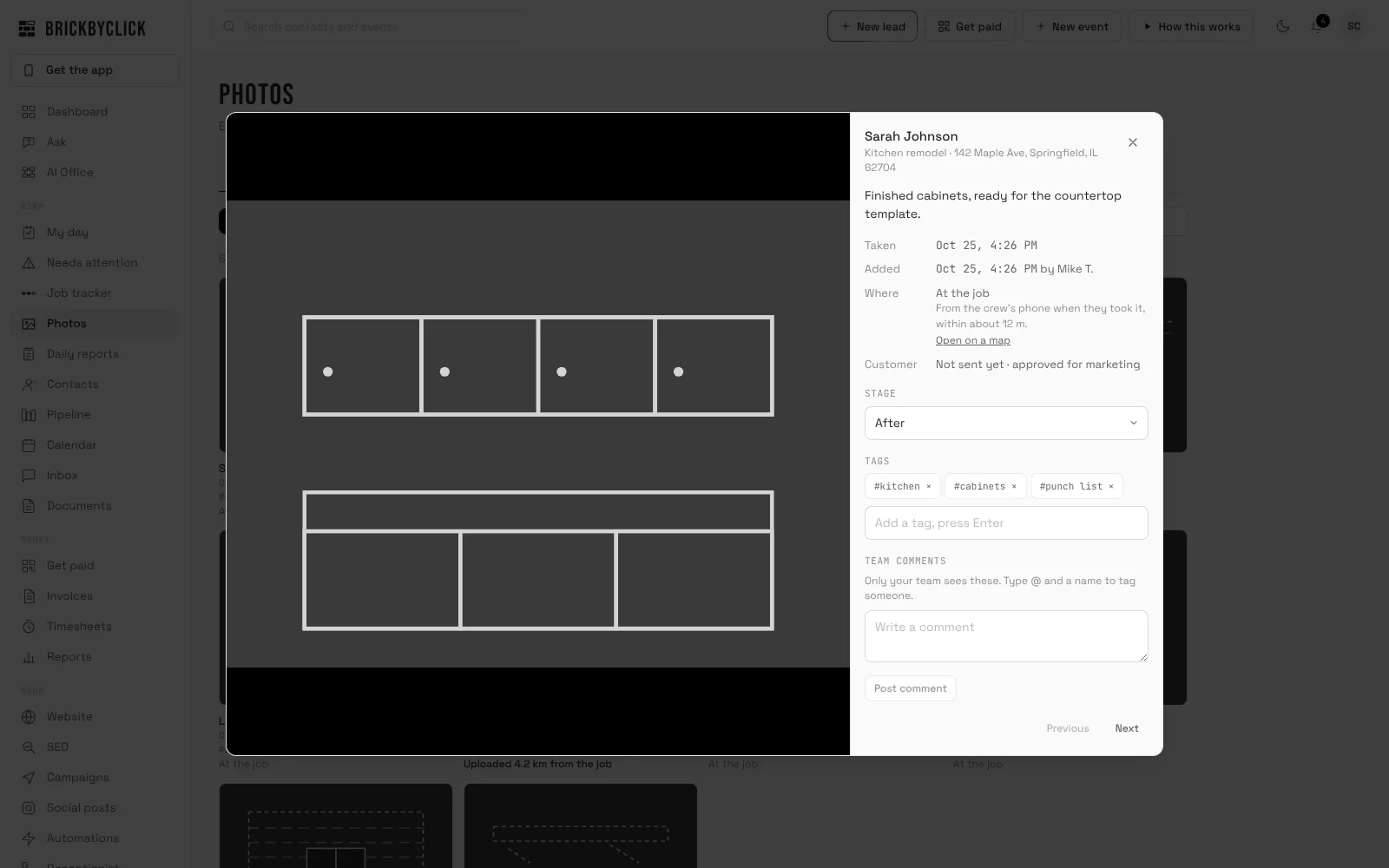
- Each crew photo gets a one-sentence caption of at most 20 words, from what can be seen plus the crew note. You can edit it.
- If you turn on photo updates for a job, the customer gets a daily or weekly email with the photos and a short AI summary of what was done. It does not make promises or quote dates or prices.
- Check the photos compares a job's photos with your checklist and invoice and says "not shown in the photos", never "not done". Talk it through turns what a crew member says into a note and a parts list, saved only when they press Add to work order.
Included in: Front Office, Growth, Total Growth for customer photo updates. See plans compared (the site does not name a plan for this one) for the rest.
Daily report summary
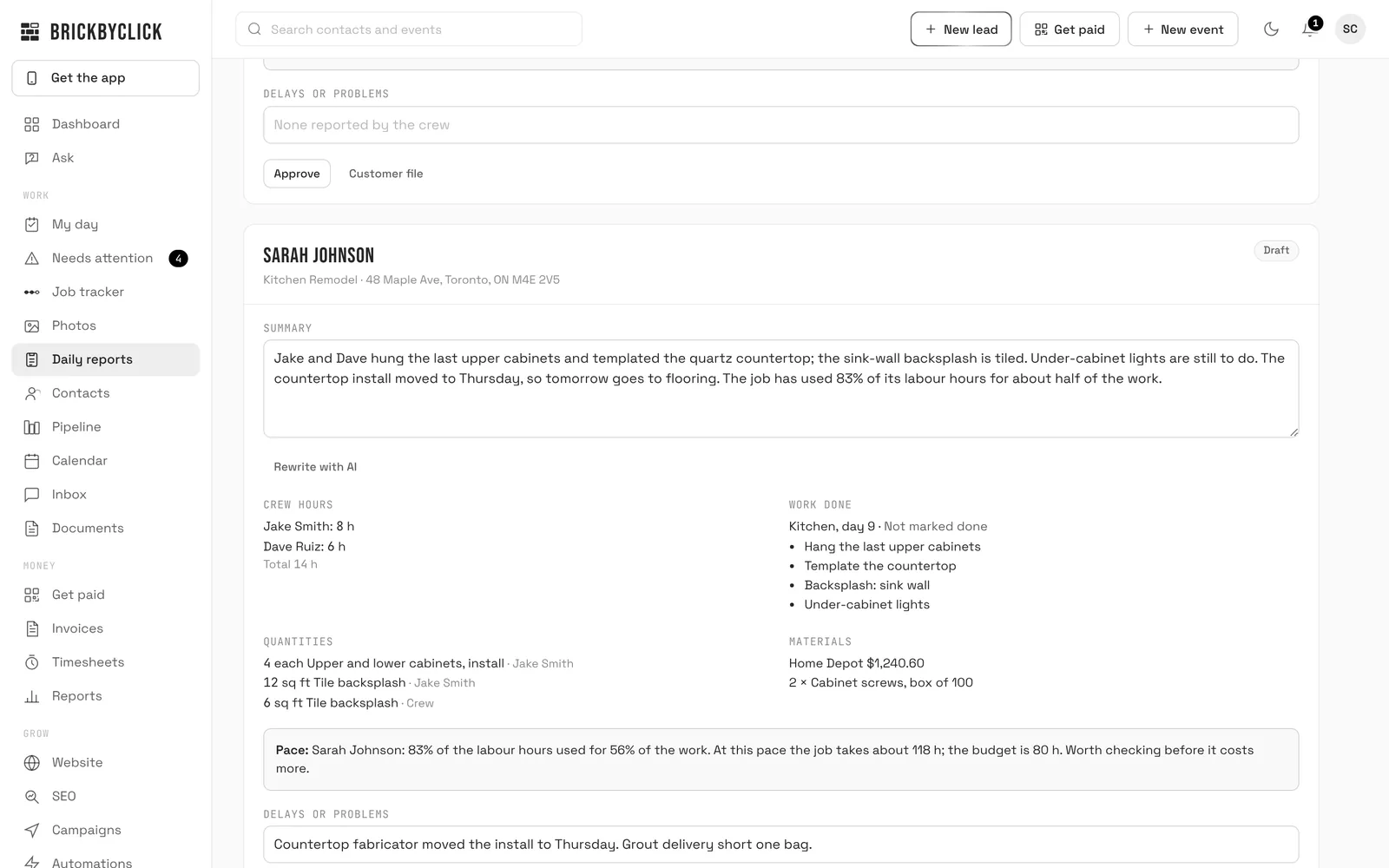
- At 6 PM the CRM drafts a report for each job with work. The facts come from your records. The summary is 3 to 5 short sentences written from those facts only.
- Write it with AI or Rewrite with AI, edit, then Approve. It is for you and your office, not sent to the customer.
Included in: Starter, Front Office, Growth, Total Growth.
AI captions in Social posts
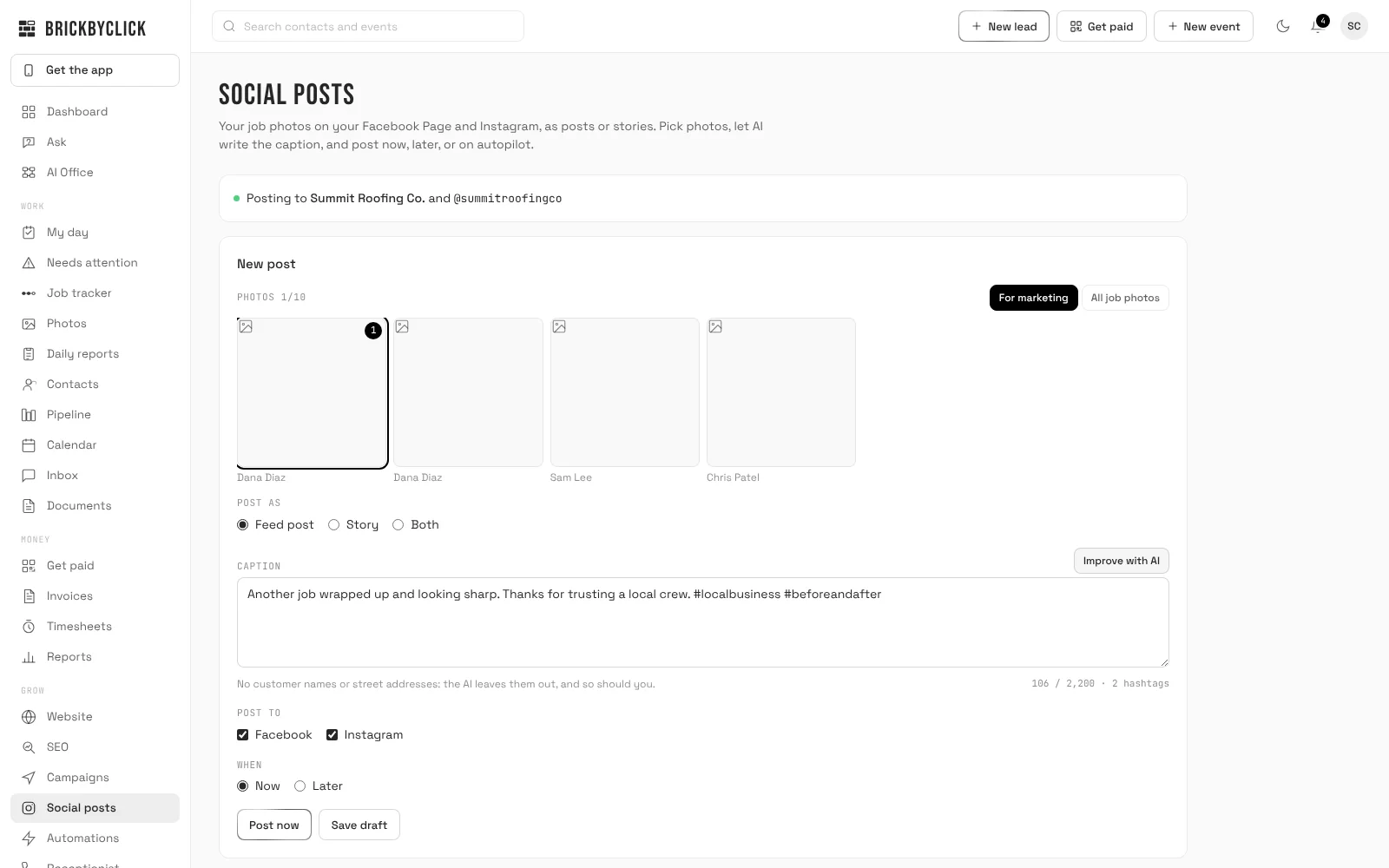
- Pick job photos and press Write with AI (it becomes Improve with AI once there is text). The caption comes from the photos' captions, crew notes and job type. You edit it.
- A filter removes customer names, street addresses, phone numbers and emails and caps hashtags at 3. Autopilot can wait for your OK (Ask me first) or post automatically.
- Needs your Facebook Page connected by the owner.
Included in: Front Office, Growth, Total Growth. Not on Starter.
AI search check and SEO drafts
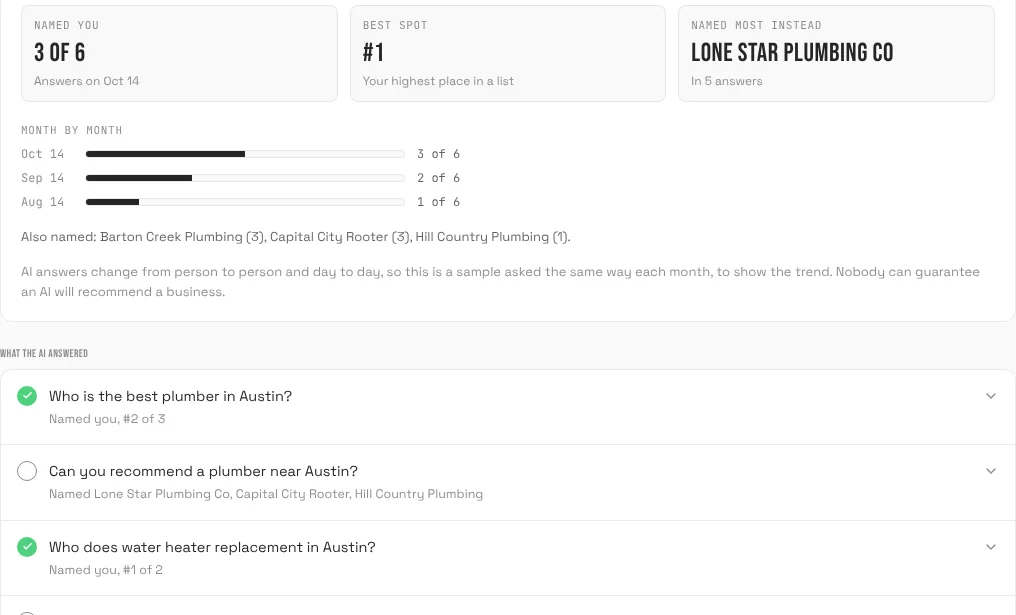
- Check now asks an AI with web search your customers' questions and records who it names. It also runs once a month: 10 questions on Growth, 20 on Total Growth. It is a sample, not a ranking.
- AI also writes blog drafts and Google post drafts for you to copy, replies to reviews, and a questions page built from real calls. It never posts for you. Total Growth adds AI suggestions on map rankings.
Included in: Growth, Total Growth.
Email campaign wording
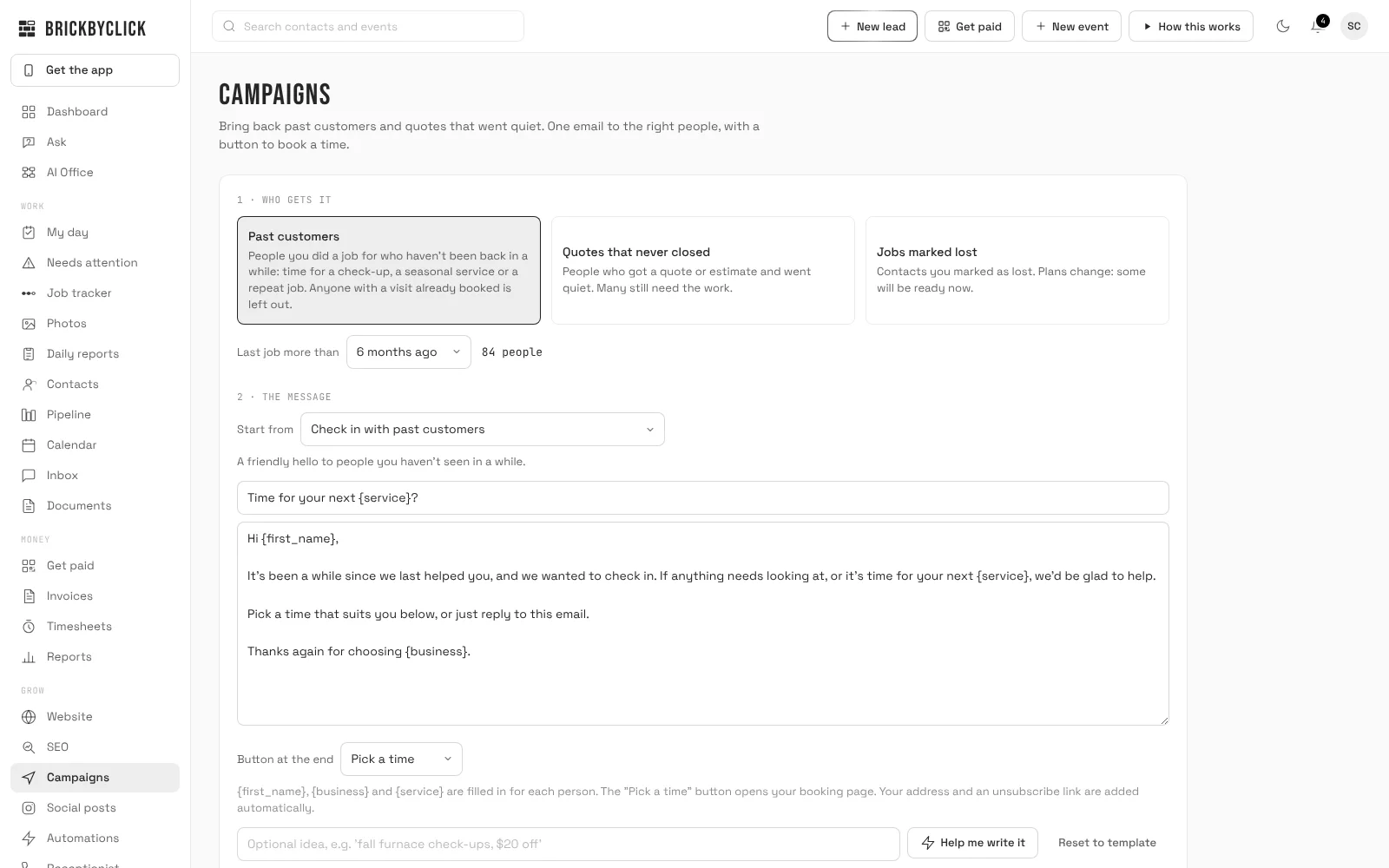
- Type an idea and press Help me write it. AI writes the subject and message and you edit them before anything goes.
- You tick that these are your own customers, can Send me a test, and emails go out in small batches during business hours.
Included in: Growth, Total Growth.
AI Document Assistant
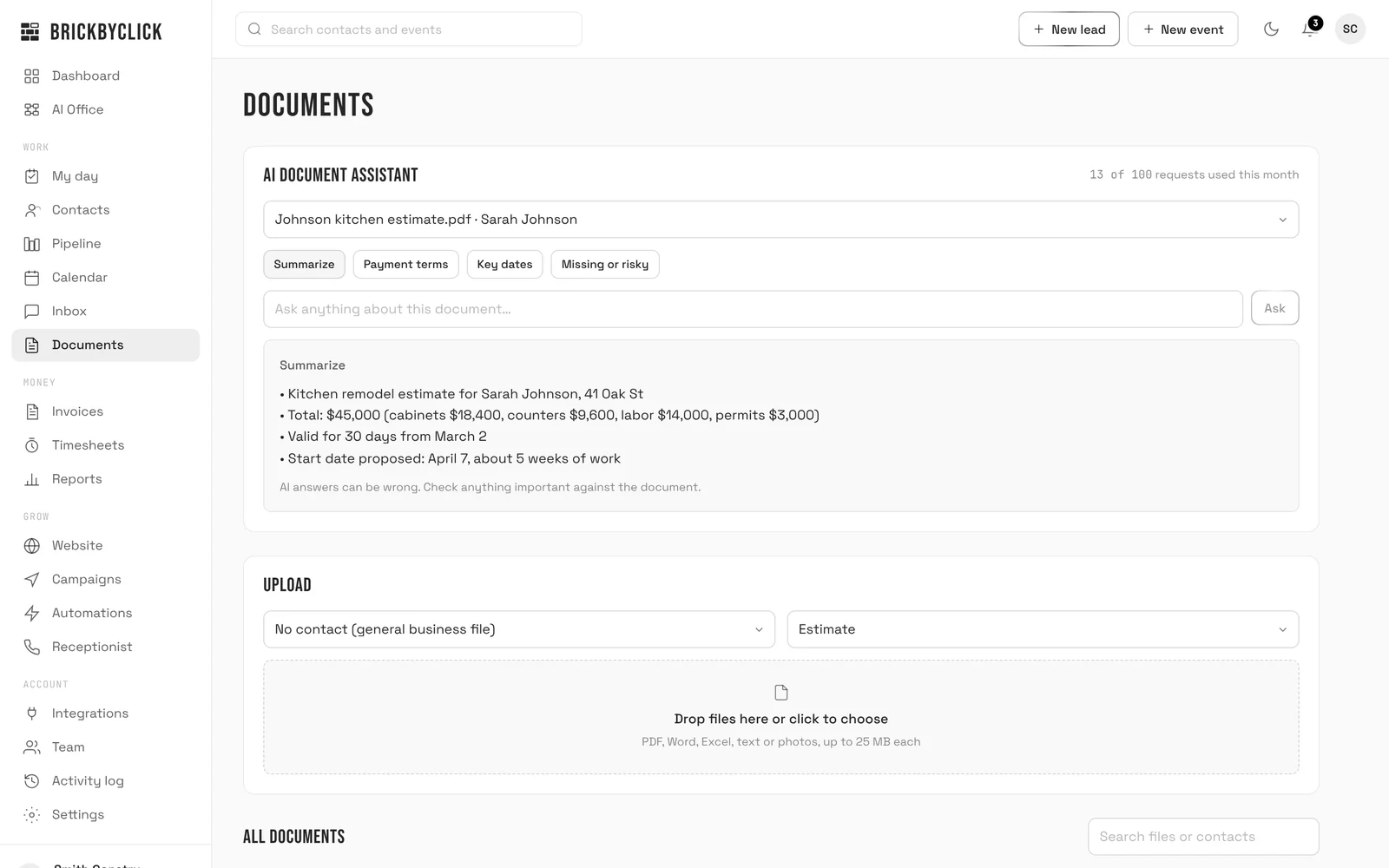
- Pick an uploaded file and press Summarize, Payment terms, Key dates or Missing or risky, or type your own question. Answers come from the document.
- The page warns that AI answers can be wrong. Check anything important against the file.
Included in: Front Office lists it. See plans compared (the site does not name a plan for this one).
Monthly report and AI business advisor
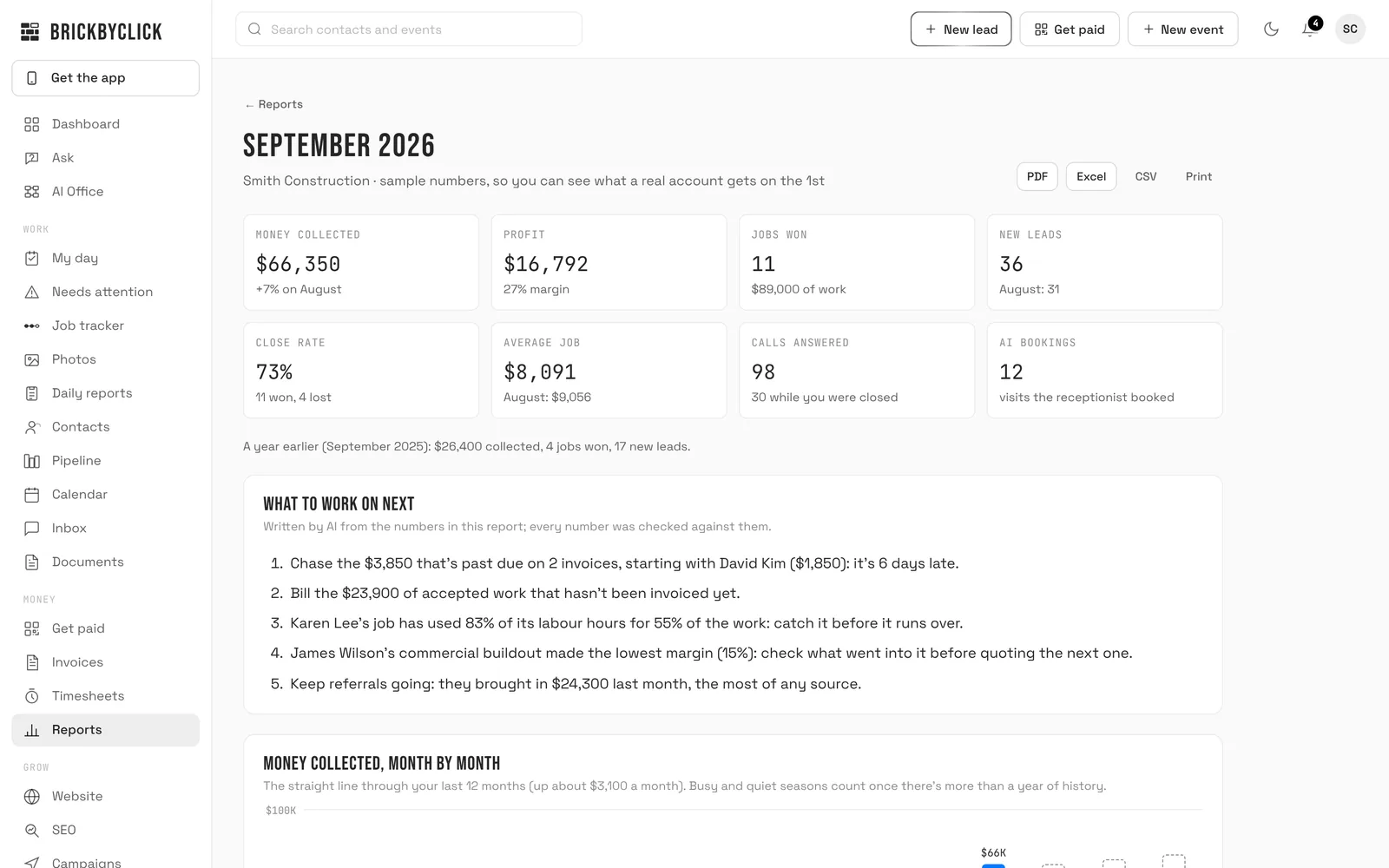
- On the 1st the report is built and emailed to the owner. What to work on next is 3 to 5 items written by AI and checked against the numbers, or written from the facts if AI is off.
- The AI business advisor on the Reports page writes a monthly summary with cards marked Leak, Opportunity or Working well. Every number is checked against your records.
Included in: Starter, Front Office, Growth, Total Growth.
AI Office
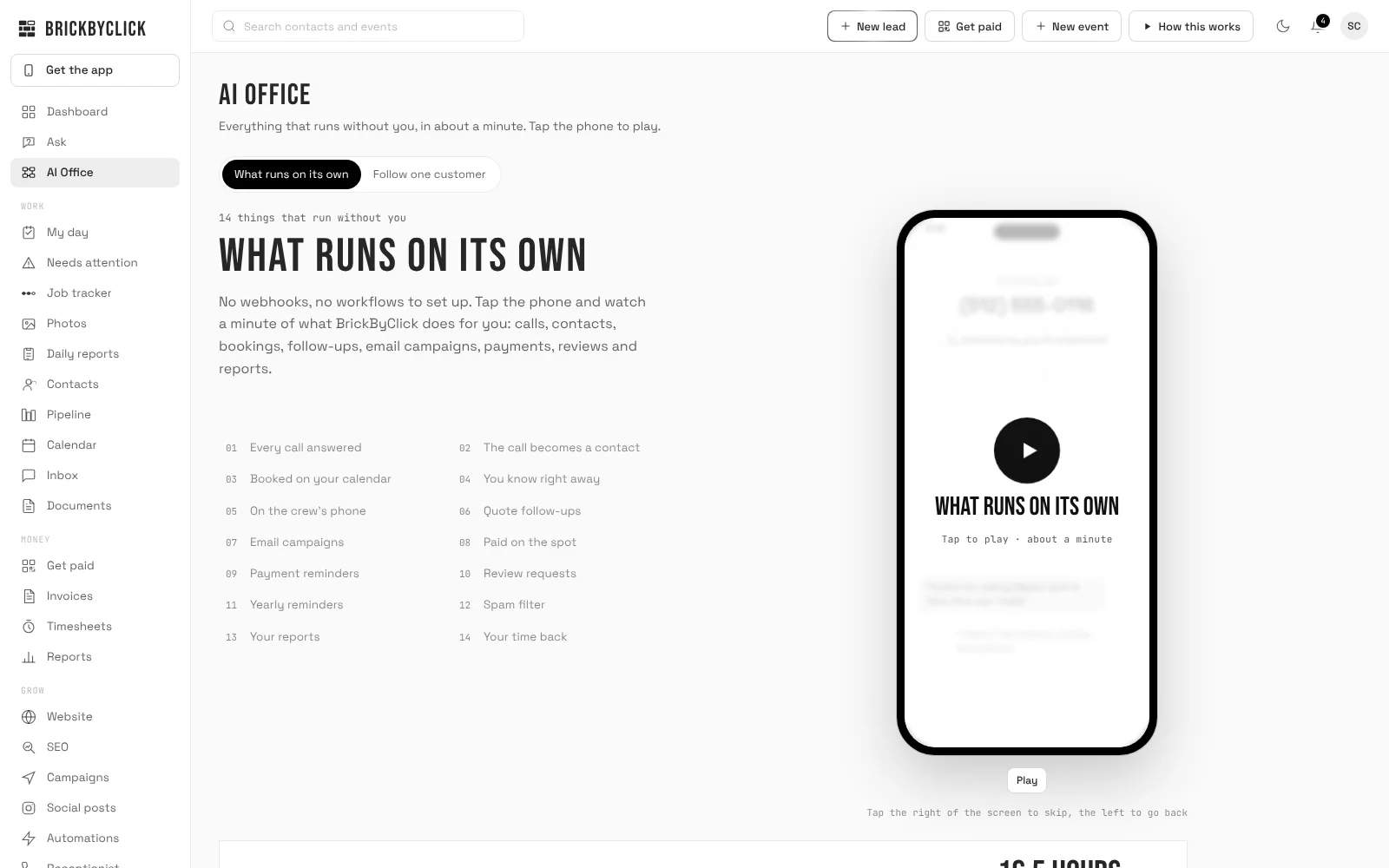
- A demo-only presentation of what runs on its own and one made-up customer from first call to paid. It is not a working tool and it is not in the menu of a live account.
Included in: A sample for prospects, not a plan feature.
What to check before buying an AI tool, job by job
The list above is ours. These are the questions to ask of any product in each area, with what AI does well and what stays with you.
Answering calls and booking
AI does well: picking up while you are on site, answering from your hours and services, booking open times. You decide: price, emergencies and promises. Check: a recording notice, its own phone number, whether you can see every call, and what happens past the included minutes. Ask for it in writing. See the AI virtual receptionist page.
Estimating and quoting
AI does well: turning words into a first draft of lines. You decide: quantities, scope and prices not in your list. Check: does it invent a price, does it read quantities from photos, and who checks them? Can the customer accept online and pay a deposit? See estimates and invoices.
Asking questions of your own records
Check that every figure is checked against the records, that the sources can be opened, and that actions wait for your OK. Ask is not a general chatbot, cannot send an estimate, text anyone, change prices or delete anything, and does not read your accounting software. Each question uses one request from your monthly AI allowance.
Watching for what is slipping
Needs attention fixes nothing by itself, except two switches that start off: automatic open-time offers and service reminders. The dollar value on each item is an estimate, not a promise, and it cannot find a promise that was never said or written down. Marking an item Done does not hide it; if the next check still finds it, it comes back. The job tracker shows every job from first call to paid and marks the ones stuck on your side.
Profit on each job
AI reads receipts and writes summaries; the numbers come from your hours and receipts. Receipts the AI cannot read are not counted until you check them, and a forgotten clock-out does not count until reviewed. Profit is cash basis, "a summary for you and your accountant, not your books", and fees are estimates. See job costing and business reports.
QuickBooks: connect QuickBooks Online and checked job receipts go over as expenses with the photo attached. Download for your accountant gives one spreadsheet for any accounting software. Invoices and payments do not sync.
Scheduling and dispatch
AI helps least here. Check whether a tool assigns people or only suggests, and whether it uses maps. In BrickByClick, Who should go? suggests up to 4 people by free time, skill and ZIP or town, with an Add button. No maps or drive times, and moving a visit does not email or text the customer. Your crew sees visits in the crew app.
Photos and field paperwork
Check whether the crew needs a login to add photos, and whether the tool claims work was not done or only that it is not shown. Read every draft report before it counts. See daily job reports.
Getting paid
Check whose account the money goes into, the fees and whether reminders stop when you record a payment by hand. In BrickByClick Get paid shows a QR code the customer scans, card money goes to your own Stripe account with Stripe's processing + 0.5% per card payment (max $25), and payment reminders (email, switched on by you) go out on the due date and 3 and 7 days late.
Follow-up and reviews
Check what is switched on by default and whether it texts or emails. Ours are email, each off until you switch it on: quote follow-ups at 2, 5 and 10 days, "How did we do?", and review requests. Review requests ask everyone, and a score of 1 to 3 goes to you first. See review software.
Marketing and being found
Walk away from anyone who promises a ranking. Local search takes months. See local SEO and Google Business Profile management.
What does AI do, and what do you still decide?
| Area | AI does it | You still decide |
|---|---|---|
| Calls and booking | Answers, takes details, books open times | Price, emergencies, what it may promise |
| Estimating | Drafts lines from your price list | Quantities, scope, prices not on your list |
| Ask | Answers from your records, shows sources | What to do, and pressing Yes, do it |
| Needs attention | Finds slipping items, ranks them, can call | Fixing them, and what is said |
| Job profit | Reads receipts, writes the report summary | Budgets, checking receipts, the fix |
| Photos and reports | Captions, drafts the daily report, checks photos | Approval, and whether work is done |
| Follow-up and marketing | Drafts posts, blogs and emails, AI search check | Offers, facts, unhappy customers |
What AI tools does BrickByClick not have?
- No dialer for cold-calling lists.
- No lead scoring. Needs attention ranks items by dollar value, not by a score.
- No plan measuring or material takeoff. The estimate AI does not read quantities from photos or drawings.
- No invoice sync to QuickBooks. Only job receipts go over, as expenses.
- No maps or drive-time routing.
- No AI that sends an estimate, change order or refund on its own. Each waits for you.
- No SMS campaigns, SMS quote follow-ups or SMS review requests. Those are email.
- No texting on day one. It turns on once your business number is registered with the phone carriers.
- No recurring invoices, payment plans or card reader, and no ranking promises.
Who are these AI tools for?
A good fit if
- You run an owner-led contracting, remodeling, roofing or construction business and miss calls on site.
- You write estimates yourself and want a first draft in minutes.
- You want the call, quote, job, photos and invoice in one record, and AI that waits for your approval.
- You run another local service trade. The same tools work, since BrickByClick serves local service businesses in 30+ industries.
Not the right fit if
- You need plan measuring, takeoff or bid management software.
- You make cold calls from a list and need a dialer.
- You need invoices to flow into QuickBooks automatically.
- You want AI to run the business with no one checking it.
What do AI tools for contractors cost?
The AI tools are part of a plan, not add-ons. Plans are month to month.
- Starter, $99 a month: self-serve CRM with AI estimate drafting, Ask, job costing with receipt reading, daily job reports and the monthly business report. No receptionist, texting, SEO or email campaigns.
- Front Office, $399 a month: adds the AI receptionist (500 AI talk minutes), the Inbox, AI follow-up calls, texting once registered, and social posts.
- Growth, $599 a month: adds SEO, the AI search check and email campaigns. 500 receptionist minutes.
- Total Growth, $999 a month: more SEO work, AI suggestions on map rankings and 1,000 receptionist minutes.
Card payments carry Stripe's processing + 0.5% per card payment (max $25), none on bank payments. AI features have monthly usage limits. For tools where no plan is named above, see plans compared.
Questions people ask
What are the best AI tools for contractors?
Can AI write a contractor estimate?
Is an AI receptionist worth it for a small construction company?
What should I not trust AI to do on a job?
How much do AI tools for contractors cost?
Which AI tools are on the cheapest plan?
Can I ask an AI questions about my own contracting business?
What does Needs attention do?
Can AI call a customer back for me?
Can AI tell me what each job made after labour and materials?
Can AI check job photos for missed work?
Do AI tools for contractors work with QuickBooks?
What should I ask before buying any AI tool for my contracting business?
See the AI tools on a job like yours
Take fifteen minutes with us. We will show the receptionist, an estimate draft, Ask and Needs attention on sample data, and tell you which plan each one is on.