Every part of BrickByClick, step by step. Signed in? Each section names the page in your CRM where you do it. Stuck? Call (888) 533-5784 or email info@brickbyclick.ai.
Getting started
Signing in and the phone app
Where
crm.brickbyclick.ai
Who
Everyone (techs see only their own jobs)
Your CRM runs in any browser and installs on your phone like an app, free, without an app store.
Go to crm.brickbyclick.ai and sign in with the email and password from your invite.
On your phone, open crm.brickbyclick.ai/get-app and follow the steps for your phone: on Android tap "Install the app"; on iPhone tap Share, then "Add to Home Screen".
Open BrickByClick from your home screen and sign in once. After that it opens straight to your CRM.
Forgot your password? Use "Forgot password?" on the sign-in page.
On Starter there's no invite: you choose your password right after paying at crm.brickbyclick.ai/start.
The "Get the app" button at the top of the menu shows the steps any time.
Get set up (your first week)
Where
Dashboard → "Get Set Up"
Who
Owner
A short checklist that gets your receptionist answering and your CRM ready. Each step opens right where you do it.
Answer the setup questions: your business, hours, services and prices, and how calls should be handled. Prefer to do it together? Choose "Do it together on a call".
Forward your business calls to your AI phone line. Pick your phone company and the setup shows the exact code to dial. You choose: every call goes to the AI, or only calls you don't answer.
Call your business number to hear your receptionist. The call shows up in your Inbox a minute later.
Add your business address and your Google review link (the checklist shows how to copy it from Google).
Import your customers and turn on your follow-up emails.
"Only calls I don't answer" means your phone rings first and the AI picks up what you miss. Most owners start there.
What you went over on your call with BrickByClick (hours, services and prices, your receptionist's voice) is already filled in. Those steps say "Filled in on your sales call": open them to check.
crm.brickbyclick.ai/start, then Dashboard → "Get Set Up"
Who
Owner
The CRM and a free website for $99 a month. You sign up, pay and set it up yourself, no call needed.
Sign up and pay at crm.brickbyclick.ai/start, then choose your password.
Work through "Get Set Up": your business, your hours, services and prices, how you get paid and your team. "Your free website", "Your booking page" and "Bring your customers" are optional.
"Your free website": enter your real details. For roofing, plumbing, HVAC, electrical, general contracting and landscaping it's built in about 2 minutes and we email you the link. For other trades, our team builds it and emails you its Website ID: enter it in Website to connect it.
Change your website any time in Website, with "Edit site" and "Photos".
Your Starter website is on a brickbyclick address, like yourname-yourtown.brickbyclick.pages.dev.
Not in Starter: the AI receptionist, texting, your own domain, SEO, email campaigns and website changes by our team. Those come with Front Office and up. To move up, call (888) 533-5784: everything you've added stays.
Logins and roles
Where
Team
Who
Owner
Everyone gets their own login and one of three roles.
Owner: everything, including the team, integrations, payments setup and billing.
Office: everything except managing the team and integrations.
Tech: only the jobs assigned to them, their calendar, My day, photos, notes and receipts on their jobs. Techs never see money, profit, reports or call recordings.
The Activity log (owner) shows who changed what, and when.
Two-step sign-in
Where
Settings → "Two-step sign-in"
Who
Everyone (techs see only their own jobs)
After your password, you type a 6-digit code from an authenticator app on your phone, so a stolen password isn't enough to get into your account. It's needed before you can connect online payments.
Install an authenticator app (Google Authenticator, Microsoft Authenticator, 1Password or Authy).
In Settings, tap "Turn on two-step sign-in", scan the QR code with the app (or copy the key), and type the code it shows.
From then on, sign-in asks for the code after your password.
Lost your phone? The owner can tap "Reset two-step" next to your name on the Team page. Owners: email info@brickbyclick.ai.
Notifications
Where
The bell (top right) → settings
Who
Everyone (techs see only their own jobs)
Your phone can tell you the moment something happens: a payment, a booked job, a new lead, a call answered or missed, and your 7 AM summary.
Install the app on your phone first (on iPhone, notifications only work from the home-screen app).
Open the bell, turn on notifications for this device, and pick what you want: "Payments", "Jobs booked", "New leads", "Calls answered", "Missed calls", "7 AM summary", "Daily job reports".
Tap "Send a test" to check it works.
"Quiet at night" (on by default) holds notifications from 9 PM to 7 AM; they still show under the bell.
Techs only get notifications about their own work, never money or calls.
What the AI does for you
Everything the AI does, and what waits for your OK
Where
Across your CRM
Who
Owner and office
AI does the busywork across your CRM. Some of it runs on its own; anything that changes your records, reaches a customer or touches money waits for you or your team to tap.
On the phone: your receptionist answers every call, knows returning customers, books visits, moves or cancels a caller's own visits (your choice), takes notes like gate codes, and filters spam. See "What your receptionist does".
After every call: it saves the call with a summary, may suggest moving the job to its next stage (you tap "Move"), and counts the questions callers ask. Questions it couldn't answer wait for your answer; ones asked 3 times are suggested for your website.
Every hour: "Needs attention" finds promises made on calls, quotes going quiet, work that wasn't billed (with a change order drafted for you to check), open times to fill and equipment due for service. Tap "Have the AI call" and your receptionist follows up for you. "Won back this month" shows the money that came in after.
"Ask": questions about your business in plain words. If you ask it to do something, it shows the action and waits for your tap.
"AI follow-up call": your receptionist calls a customer for you (to follow up an estimate, confirm a visit, ask for a review or check in).
Estimates: describe the job (typed, spoken or with photos) and the lines are drafted from your own price list. You check and send.
Receipts: snap a photo and the supplier, items, tax and total are read and put on the job. Unclear ones wait for a check.
In the field: "Talk it through" writes up the visit from what the tech says (you tap "Add to work order"), and "Ask the manuals" answers from your own manuals, with the page.
Photo updates: crew photos get a caption and go to the customer after a 2-hour hold (or only after your OK, if you choose).
Writing help: campaign emails ("Help me write it"), blog posts, your questions page, Google review replies, Google posts and link emails. All are drafts you edit, approve or copy.
Daily job reports: at 6 PM it writes a short summary of each job's day from the facts, for you to approve.
Photo check: before you invoice, it compares the job's photos with the checklist and the invoice, and lists anything the photos don't show.
Monthly business report: on the 1st it writes "What to work on next" from numbers already counted, each one checked.
"AI Business Advisor" (Reports): a checked report on the 1st of each month, and answers to your questions.
"Documents": summaries, payment terms, key dates and risks in a contract or document you upload.
Team line: your crew and office call in, say a PIN, and hear their day, get directions, clock in, add notes; owners and office can also move visits and hand out jobs. Every change is read back first.
It never makes up prices or facts: prices come from your price list, answers from what you've taught it.
Your plan includes a monthly number of AI requests for the buttons you press; the automatic checks after calls and every hour don't use them.
Texting turns on once your business number is registered with the phone carriers. Then callers whose call was missed get a text back, and customers get a reminder the day before each visit.
Calls and your AI receptionist
What your receptionist does
Where
Receptionist
Who
Owner and office
It answers your calls day and night in your business's name, answers questions from what you've taught it, books visits, and sends every call to your Inbox with a summary.
Returning customers are recognised by their number and greeted by name. It knows their jobs, upcoming visits, notes and recent calls.
With "Live Booking" on, it books visits into real open times. It can also move or cancel a caller's own visits, or take the request for you (see the next articles), and add a note to a visit (gate code, pets, parking).
Prices are given the way you choose on the Receptionist page. For emergencies it gives your emergency number. It doesn't transfer calls.
New callers are asked how they heard about you; the answer is saved on the contact.
Robocalls and sales calls from unknown numbers are filtered out ("Spam call filter" in Automations). A known customer is never filtered.
After each call you get an email alert (and a phone notification if you turned those on).
Once texting is on for your business, a caller whose call was missed gets a text back right away. Texting turns on when your business number is registered with the phone carriers.
Teaching your receptionist
Where
Receptionist
Who
Owner and office
Everything it says about your business comes from this page. Change it any time; the next call uses it.
"Hours" and "Closures": when you're open, and days you're closed (holidays, vacations).
"Services & Prices": what you do and what it costs. Choose how prices are handled: "Don't quote prices: offer an estimate instead", "Give "starting at" prices from the list", or "Give the prices on the list".
"Voice & Greeting": pick how it sounds (tap play to hear each voice) and what it says when it picks up. The recording notice and "How can I help you today?" are added for you, and callers it knows are still greeted by name.
"Common Questions": the questions callers ask and your answers.
When a caller asks something it couldn't answer, the question shows at the top of this page under "Questions it couldn't answer", with how many times it was asked. Tap "Answer it", write the answer, and "Add the answer" puts it in "Common Questions". Not relevant? Tap "Not needed".
"Booking & Emergencies" and "Anything else it should know": your rules in plain words.
Save. "History" keeps earlier versions; "Restore" puts one back.
Questions callers asked that it couldn't answer show at the top of this page (see "Questions callers ask").
Questions callers ask
Where
Receptionist → "Questions it couldn't answer", and SEO → "Blog"
Who
Owner and office
After every answered call, the questions callers asked about your business are counted, whether your receptionist could answer them or not. Answer the ones it couldn't, and put the ones asked most on your website.
Questions it couldn't answer show at the top of the Receptionist page with how many times they were asked and a link to "the call".
Tap "Answer it", write what your receptionist should say, then "Add the answer". It goes into "Common Questions" and the next caller gets it. "Not needed" hides a question for good.
When any question has been asked 3 times, you get a notification. Under SEO → "Blog", "What callers keep asking" lists them: "Write a blog post" drafts a post about one, "Add to questions page" puts them all on your questions page, or "Not for the website".
Your 7 AM summary also tells you when new questions it couldn't answer come in.
The AI never writes an answer for your receptionist: only what you write is added.
Website drafts wait for your "Approve". On Growth and Total Growth we put them on your website; on Front Office you copy them.
Live booking on calls
Where
Receptionist → "Live Booking"
Who
Owner and office
Your receptionist can book visits straight into your calendar while the customer is on the phone, inside your rules. It's off until you turn it on.
Choose "What gets booked on calls" and "How long" each takes.
Set "Travel time between" visits, the "Earliest booking" (for example, not same-day), "How far ahead", and the "Most per day".
Check "Next openings your receptionist would offer" to see the times it would give callers.
The same rules power your online booking page (see Customer pages).
When customers want to move or cancel
Where
Receptionist → "Booked Visits"
Who
Owner and office
Choose what happens when a customer calls about a visit they already have.
Default: the receptionist takes a message and you get it right away.
Or let it move or cancel the visit on the call, except when the visit is less than the number of hours you set.
Either way, the visit and the contact's notes show what happened, and you get an email. Cancelled visits stay on the calendar, crossed out.
It only ever changes visits that belong to the number that's calling.
AI follow-up calls
Where
Contact → "AI follow-up call"
Who
Owner and office
Your receptionist calls a customer for you, with their history in front of it.
Open the contact and tap "AI follow-up call".
Pick why: "Follow up on the estimate", "Confirm the appointment", "Ask for a review", "Check in after the job", or type your own reason.
Tap "Call" with their name. The call, its summary and what was said land in your Inbox, marked "Outbound".
Calls only go out between 8 AM and 8 PM in your time zone, and the contact needs a phone number.
Inbox
Where
Inbox
Who
Owner and office
Every call your receptionist handled or missed, newest first.
Open a call to read the "Summary" or the full "Transcript", or listen to the recording.
"Open contact" jumps to the customer. Tags show calls "Filtered as spam", with "No answer", or "Outbound" follow-up calls.
Texting your customers
Where
Inbox → "Texts"
Who
Owner and office
Text customers and keep every conversation with the contact. Texting turns on once your business number is registered with the phone carriers, which BrickByClick handles during setup. Until then it shows as "Texting is being set up".
Inbox → "Texts" shows every conversation, newest first, with unread ones marked. Open one to reply.
On a contact, the "Texts" tab shows your conversation with them. "Suggest a reply" writes one from your business details for you to edit before sending.
Your crew taps "On my way" on a visit in My day and picks about how long: the customer gets a text.
In Automations, turn on "Missed-call text-back" (a text to callers whose call wasn't answered) and "Visit reminder texts" (5 PM the day before).
A customer who replies STOP isn't texted again until they reply START.
Customers and sales
Dashboard
Where
Dashboard
Who
Owner and office
Your business at a glance when you sign in.
"Brought in through BrickByClick": this month's paid invoices from customers who came through your receptionist, online booking or website form.
"Money on the table": "Waiting to be paid", "Estimates with no answer" and "Missed calls to return", with "Call back".
"AI Receptionist · 7 Days": calls answered this week, and the latest call to play back.
Recent activity, upcoming visits, where your leads come from, and the "Get Set Up" checklist while you're setting up.
Contacts
Where
Contacts
Who
Everyone (techs see only their own jobs)
Every customer and lead, with their jobs, notes, documents, estimates, invoices and job costs in one place.
"New lead" adds someone by hand. Search or filter by stage.
Open a contact to see its tabs: "Details", "Notes", "Documents", "Updates", "Billing", "Costs" and "Drawings" (and "Texts" once texting is on). "Customer file" opens everything you've done for them on one page.
"Import" brings customers in from a spreadsheet, your phone or your old CRM; "Match your columns" lines them up. "Export" downloads them.
Your receptionist greets imported customers by name when they call.
Switching from another system? Bring in the money you collected and spent before, too: see Bringing in your past records.
The customer file
Where
Contacts → a contact → "Customer file"
Who
Owner and office
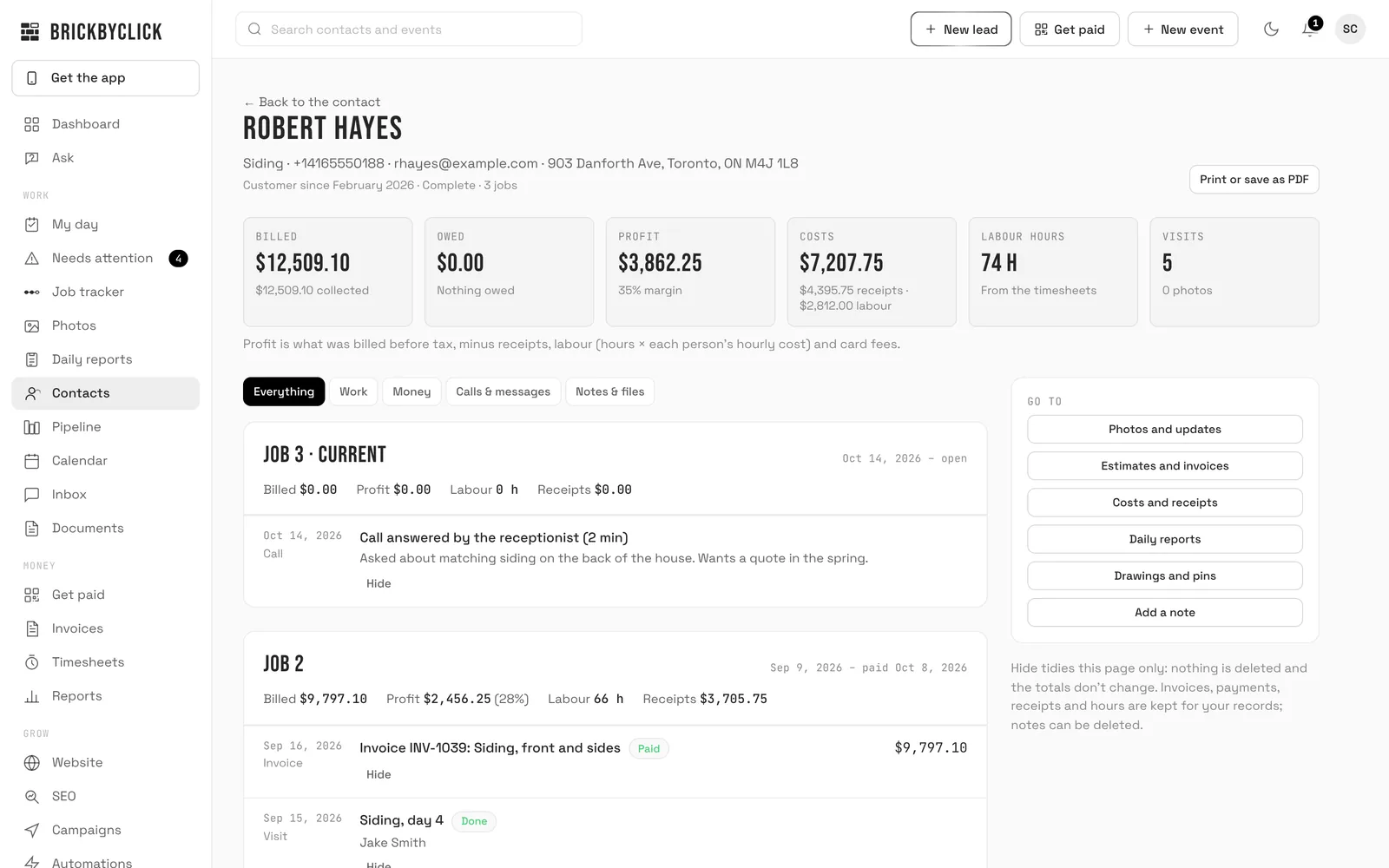
Everything you've done for one customer on one page: every visit, estimate, invoice, payment, photo, receipt, call and note, split into jobs, with what each job made.
Open a contact and tap "Customer file". The top shows when they became a customer, and their totals: Billed, Owed, Profit, Costs, Labour hours and Visits.
A repeat customer's work is split into jobs: a job ends when its final invoice is paid in full. Each job shows what was billed and owed, the profit, labour and receipts.
Narrow the timeline with "Everything", "Work", "Money", "Calls & messages" or "Notes & files".
"Hide" takes an entry off the page; nothing is deleted and the totals don't change. "Show hidden" brings it back.
"Print or save as PDF" for a copy, and the buttons on the side go straight to the job's photos, estimates and invoices, costs, daily reports and drawings.
Profit is what was billed before tax, less receipts, labour (hours at each person's cost per hour) and card fees.
Approved daily reports and photo checks are in the timeline too.
Equipment and service history
Where
Contact → "Details" → "Equipment"
Who
Everyone (techs see only their own jobs)
What you service at each customer's place: the furnace, the water heater, the unit, with warranty and service dates.
Tap "Add equipment": name, brand, model, serial, where it is, installed date, warranty until, last serviced, notes.
Tap "Serviced today" after a visit. The equipment also shows on the visit and on My day.
When something is due for service, it shows in Needs attention under "Service due", with a reminder ready to send.
Pipeline
Where
Pipeline
Who
Everyone (techs see only their own jobs)
Your jobs as cards in stages (set up for your industry). Drag a card to move it.
After a call, a card may show a suggested move ("Move to …"). Tap it to accept, or "Not now".
"Mark lost" when a job is gone; "Reopen" brings it back.
Rename or add stages in Settings → "Pipeline stages".
Needs attention
Where
Needs attention
Who
Owner and office
The things that slip through the cracks, found for you every hour: promises made on calls, jobs missing a deposit or materials, cancellations you can fill, work that wasn't billed, equipment due for service, quotes going cold, unhappy customers, and job costs to check.
Each item shows "Why" it's there and the next step: "Call them back", "Send it", "Book a visit", "Send an estimate".
"Have the AI call" (on promises, quotes going quiet, jobs not ready and service due): your receptionist calls the customer for you. The reason is filled in; change it if you like, then "Call". What happens shows under "Why" and in your Inbox, and the next check closes it.
Tap "Done" when it's handled (the next check confirms it) or "Dismiss" if it doesn't apply.
"Check now" runs a check right away. "Add a promise by hand" tracks something you promised.
"Won back this month" adds up the money that came in after something showed up here: estimates accepted, invoices and deposits paid.
In its settings, choose what a job needs before it's "ready", and turn on "Offer open times automatically" and service reminders (owner).
Job tracker
Where
Job tracker
Who
Owner and office
Every job on one line, from the first call to paid: Asked, Quoted, Booked, Done, Invoiced, Paid. Anything stuck on your side is marked, with how many days it's been stuck.
It opens on "Needs you": jobs where the next move is yours and it's late. For example, a caller with no quote or visit after 2 days, an approved quote with no visit booked, a visit day that passed without being marked done, finished work that isn't invoiced after 2 days, or a customer who says they paid and you haven't confirmed it.
Each job has a button for the next step: "Make the invoice", "Book the visit", "Send the quote", "Confirm the payment".
"Waiting on the customer" shows quotes they haven't answered yet and invoices not paid yet. Late payments are marked.
"Show steps" lists what happened on each step and when, including what was done for you: "Answered by AI", "Booked by AI", automatic quote follow-ups and payment reminders.
The same line shows at the top of each customer's contact, so you see where their job is the moment you open them.
Nothing to set up: it's built from your calls, estimates, calendar, invoices and payments, and it's always up to date.
A quick repair with no quote, or work billed without a calendar visit, skips that step. A repeat customer shows their newest job.
A paid job stays on the list for 30 days. Mark a contact lost to take their job off.
Ask
Where
Ask
Who
Owner and office
Ask about your business in plain words, typed or spoken: "Who owes us money?", "Which jobs made the most profit last month?", "Which jobs are running over on hours?", "How are we trending this year?"
Type or tap "Ask by talking". The answer comes from your own records, and "Hide where this comes from" shows the records it used.
If you ask it to do something (resend an invoice, assign an item), it shows the action first and waits for your tap.
Under each answer, "Save as PDF" saves the question and answer. When the answer has a table behind it (jobs, payments, sources), "Excel" and "CSV" download it.
Ask covers money, jobs and profit, hours and job pace, receipts, reviews, campaigns, daily reports and trends. Every number in an answer is checked against your records; if one doesn't check out, you're shown the records instead.
Documents and the document assistant
Where
Documents
Who
Owner and office
Keep contracts, permits, warranties and manuals with the customer, and get the important parts read for you.
Under "Upload", pick the contact and a category, then add the file.
Tap "Ask AI" on a document: "Summarize", "Payment terms", "Key dates", "Missing or risky", or ask your own question.
Files in the "Manual" category are what your crew's "Ask the manuals" answers from.
It reads documents with text in them; a photo or scan of a page can't be read. It isn't legal advice.
Email campaigns
Where
Campaigns
Who
Owner and office
One email to a group of your customers, with a "book a time" button.
Pick a group: "Past customers", "Quotes that never closed" or "Jobs marked lost".
Start from a template (spring booking, before winter, ask for referrals, holiday hours and more) or tap "Help me write it".
"Send me a test", then start it. "Stop" or "Resume" any time; "Past campaigns" shows how each did.
The booking button needs online booking turned on (Receptionist).
Scheduling and your crew
Calendar
Where
Calendar
Who
Everyone (techs see only their own jobs)
Your visits by month, or by person with "Crew week". Drag a visit to another day or person.
"New event": title, type, date, time, length, crew, a checklist, and the customer ("Linked contact").
"Repeats" makes a repeating job (every week, 2 weeks, 4 weeks or month) until a date you choose.
Booking a visit, "Who should go?" suggests who's free, has the skill, is nearby and has the lightest day. You choose.
Pick a "Checklist" (made in Settings → "Job checklists") and the crew ticks it off on My day.
"Who's free now" shows who has room. "Import" brings in appointments from your old calendar.
The coloured stripe shows the kind of visit: job start blue, inspection purple, follow-up teal, meeting grey. It turns green when the visit is marked done, and orange when a job start or inspection's day has passed without being marked done. The key is under the month.
My day (the crew's screen)
Where
My day
Who
Everyone (techs see only their own jobs)
Everything a tech needs for the day on one screen.
Each visit shows the customer, address with directions, phone, your notes, access details and materials.
"Clock in" at a visit and "Clock out" when done. Time clocked at a visit counts toward that job's labor cost.
Fill in the work order: checklist, photos, parts used, and the customer's signature. "Mark done" when finished.
"Get paid" takes payment on the spot (if payments are on).
Anything that held the job up goes in "Delays or problems today", then "Save for today's report".
Owners and office can switch to anyone's day, or "Everyone".
Two helpers for the crew on site, so they don't have to type or call the office.
"Before you go: history and notes" shows past visits, notes and promises for the customer.
"Talk it through": say (or type) what you did and tap "Write it up". You get a visit note, the parts used (priced from your price list, with anything to check flagged) and a note for the office. Tap "Add to work order", or "Change what I said".
"Ask the manuals": ask a question by typing or talking. The answer comes only from the manuals you uploaded to Documents, with the file and page to open.
If the manuals don't cover it, it says so rather than guessing.
Team line: your crew calls the office line
Where
Team → "Team line"
Who
Owner
Your team calls your AI line's number from their own phone, says their 4-digit PIN, and the receptionist helps them hands-free.
On the Team page, turn the team line on, then "Set phone and PIN" for each person. Tell them their PIN and the number shown on the card.
Crew can ask: "What's left today?", "Who's my next customer?", "Send me directions", "Clock me in", "Add a note".
Owners and office can also ask: "Who's free tomorrow?", "Give the next job to whoever's free", "Move Carla's visit to Thursday at 2", "What needs my attention?", or questions like "Who hasn't paid?"
Anything that changes something is read back first and only done after a yes. Directions and new jobs go to the person's phone (app notification) and email.
Never by phone: payments, refunds, invoices, deleting anything, or team access.
Team calls use your AI phone minutes (300 a month by default). Moving a visit by phone doesn't tell the customer: let them know.
Timesheets
Where
Timesheets
Who
Owner and office
Everyone's hours by week, from the time clock.
Open a person to see their entries. "Edit" or "Delete" fixes a mistake; "Add time" adds a missed stretch.
Techs see their own hours on My day.
Photo updates for customers
Where
Contact → "Updates"
Who
Owner and office
Your crew snaps photos from a private link; the customer gets a daily or weekly email of what was done, with captions written for you.
"Turn on photo updates" and choose "Daily at 7 PM" or "Weekly, Fridays at 5 PM". Share the crew link with whoever is on the job.
Choose "Ask me before each report is sent" if you want to check each one.
When the job is done, "Job finished: send wrap-up" sends a last update with a review button.
Photos: every job photo, with when and where
Where
Photos
Who
Everyone (techs see only photos from their own jobs)
Every job photo in one place, with when it was taken and how far from the job.
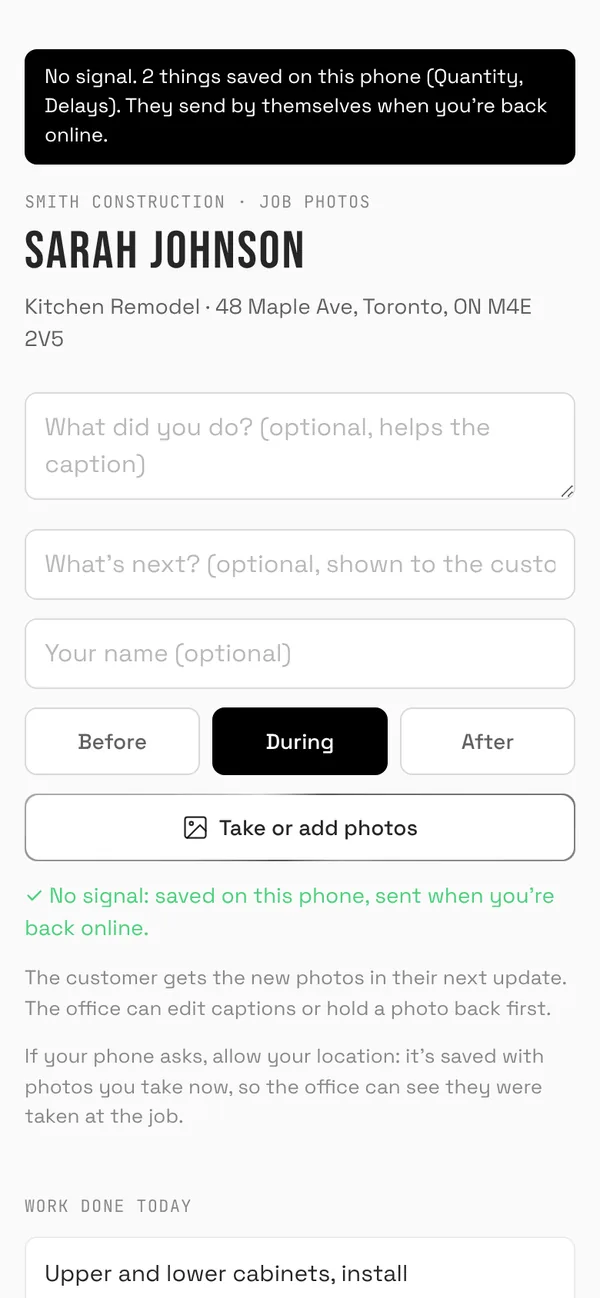
Your crew adds photos from the job's link with "Take or add photos", up to 20 at a time. If the phone asks, they allow the location.
Narrow the page with "All", "Before", "After", "Away from the job", "No location" or "For marketing", or "Find a customer".
Each photo says where it was taken: "At the job", "Taken 1.2 km from the job" (from the photo's own location) or "Uploaded 1.2 km from the job" (from the phone's location when it was added).
Open a photo for when it was taken and added and by whom, where (with "Open on a map"), whether the customer got it in an update, and its stage. "Open the job" goes to the contact.
"Away from the job" means more than 500 m from the job's address.
Phones often remove the location when a photo is picked from the gallery. A photo taken in the moment, with location allowed, is the surest.
The "Receipts" tab (owner and office) has every receipt photo.
Photo check before you invoice
Where
Contact → "Updates" → "Before you invoice or wrap up", and when you send an invoice
Who
Owner and office
AI compares the job's photos with its checklists and the estimate or invoice, to catch work the photos don't show before you bill.
Tap "Check the photos". It looks at up to 10 of the job's photos and their captions.
Anything it can't see is listed as "Not in the photos" or "Unclear". If every work item shows up, it says so.
When you send an invoice, the check runs by itself. If something is flagged, the button reads "Send anyway".
Photos or work changed since? "Check again".
AI can miss work or misread a photo, so treat it as a second look, not an inspection. It never changes anything.
Plans and drawings
Where
Contact → "Drawings", and "Drawings" on the job's link
Who
Everyone on the job (only the owner or office can delete)
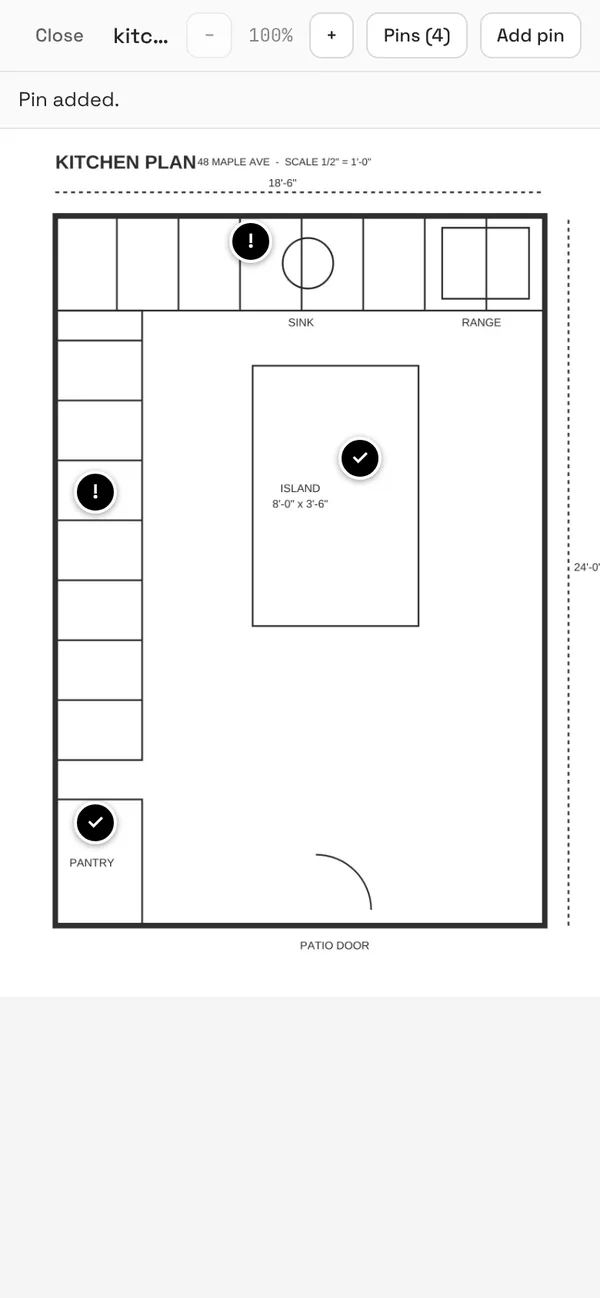
Put the plans on the job and pin photos, issues and tasks to the exact spot.
"Add a drawing": a PDF of the plans (up to 30 pages) or a photo of them or of a sketch.
Open it and zoom in, tap "Add pin", then tap the spot. Choose "Issue", "Task" or "Photo", give it a title and a note, add a photo if you like, and "Save pin".
"Pins" lists every pin on the drawing. "Mark done" when an issue or task is fixed, or "Reopen" it.
Adding a drawing needs signal. Pins and photos on drawings already there work with no signal.
The crew opens drawings from the job's link; the office sees the same pins on the contact's "Drawings" tab and in the customer file.
Working with no signal
Where
My day and the job's link
Who
Everyone (techs see only their own jobs)
Basements, steel buildings, rural jobs: the crew keeps working, and everything is sent when the phone has signal again.
Open My day or the job's link once on that phone with signal. After that it opens with no signal too.
With no signal, ticks, checklists, notes, parts, photos, quantities, delays and pins are saved on the phone. A bar at the top says how many things are waiting.
They send by themselves, oldest first, as soon as there's signal. "Send now" sends them straight away, and the bar says when everything has been sent.
Needs signal: clocking in or out, taking a payment, adding a drawing and deleting a pin.
Nothing is counted twice, even if the connection drops halfway through sending.
Other pages show "You're offline" until there's a connection.
Daily job reports
Where
Daily reports
Who
Owner and office
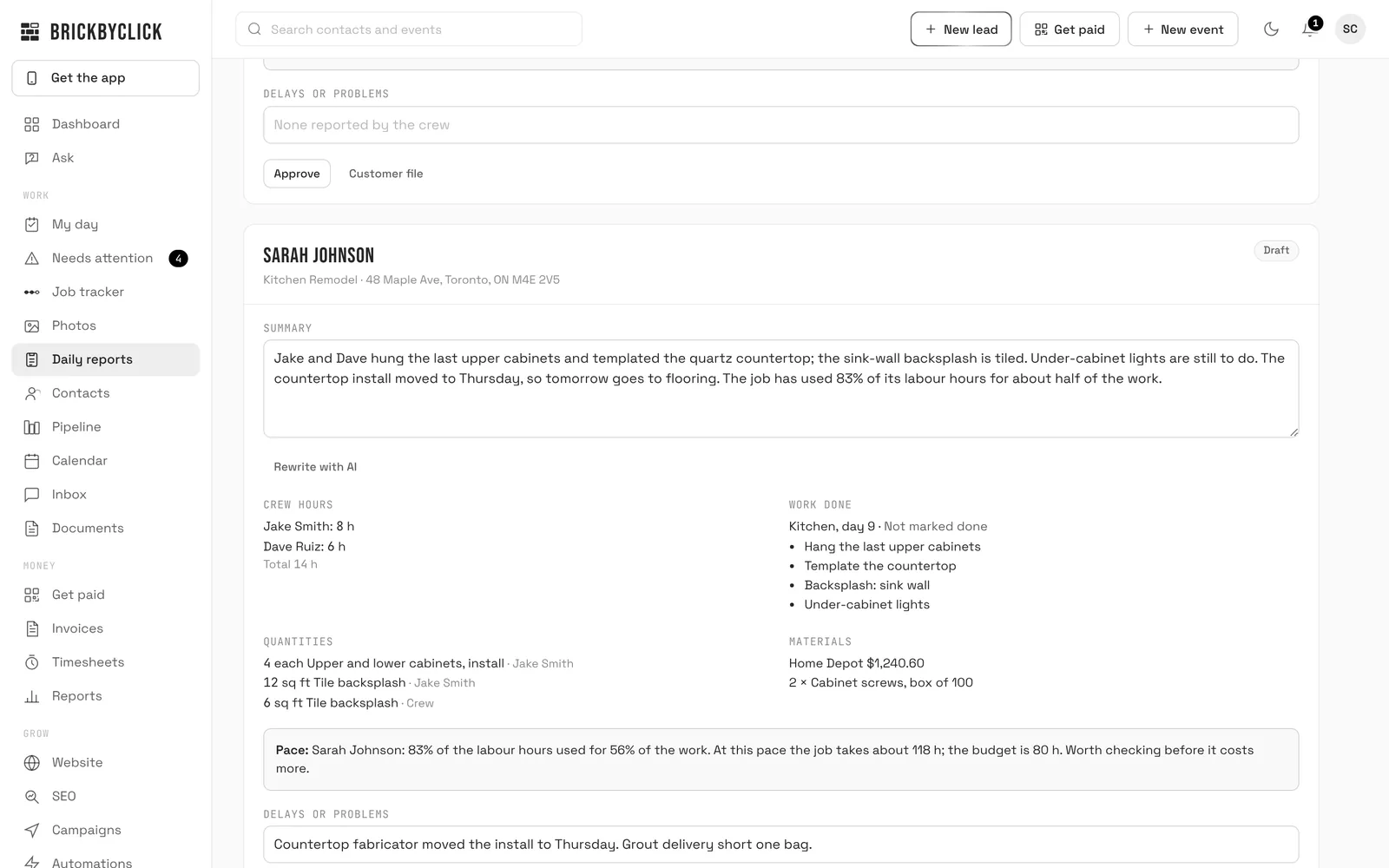
At 6 PM, every job with something on it that day gets a draft report: crew hours, work done, quantities, materials, photos, delays and the weather at the job.
At 6 PM the day's facts are put together for each job, AI writes a short summary from them, and you get a notification: "daily reports ready to approve".
Each report shows the summary, crew hours, work done, quantities, materials, the job's pace, delays or problems, photos and notes added, with the day's weather.
Change the summary and "Save", or "Rewrite with AI". "Refresh the facts" picks up anything added since.
"Approve" when it's right, or "Approve all" for the day. Approved reports are kept in the customer file as they were.
"← Day before" and "Day after →" move between days, and "Print" prints the day.
Customers don't see daily reports. They get photo updates instead, if you turn them on.
If the crew adds something after you approve, like a new delay, the report goes back to Draft for another look.
The 6 PM notification is the "Daily job reports" switch under the bell.
Estimates, invoices and payments
Estimates
Where
Invoices → "Estimates" → "New estimate"
Who
Owner and office
Build an estimate in a minute and let the customer accept it online.
Describe the job (typed, spoken or with photos) and tap "Describe the job and let AI draft the lines", or "Add from price list".
Add a "Deposit to book" or a discount, then "Preview what the customer sees".
"Send now" emails the customer a link where they read it and tap "Accept estimate".
When it's accepted, it becomes the job's budget, and "Turn into an invoice" bills it in one tap.
Your "Price list" (with your cost per item) makes estimates faster and shows margins only you see.
Invoices
Where
Invoices → "Invoices"
Who
Owner and office
Bill a job and get paid online, on site, or however your customer pays.
Create one from an estimate, a finished visit, or "New invoice".
"Send now" emails the customer their invoice page, where they can pay by card or bank (if online payments are on) or download a PDF.
Paid another way? "Record payment" (cash, check, other).
Payment reminders go out automatically on the due date and when it's late, if you turn them on in Automations.
Online payments
Where
Invoices → "Settings" → "Online payments"
Who
Owner
Customers pay invoices by card or bank from their phone, through your own Stripe account. The money goes to your bank.
Turn on two-step sign-in first (Settings).
Tap "Set up online payments" and finish Stripe's short sign-up.
From then on, every invoice has "Pay now" and "Pay from bank" buttons, and paid invoices are marked paid on their own.
Fees: Stripe's processing fee plus 0.5% per card payment (capped at $25). No fee from us on bank payments.
Not using online payments? List how customers can pay you instead (Zelle, checks…) under "How customers can pay you".
Get paid on the spot
Where
Get paid (or the "Get paid" button at the top)
Who
Owner and office
Take payment from a customer standing in front of you.
Tap "New payment", choose the customer and amount.
"Show QR code": they scan it and pay on their phone. Or "Email it".
Paid in cash or by check? "They paid another way" → "Record payment".
Customer pages
Where
Contact → customer page link
Who
Owner and office
Each customer has a private page with their upcoming visits, estimates to accept, invoices to pay, job photos, a "Book a visit" button and "Ask for more work".
Open a contact and use "Copy link" or "Email it" to send them their page.
"Make a new link" stops the old one working.
Your online booking page lets anyone pick a time from your real openings. Link it from your website (needs live booking on).
Job costs and your numbers
Receipts and job profit
Where
Contact → "Costs"
Who
Owner and office see everything; techs add receipts to their jobs
Photograph receipts on the job and see what each job really made: budget against what was actually spent, and projected profit.
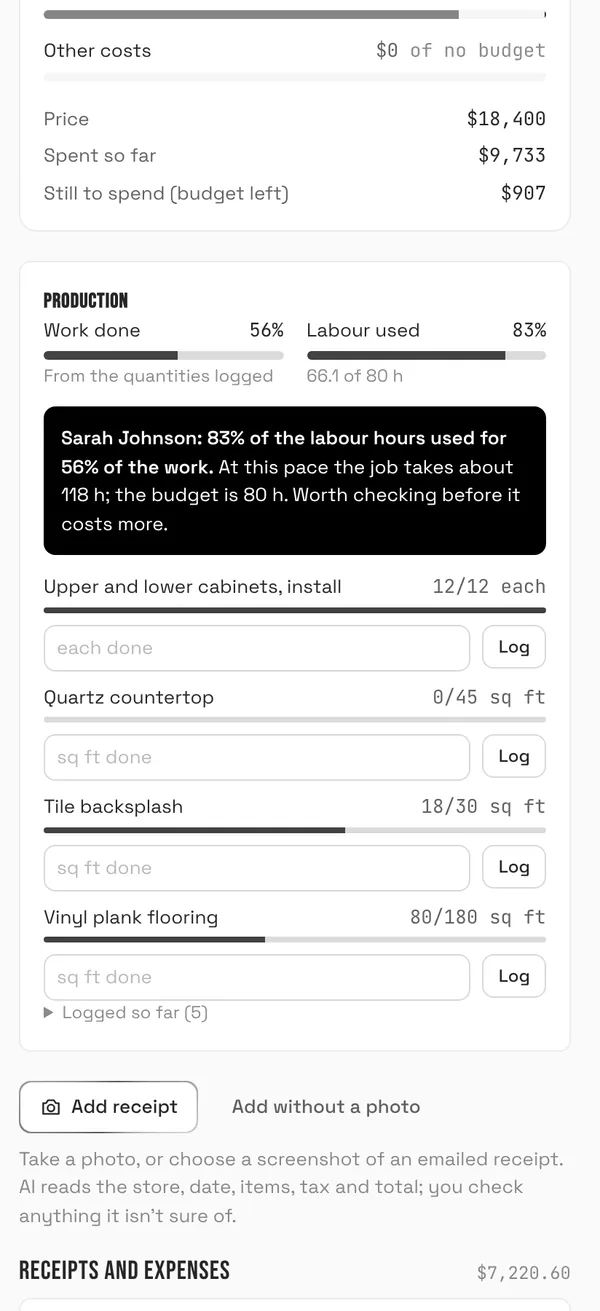
Tap "Add receipt" and take a photo (or pick a screenshot of an emailed receipt). The store, date, items, tax and total are read for you.
Anything unclear, or that looks like a receipt already added, is marked "Needs a check": open it, fix it, and tap "Looks right".
"Add without a photo" for things like a permit fee.
"Budget" sets the price, materials, labor hours and target margin. An accepted estimate fills it in for you.
Set each person's cost per hour on the Team page ("Labor cost per hour") so clocked time shows as labor cost. Owner hours count unless you switch that off.
Needs attention flags jobs going over budget or below your target margin.
Production and job pace
Where
Contact → "Costs" → "Production"
Who
Owner and office (the crew logs work done from the job's link)
Work done against the labour hours used, so you see a job running behind before it costs you.
Accept an estimate with quantities (like 32 squares or 120 ft). Each line can then be logged as it gets done.
The crew logs "Work done today" on the job's link, or you tap "Log" on the Production card.
"Work done" comes from the quantities logged (or the checklist, when there are none). "Labour used" is the hours clocked against the labour hours in the job's budget.
Once a quarter of the hours are used and they're 20 points or more ahead of the work, you get a warning, like "70% of the labour hours used for 45% of the work", with the hours the job would take at this pace.
The warning also shows in Needs attention as "Job pace", in that day's daily report and in the monthly report.
Set the labour hours in the job's "Budget". An accepted estimate fills in the rest.
Reports and the money summary
Where
Reports
Who
Owner and office
How the business is doing: revenue won, close rate by source, your receptionist's calls, a 90-day forecast, "Money in and out", where things are heading, and your monthly business reports.
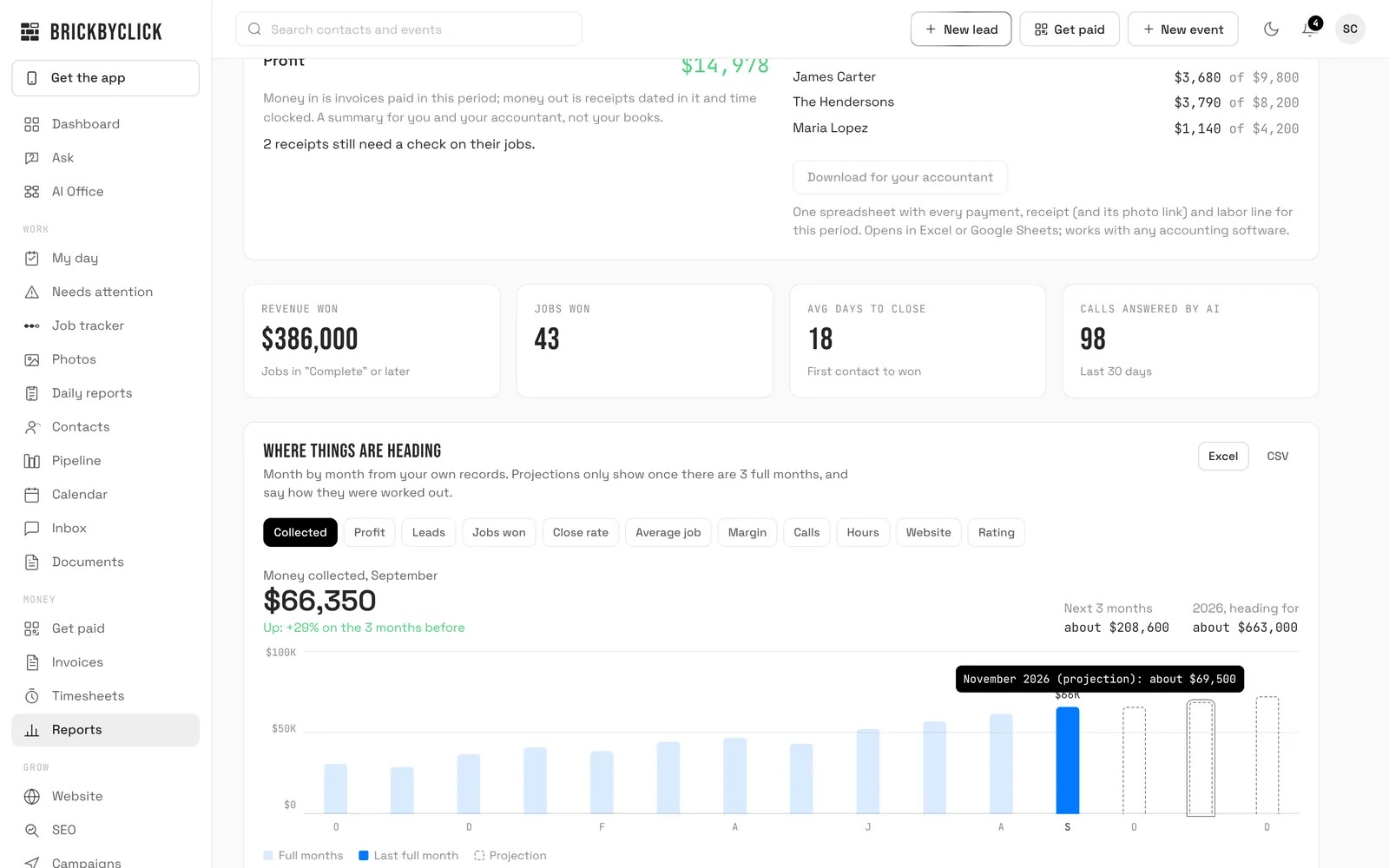
"Money in and out" shows invoices paid, sales tax, card fees, receipts, labor and profit for this month, last month, this year or last year, with profit by job.
"Download for your accountant" gives one spreadsheet of every payment, receipt (with its photo link) and labor line for the period. It works with any accounting software.
"Log completed job" adds a past job so your numbers are complete from day one.
"The next 90 days": money owed and coming in, open quotes, and how busy the crew is over the next 2 weeks.
"AI Business Advisor": a report here on the 1st of every month, with every number checked against your records and "Show the customers" behind each point. "Ask the advisor" answers your own questions.
"Bring in your history": the money you collected and spent before BrickByClick, from a spreadsheet. See Bringing in your past records.
The money summary is a report, not your books. Your accountant uses the download.
The download works with any accounting software. Using QuickBooks Online? Connect it on the QuickBooks page and send each checked receipt to it, with the photo attached.
The monthly business report
Where
Reports → "Monthly business reports"
Who
Owner and office
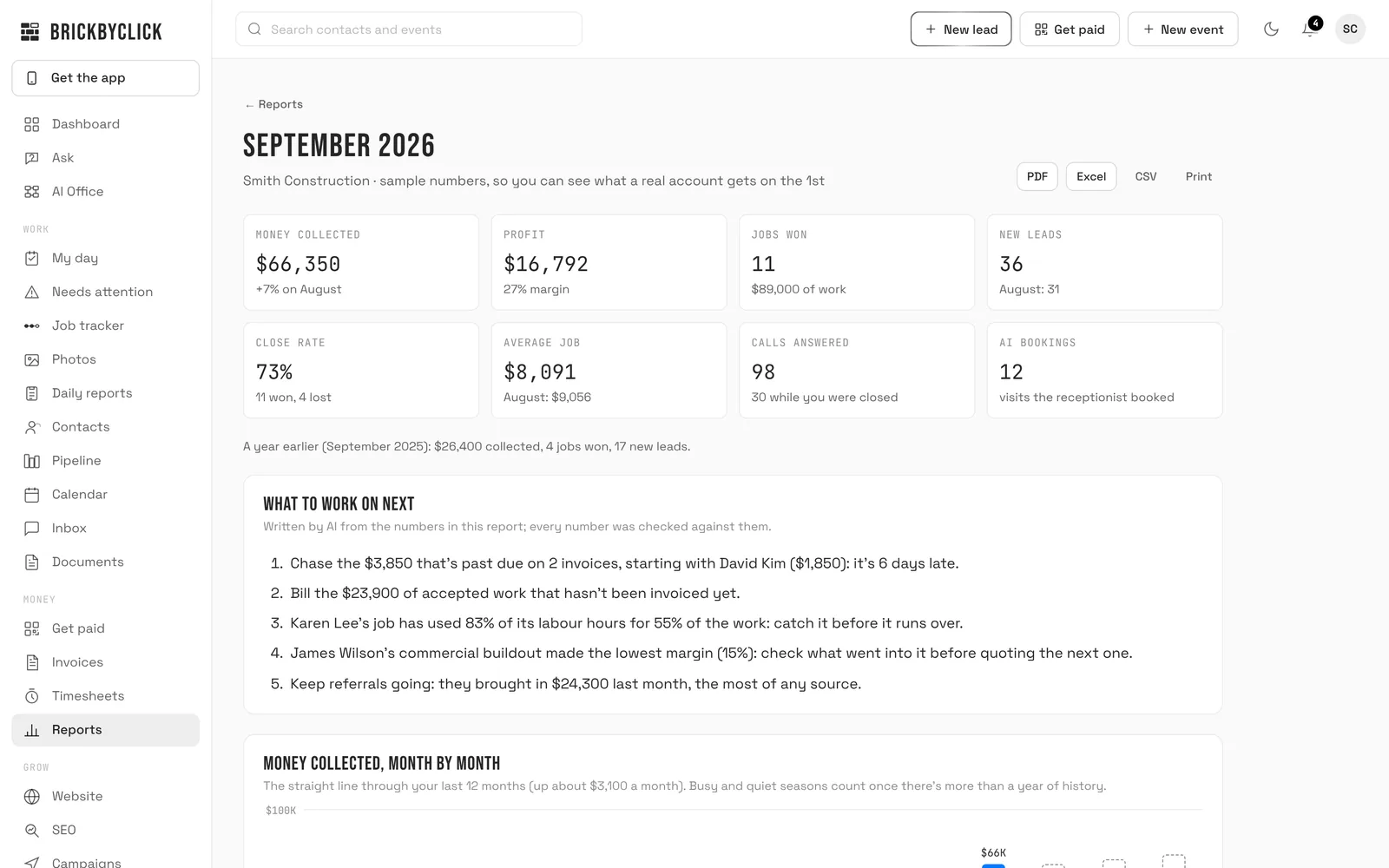
Last month in one report: money in, profit, every job finished and what it made, where customers came from, and what to work on next.
On the 1st, last month's report is made by itself and emailed to the owner at 8 AM, with the full report attached as a PDF.
In Reports, "Monthly business reports" lists your months. "Open" one, or "Make the report" for a finished month that hasn't been made yet.
Pick another month at the top. Download it as "PDF", "Excel" or "CSV", or "Print" it.
"Remake" makes it again from your records as they are now, after you've added a receipt or fixed an invoice, say.
Inside: the headline numbers, "What to work on next", money month by month, where things are heading, money in and out, where customers came from, jobs finished, hours and labour, calls, website and reviews, on the job, and what's coming up.
"What to work on next" is written by AI from numbers already counted, and every number in it is checked against them. If the check fails, the list is written straight from the numbers.
Turn the email off with "Monthly business report" on the Automations page. The reports stay in Reports either way.
Only finished months can be made, and a month with nothing in it is skipped.
Where things are heading
Where
Reports → "Where things are heading"
Who
Owner and office
Each number month by month, and where it's heading, worked out from your own records.
Pick a number: "Collected", "Profit", "Leads", "Jobs won", "Close rate", "Average job", "Margin", "Calls", "Hours", "Website" or "Rating".
Full months are solid, this month so far is striped, and projected months are outlined. Hover or tap a month for its value.
Under the chart, a line says how the projection was worked out.
"Every number side by side" shows them all in one table. "Excel" and "CSV" download 24 months.
Trends start once there are 3 full months of records.
With less than a year of history, a projection follows your recent pace, or the straight line through your months when it fits them well. Once there's more than a year, busy and quiet seasons count too.
A projection is an estimate. It's never counted as money in.
Bringing in your past records
Where
Reports → "Bring in your history"
Who
Owner and office
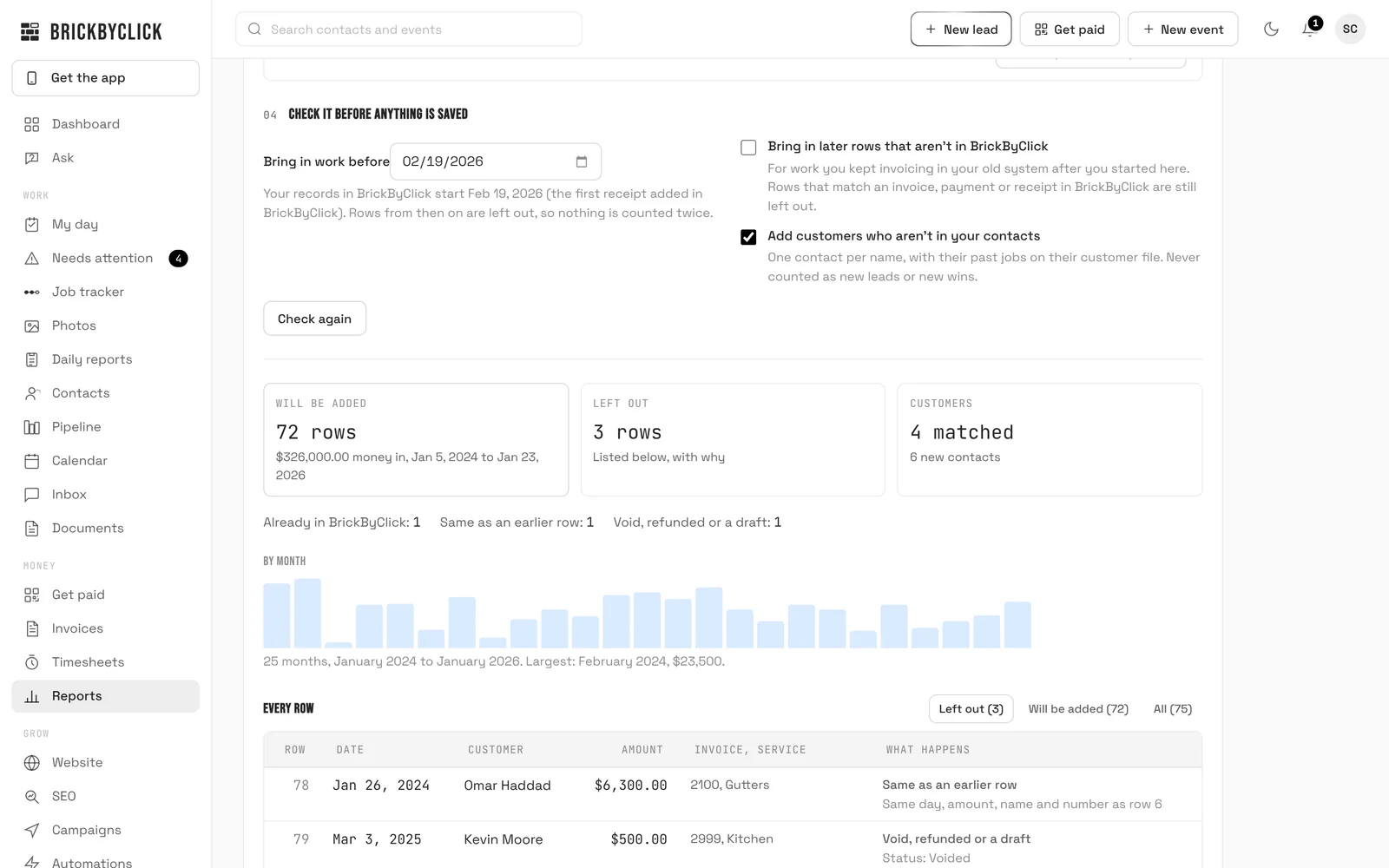
Bring in the money you collected or spent before BrickByClick, from a spreadsheet out of your old system or your accounting software, so trends, the money summary, the monthly report and each customer's file start with your real numbers. Every row is checked first, so nothing is counted twice.
Choose what's in the file: "Money in" (paid invoices or payments) or "Money out" (expenses or bills). Then "Choose a CSV or Excel file".
"Match your columns": your columns are guessed for you. Check the date, amount and customer (or supplier), and fix any guess.
"Bring in work before" starts on the day your records in BrickByClick start, so rows from then on are left out. Kept invoicing in your old system after you started here? Turn on "Bring in later rows that aren’t in BrickByClick". For money in, "Add customers who aren’t in your contacts" adds one contact per name, with their past jobs on their customer file.
"Check the file": see what "Will be added", what's "Left out" and why, money month by month, and every row.
"Bring in … rows" saves them. Brought in the wrong file? Under "Past imports", "Take it out" removes its rows, and the customers it added that nothing else uses.
Nothing counts twice: the same row in one file or two comes in once, and a row that matches an invoice, payment or receipt already in BrickByClick is left out as "Already in BrickByClick".
Not paid, void and refunded rows are left out, and so are wages from when the time clock started.
Past records never go to QuickBooks or into "Download for your accountant": they came from your books, so your accountant already has them.
An old Excel file (.xls)? Save it as .xlsx or .csv first. Up to 10,000 rows a file: split a bigger one by year.
Leads, jobs won, close rate and calls start from your records in BrickByClick. Bring your customers in with Contacts.
Automatic emails
What runs on its own
Where
Automations
Who
Owner and office
Switch each one on or off. Emails to customers come from "your business via BrickByClick" and replies go straight to you.
"Quote follow-up emails": 2, 5 and 10 days after a quote, until they answer or the job moves.
""How did we do?" check": the day after a job is complete. A low score goes to Needs attention.
"Google review requests": asks happy customers for a review with your Google link.
"Yearly service reminders": about a year after their last service.
"Payment reminders": on the due date, then 3 and 7 days late.
For you (on by default): "Instant lead alerts", "Your 7 AM daily summary", "Friday wins recap", "Monthly business report" (the 1st at 8 AM, with the PDF), and the "Spam call filter".
Fill in "Email settings" first: your business address (required by law in customer emails), your Google review link, and where replies go.
"Missed-call text-back" and "Visit reminder texts" show here once texting is on for your business (after your number is registered with the phone carriers).
Your website and getting found
Website
Where
Website
Who
Owner and office
See who visited your site and change it yourself.
"Visitors": visits, who "Tapped to call", "Opened booking" or "Filled out a form", and "Where they found you".
"Edit site": change your details, then "Review and publish". "History" → "Put it back" undoes a change.
"Photos": upload your logo, main photo, work photos and a photo per service, then "Publish photos".
"Move your site": scan your old website and keep what you want from it, and show your site on your own domain. See Moving from your old website.
"Requests": ask us for any other change (Front Office and up).
Not connected yet? The owner enters the 6-digit Website ID from your preview email under "Connect your website".
On Starter you make every change yourself in "Edit site" and "Photos".
Keeping your own website
Where
Website → "Visitors" → "Your own website"
Who
Owner (seeing it: owner and office)
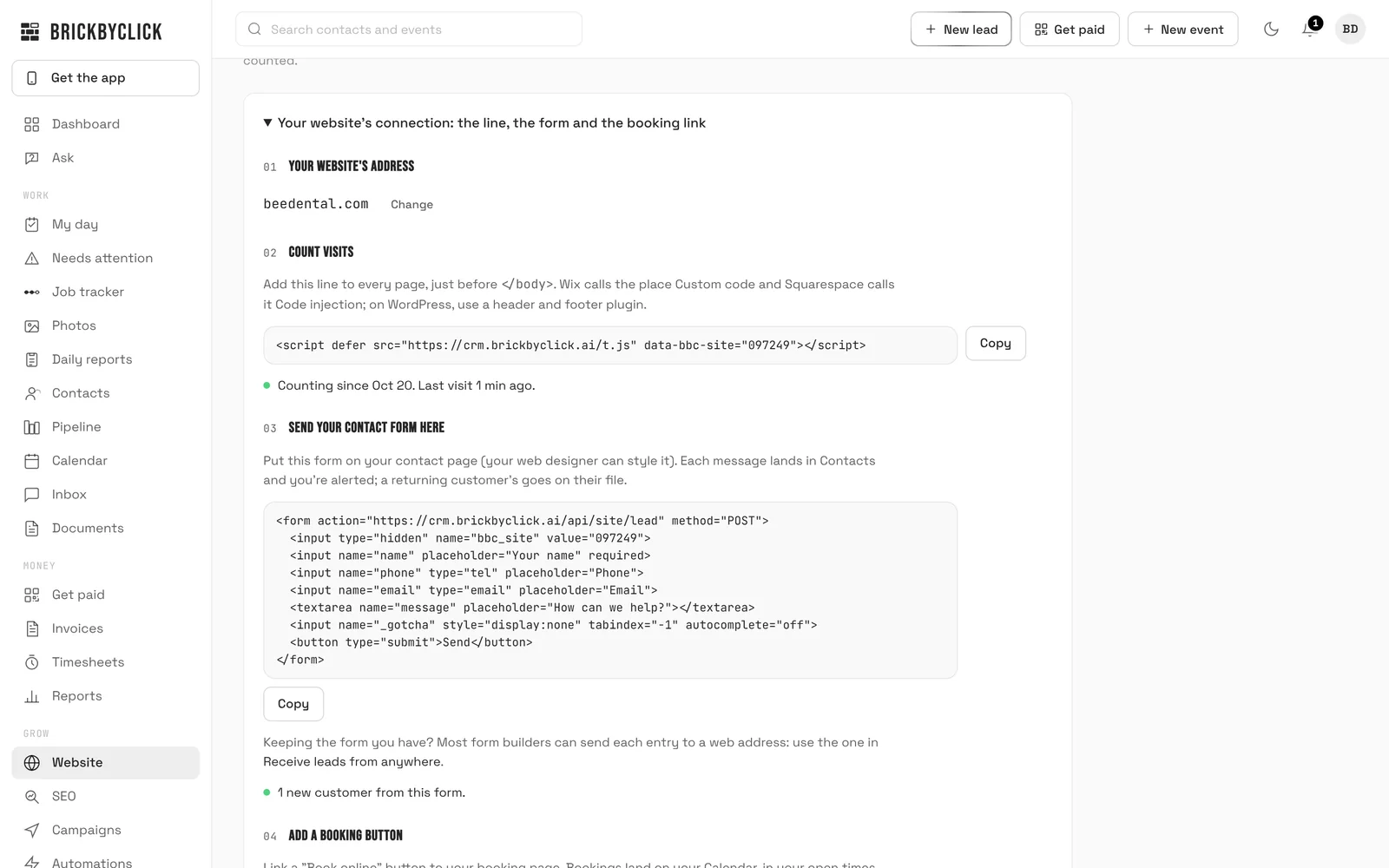
Keeping a website built somewhere else, like WordPress, Wix, Squarespace or your web designer's? Connect it, and its visits and contact form messages come to your CRM like the websites we build. Every plan.
"Your website's address": type it, like yourbusiness.com, and tap "Connect".
"Count visits": copy the line and add it to every page, just before </body>. Wix calls the place Custom code and Squarespace calls it Code injection; on WordPress, use a header and footer plugin. Open your website once: the first visit shows up within a few minutes.
"Send your contact form here": put the form on your contact page, or keep the form you have and send its entries to the web address in "Receive leads from anywhere" (Integrations).
"Add a booking button": link a "Book online" button to your booking page. Turn on online booking first if it's off.
Someone else manages your website? "Copy the steps for your web person" copies the line, the form and the booking link, ready to paste in an email.
Visits and messages count only from your own address, so a copy of your page somewhere else doesn't add to them. The line uses no cookies.
Each message lands in Contacts and you're alerted. A returning customer's message goes on their file instead of making a new contact.
On Front Office and up, choosing "I'm keeping my current website" in Get set up connects it for you.
"Edit site", "Photos" and "History" are for the websites we build: change yours where it was built.
Moving from your old website
Where
Website → "Move your site"
Who
Owner and office (connecting the domain: owner)
Scan your old website and keep what you want from it, show your new site on the domain you already own, then cancel the old website. Your email keeps working the whole time. You can scan before your new website is published.
"Scan your old website": type its address and tap "Scan my old website". Tick the details you want (contact details, address, the towns you serve, links, years, warranty, license line) and pick where each photo goes (logo, main photo or gallery), then "Use what's ticked and publish". Nothing changes until you tap it.
New website not published yet? Tap "Save for my new website" instead. We keep what you picked (photos are saved right away) and put it on your site when it's published, then email you. A detail that was changed on the new site in the meantime is left as it is.
"Your domain" (once your new website is published): type your domain, like yourbusiness.com, and tap "Connect my domain". We copy your email settings first, then show you two nameservers and the steps for the company you bought the domain from.
At that company, replace the nameservers with our two and save. Tap "I've changed them: check now", or just wait: it usually shows up within an hour, sometimes up to a day. We set up the rest and email you when your site is live on your domain.
"Leaving your old website company": once you're live, cancel only the old website plan. Keep your domain and your email.
Your domain isn't transferred: it stays yours, where you bought it, and you keep renewing it there.
Bought your domain through Shopify, or registered it with Cloudflare? Those can't be pointed at us this way. Call (888) 533-5784 and we'll do it with you.
Use other addresses on your domain, like shop.yourbusiness.com? Tell us before you switch so they keep working.
Only bring over photos that are yours.
Your own domain comes with Front Office and up. On Starter, "Scan your old website" works and your site stays on its brickbyclick address.
SEO and reviews
Where
SEO
Who
Owner and office
Getting found on Google and in AI answers, in one place.
"Results": what people searched before they found you (tap "Connect Google"), and the keywords you track month by month. See Keywords, month by month.
"Reviews": your review link and a QR code to show customers, and "Write a reply" drafts replies.
"Blog": "Suggest topics", "Write it now", then "Approve".
"What callers keep asking" (top of "Blog"): questions asked on your calls 3 times or more. Tap "Write a blog post" for a draft about one, or "Add to questions page" to put them all on your questions page. You get a notification when a question reaches 3 times.
"Google & listings", "Website check", "Local links" and "AI search" show what to fix and help you do it.
Some items are done for you on Growth and Total Growth. Your Google Business Profile matters most for the map results.
Keywords and Google search, month by month
Where
SEO → "Results" → "Keywords, month by month"
Who
Owner and office (Front Office and up)
Your spot on Google for the searches that matter to you, kept month by month from Google Search Console, with your clicks from Google for the last 12 months.
Connect Google in "What people searched", or tap "Ask us to set it up" and we add your website to our Search Console.
Type a search, like "roof repair", and tap "Track it", or tap one under "From your searches". Track up to 10. Each one's past months come in within a minute.
The table shows each keyword's "Spot" last month, the "Change" on the month before, its clicks and how often you were shown, and the last 12 months as a small line: higher on the line is a better spot.
"Every month" shows them all side by side, month by month, with this month so far.
The monthly business report has a "Google search" part: clicks, times shown, your average spot, your keywords and your top searches.
A keyword counts every search that contains it: "roof repair" includes "roof repair near me".
Spot is your average position on Google, 1 being the top. A dash means you weren't shown for it that month.
Google's numbers are about two days behind, and a month can still change a little until a few days after it ends.
It's Google's average across everyone who searched, not where you show on the map from one street.
Map rankings
Where
SEO → "Map rankings"
Who
Owner and office (Growth and Total Growth)
Where you show up in Google Maps across your area. For each keyword, Google Maps is searched from 49 points around your business, in a 7 by 7 grid; each dot shows your spot from there.
Open "Grid settings": put keywords on the map (3 on Growth, 5 on Total Growth), check where your business is ("Find it"), and pick the distance between points.
Scans run on their own: on the 1st of each month on Growth, every week on Total Growth. "Scan now" runs one straight away, a few times a month; it takes about a minute.
The tiles show your "Average spot", how many points you're "In the top 3" and "In the top 20", and the change on the scan before. "Numbers" shows the grid as numbers instead of a map.
Tap a dot to see who shows up at that point. If you weren't found anywhere, tap the middle dot and choose "That's us" on your business.
Total Growth: "Who you're up against" lists the businesses that show up most, with their ratings and reviews; "Their map" shows the grid as it is for them. "Suggest what to do" writes what to work on first, from the scan's numbers.
Green is 1 to 3 (the three Google shows with the map), blue 4 to 10, grey 11 to 20, and a dashed dot means you're not in the top 20 there. A point outside the top 20 counts as 21 in the average.
A plain service word works best ("plumber", "roof repair"): the search already comes from that spot.
Your business is found by its phone number or website, and matched exactly from then on.
The monthly business report has a "Map rankings" part with each keyword's newest scan.
Map rankings show progress; nobody can promise a spot on Google.
Your team and account
Adding your team
Where
Team
Who
Owner
Everyone gets their own login. Jobs are assigned by name.
Under "Add someone", enter their name, email and role, then "Send invite". They set their own password.
People you named on your setup call with BrickByClick show under "From your sales call": tap "Send invite" for each one when you're ready.
Change a role any time, "Resend invite", or "Remove" someone (their access ends at once).
"Get your team on the app" shows a QR code they scan to install the app.
"Edit skills" (e.g. "furnaces", "tile") helps "Who should go?" pick the right person. "Labor cost per hour" sets what each person's time costs, for job profit.
Lost phone? "Reset two-step" next to their name lets them sign in and set it up again.
Connecting other apps
Where
Integrations
Who
Owner
Bring leads in from anywhere, and send what happens in your CRM to the other apps you use.
"Receive leads from anywhere": tap "Turn on" for a private address and key. Leads sent there (from an automation tool like Zapier or Make, or a form) arrive as contacts.
"Send updates to other apps": paste a webhook address from your automation tool, tap "Connect", then "Check & save". New leads, stage changes, jobs won, finished calls and booked or changed visits are sent there.
"Online payments" opens your payments setup (Invoices → Settings).
"Check all" (or the check on each card) tests that every connection works.
Coming soon, with "Request" to tell us you want it: Google Calendar, Calendly, Gmail and Outlook, Google Business Profile, Facebook and Instagram messages, Jobber, Housecall Pro.
Settings
Where
Settings
Who
Everyone (setup changes: owner)
Set the CRM up the way your business works.
"Business info", "Pipeline stages", "Service types" and "Field names" (call your jobs "projects" or "work orders" if you like).
"Job checklists": lists your crew ticks off on a visit.
"Download your data": contacts, visits, invoices, payments and calls as spreadsheets, any time.
Refer a business
Where
Settings → "Refer a business"
Who
Owner and office
Share your link or QR code. When a business you sent signs up and pays its first month, you get a free month and they get 50% off their first month.
Tap "Copy the link" or "Share", or let them scan your code.
Activity log
Where
Activity
Who
Owner
Who changed what in your CRM, and when: contacts, visits, estimates, invoices, receipts, the time clock, sign-ins and the team.
Filter by area or person, or search.
Your plan and cancelling
Where
Settings → "Your plan"
Who
Owner
Month to month. No setup fees.
To cancel, tap "Cancel my plan". It ends at the end of your billing month, and your data stays downloadable.
On the limited-time Front Office price, you pay $249 a month for your first 12 months, then $399.
Starter: "Manage billing" opens the billing page, where you change your card, download receipts or cancel. If a payment doesn't go through, a note at the top of your CRM asks you to update your card, and Stripe tries again. If your plan ends, everything you added is kept: "Restart Starter" picks up where you left off.